Tracking Goals
A tracking goal is one that has a clear finish line — "lose 5 kg", "hit a 100 kg back squat", "reach 15% body fat", "complete a 5K". There's a starting point, an ending point, and a progress bar between them. When the bar reaches the end, the goal is done.
Use this when the question you're trying to answer for your client is "have we got there yet?" For recurring weekly behaviours like steps, sleep, or training frequency — "is she doing this consistently?" — use a Weekly Goal instead. They work very differently.
When a tracking goal is the right choice
Use a tracking goal for any progression toward a target. The metrics available:
- Weight — body weight toward a target (loss or gain)
- Body fat percentage — body composition toward a target
- Exercise weight — toward a lift PR (e.g. "100 kg back squat")
- Exercise reps — toward a rep PR on a specific exercise
- Exercise duration — toward a hold or work-set duration
- Free text — qualitative goals without numeric tracking ("Run a 5K", "Complete 30-day cold plunge challenge")
For weekly habit targets — steps, sleep, water intake, training frequency — use a Weekly Goal instead. Those auto-track from check-ins; tracking goals (mostly) need a current value updated by you.
Setting up a tracking goal
Open a client's dashboard, scroll to Goals, and click Add Goal.
Fill in:
- Metric — what you're tracking
- Target — where you and she are heading
- Start value — where she's beginning from. For weight, this auto-fills from her latest check-in. For exercise PRs, you'll usually type in her current best.
- Duration (weeks) — how long the goal runs. The system calculates the end date automatically.
- Description (optional) — context, motivation, or anything you want to remember about why this goal exists
For exercise goals, you'll pick the exercise from your library. Exercise reps goals additionally ask whether it's a bodyweight movement or has external load (and how much) — that's how the goal knows which sets in a workout count toward the rep target.
Each client can have up to 10 active goals at a time. In practice, two or three is the sweet spot — see Setting Client Goals for the strategy on how many, what kind, and how to pick timelines.
Round the duration up, not down. If sustainable weight loss is 0.5 kg/week and she's losing 8 kg, that's 16 weeks of progress — set the goal to 18 or 20 to buffer for holidays, illness, and slow weeks. Beating a goal early is motivating; running out of time is demoralising.
Reading the card
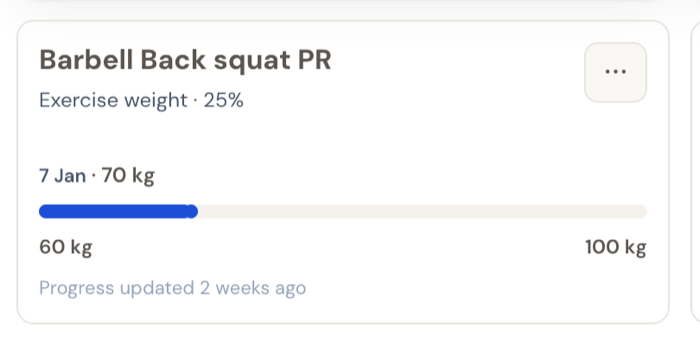
Once a tracking goal is set up, here's what shows on the dashboard:
- Title in plain English (auto-generated from the metric and target for metric-based goals; for free-text goals you write the title yourself)
- Metric and progress percent — at-a-glance read of how far she's come
- Current value as the highlighted number, with the date it was last updated
- Progress bar filled from start to current, with start and target labelled at each end
- "Progress updated X ago" so you know how fresh the number is
For weight-loss goals, the progress calculation accounts for direction — going from 90 kg to 75 kg with a current of 82 kg shows roughly 53% complete, not a negative number.
Updating progress
How the current value moves depends on the metric:
Auto-updated from check-ins. For Weight, the current value pulls from her latest check-in (or any direct body measurement you log) — you don't type anything. When she submits her check-in with this week's weight, the goal updates automatically.
Auto-updated from logged workouts (if she uses the workout logger). For Exercise weight and Exercise reps, if your client logs her workouts in the app, the goal will pick up new PRs automatically — no need for you to type them in. If she doesn't use the workout logger, you'll update these manually.
Manually updated by you. For Body fat percentage and Exercise duration — and for Exercise weight / reps when she isn't using the workout logger — click Update progress on the card menu and type the new current value.
Free-text goals don't have an update button at all — there's no number to track, just a description that sits on the dashboard until the goal is ended.
You can manually override an auto-updated value any time using the same Update progress menu — handy when she sent you her real weight on Telegram before the check-in came in. Note that the next check-in (or logged workout) will overwrite a manual value, so use this for nudges, not to "fix" the trajectory long-term.
Adjusting as life happens
Goals aren't sacred. Life changes, plans change, sometimes the original target was just wrong. From the ⋯ menu on any goal you can:
Edit — change the description, target, start value, or end date. (For free-text goals you can also edit the title; for metric-based goals the title is generated from the metric and target.) Use this when something about the goal needs to shift but the goal itself is still valid. Don't abandon and recreate just to change the target — you'll lose the progress history.
Update progress — for manually-tracked metrics. Type in the new current value.
Progress notes — capture observations and decisions (more on this below).
End goal — wrap it up, either as completed or abandoned. The dialog gives you both options (more on this below).
The right time to edit a goal vs end and replace it:
- Tweaking the target or extending the date → Edit. Keeps the progress history attached.
- Switching the metric, or scrapping the goal entirely → End and create a fresh one. The history of the abandoned goal is preserved separately so you can refer back.
Closing the loop — celebrate or course-correct
When you click End goal from the card menu, this dialog appears.
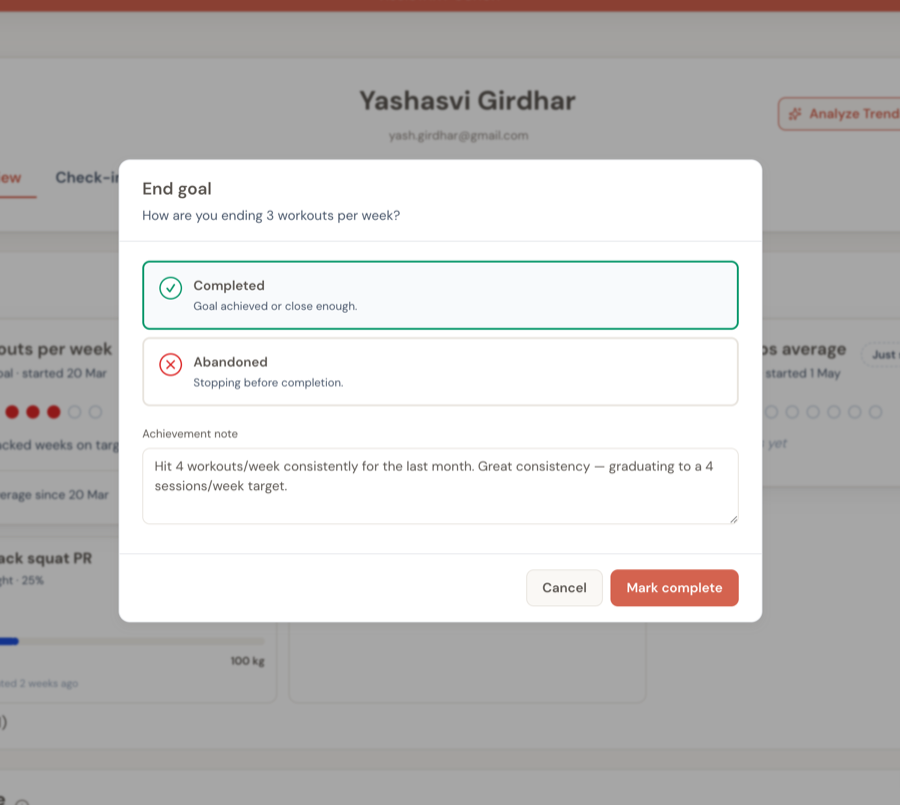
You pick one of two outcomes:
- Completed — the goal was achieved, or close enough that you're calling it a win. The card moves to the History section, marked as a green completion.
- Abandoned — you're stopping the goal before completion. The card moves to History too, but is marked distinctly so you can see which goals ended this way.
The note is optional but valuable. For a completion, this is the celebration: "You went from 92 kg to 80 kg in 22 weeks. Your consistency with check-ins and training made this happen — let's lock that in with a maintenance phase next." For an abandoned goal, the note frames the reason — "Replaced by a more relevant goal" or "Timeline was unrealistic for current circumstances" reads very differently to "Couldn't keep it up." Your client sees the historical card and the note when they look back.
Abandoning a goal isn't failure, but it can feel like it to your client. Frame the abandonment as a strategic decision in the note, and immediately create the replacement goal. An abandoned goal without a successor leaves a void; a replaced goal is a course correction.
Capturing decisions as progress notes
Progress notes on a goal are a written record of what happened along the way and why decisions got made. They're visible to both you and your client, which makes them a powerful accountability tool — and a useful memory for future-you when you're reviewing a client before writing their next plan.
What to write progress notes about:
- Milestones — "Hit 80 kg today, halfway to target. Rate of loss consistent at 0.4 kg/week."
- Coaching decisions — "Extended goal by 4 weeks. Holiday travel cost 3 weeks of progress. New target date is realistic."
- Client commitments — "Agreed to prioritise sleep this month — targeting 7+ hours as the lever for the last 3 kg."
- Pattern changes — "Step count dropped from 10k to 6k over three weeks. New job has longer commute. Adjusted target."
What progress notes are not for: the weekly check-in response. Notes are about the arc of the goal, not what happened this specific week.
What your client sees
Goals appear on her client app alongside yours, with a few key differences:
- Active goals show with progress bars and current values — same as you see
- Manually-tracked goals (exercise PRs, free text) get an "Update progress" button — clients can record their own PRs there too
- Auto-tracked goals show the current value but no update button — they update from her check-ins
- Exercise goals have a trend icon beside the goal name — she can open her performance graph and switch to the workout history behind it
- Progress notes are visible read-only — she can see what you wrote but can't edit them
- A toggle to show completed/abandoned goals with their notes — useful for revisiting wins during a hard phase
This shared visibility is part of what makes goals motivating. She's not waiting for a coach update to know how she's doing; she can see the progress bar move in real time.
The History section
Both completed and abandoned goals land in a collapsible History section at the bottom of the Goals area. Useful for:
- Reviewing what a client has accomplished over time (especially during a tough phase)
- Understanding what goals were adjusted and why
- Setting context for future goal-setting conversations — "We tried this in March; here's what worked and what didn't"
Don't hide bad outcomes here. An abandoned goal in the history with a thoughtful reason note is a teaching moment for the next goal you set together.
Tracking goal vs weekly goal — the one-sentence test
If the question is "has she reached this number yet?" → tracking goal.
If the question is "is she doing this consistently?" → weekly goal.
You'll usually have both running for a client at the same time. Tracking goals capture the result you're heading for; weekly goals capture the behaviours that drive it. They're complementary.
Related guides:
- Weekly Goals — for recurring weekly habits like steps, sleep, water, workouts
- Setting Client Goals — strategy for picking how many, what kind, and what timelines
- Onboarding a New Client — setting initial goals as part of the onboarding workflow
- Handling Plateaus — when goal progress stalls and what to do about it