Welcome to your client app
Your coach uses Assistant Coach to power your private client app. This is the place where you submit weekly check-ins, see your meal plan and workout plan, track your goals, and log your training sessions. Everything is organized for your phone — most clients open the client app from their phone home screen each week.
Your coach has set the look and feel: the name at the top of the client app is your coach's brand, not "Assistant Coach". So if you see "FitLife Coaching" or "YG Coaching" at the top, that's normal — it's still the right place.
If your coach gave you a specific link, that link is your home. Bookmark it.
Setting up your account
When your coach added you, they sent you an email with the subject "Your coaching app with [your coach's name] is ready" and a button that says "Set Up Your Account". Tap that button and choose a password. That's it — once you've set your password you're signed in and dropped straight into your client app.
If you can't find the email, check your spam folder. If it's still missing, message your coach and ask them to resend it.
Signing in again later
After you've set up your account, signing in from a new device looks like this:
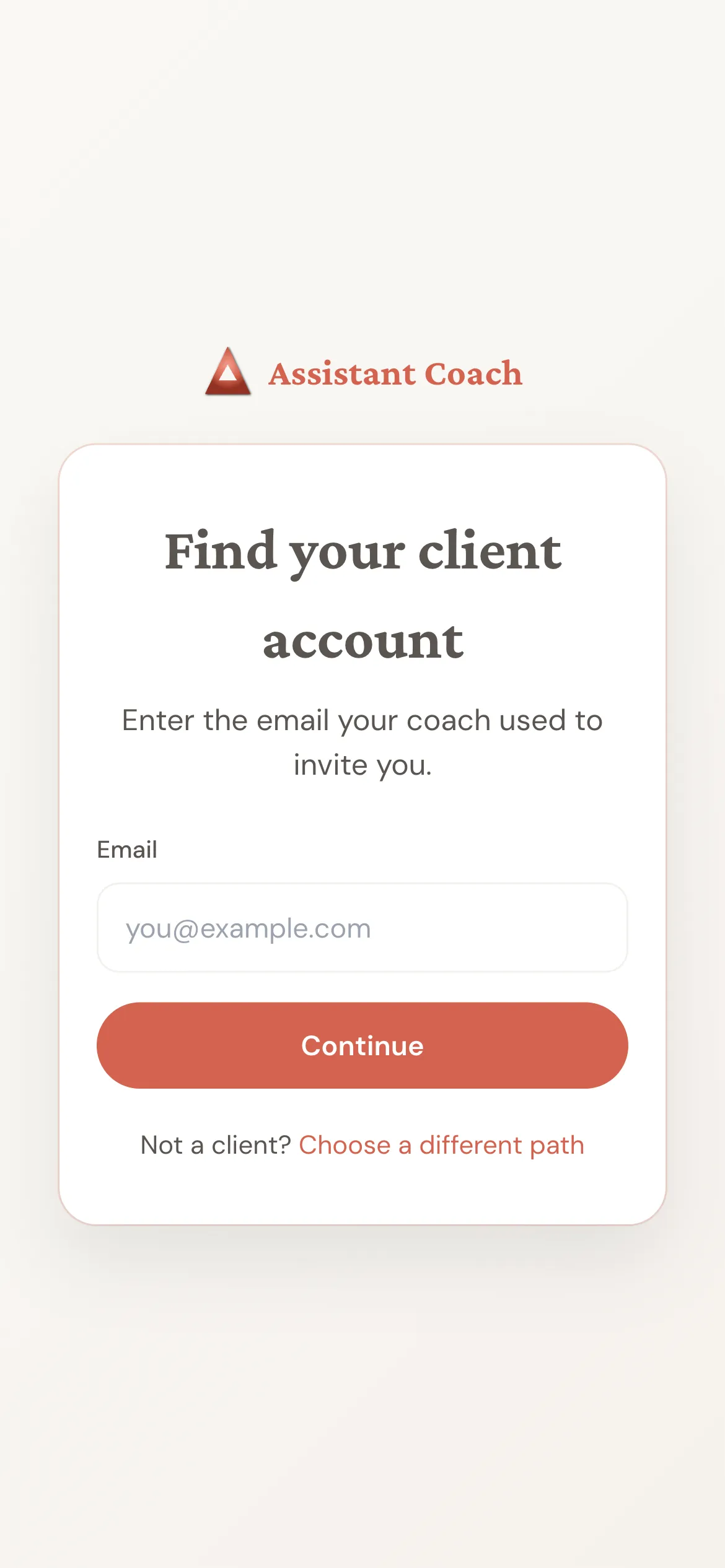
Enter the same email your coach used to invite you and tap Continue. You'll be asked for your password (or to sign in with Google if you set that up).
If you're brand new — the intake form
The very first time you open your client app, you may see a single screen asking you to fill in an intake form. This is normal. Your coach uses your answers to build your first nutrition and training plan, so spend a few minutes giving thoughtful answers.
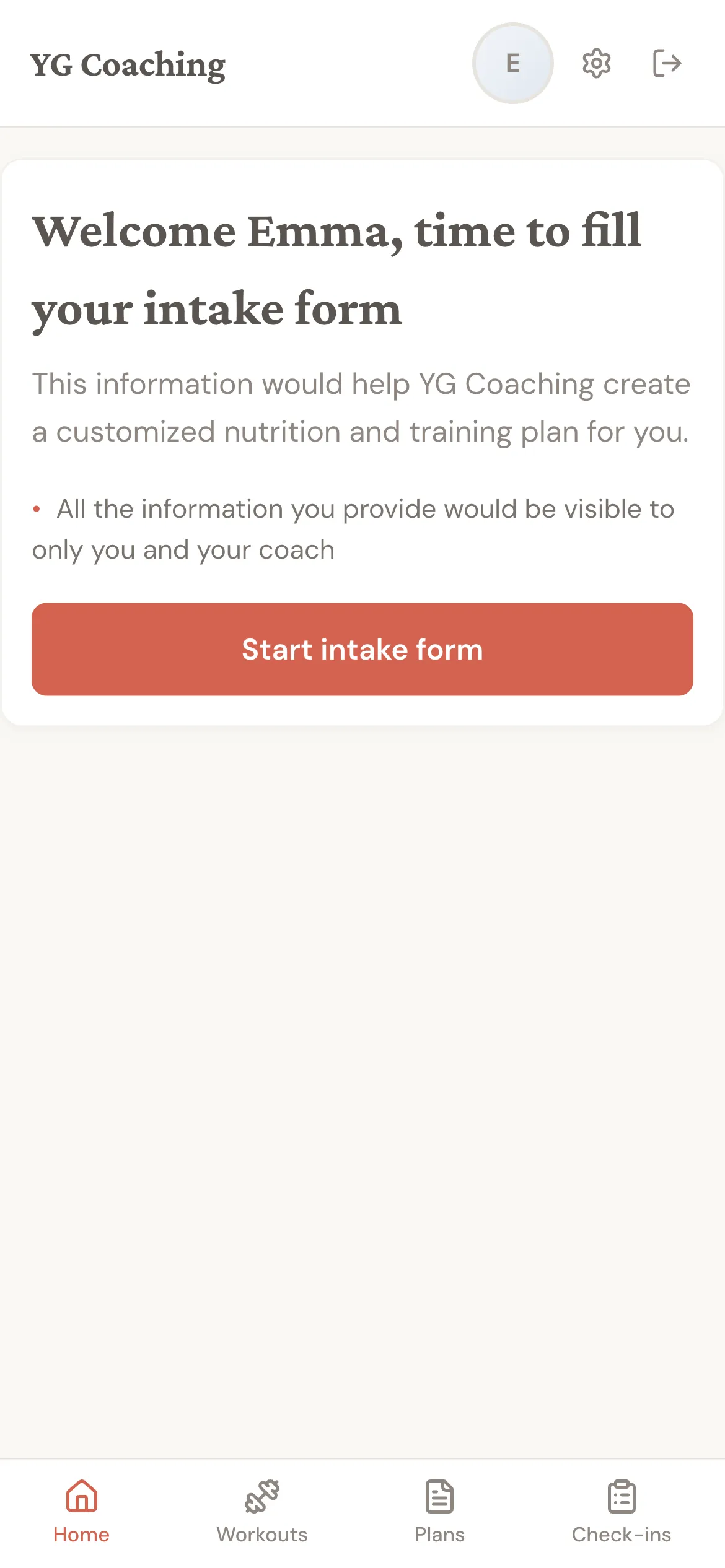
Once you submit it, the client app opens up with check-ins, goals, and plans. Your coach will get to work building your plan based on what you wrote.
If you see "Your coach is preparing your intake form. Check back soon," it just means your coach hasn't picked the form yet. Give them a day or so.
Your home page
After you log in (and once any intake form is done), this is what your home page looks like:
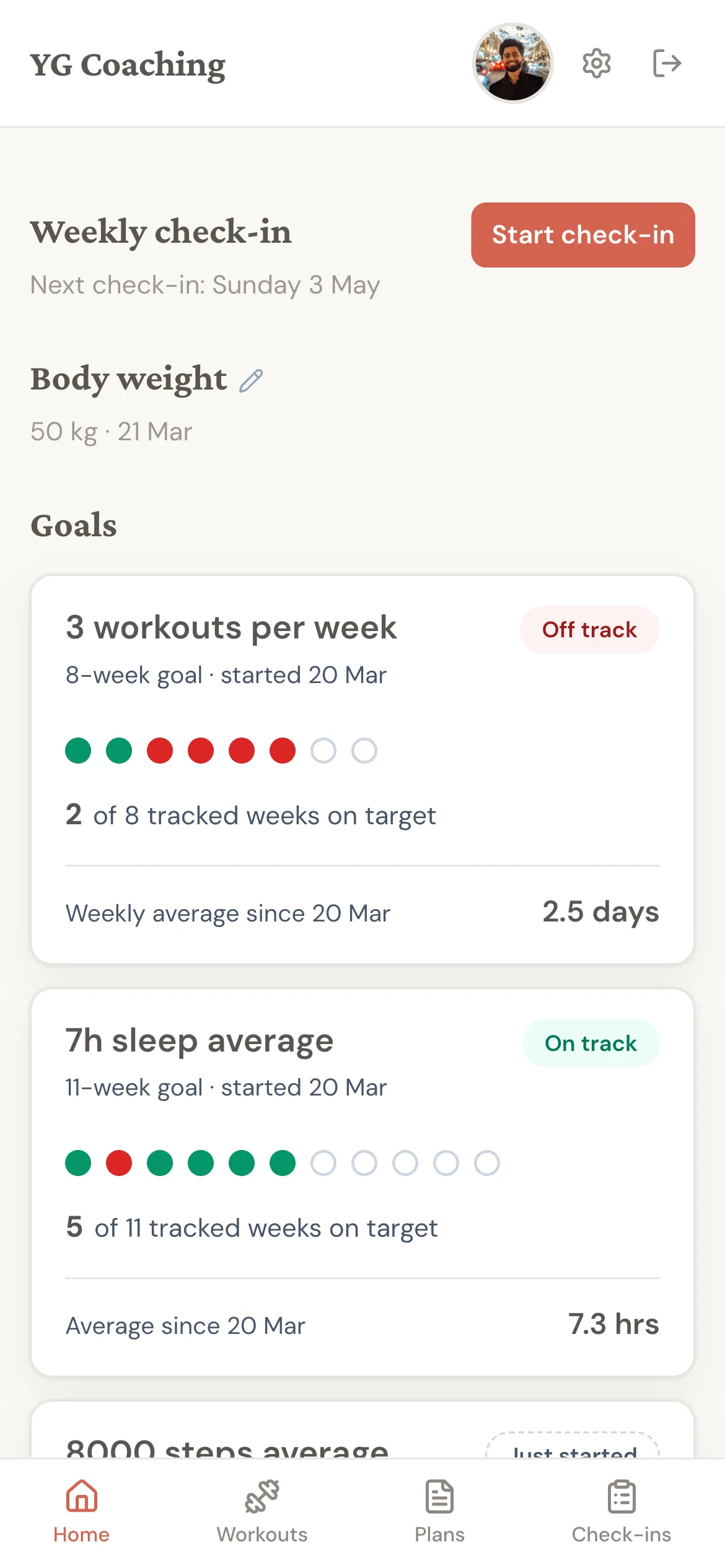
Three things to know:
- Weekly check-in is at the top. The button says "Start check-in" each week — tapping it opens the check-in form. If you've already started filling it in and stepped away, the button changes to "Continue check-in" so you can pick up where you left off.
- Measurements lets you log weight or tape measurements without doing a full check-in, then review the trend. See Log and review measurements.
- Goals show your progress for any goals your coach (or you) have set. Each goal shows whether you're on track for the period.
The bottom of every screen has a navigation bar with Home, Workouts, Plans, and Check-ins — that's how you move around.
Submitting your weekly check-in
This is the most important thing you'll do every week. Your coach reads your check-in to understand how the week went and to adjust your plan.
Tap "Start check-in" from your home page. The form has a few sections — body measurements, optional progress photos, a few short reflection questions, and any custom questions your coach added.
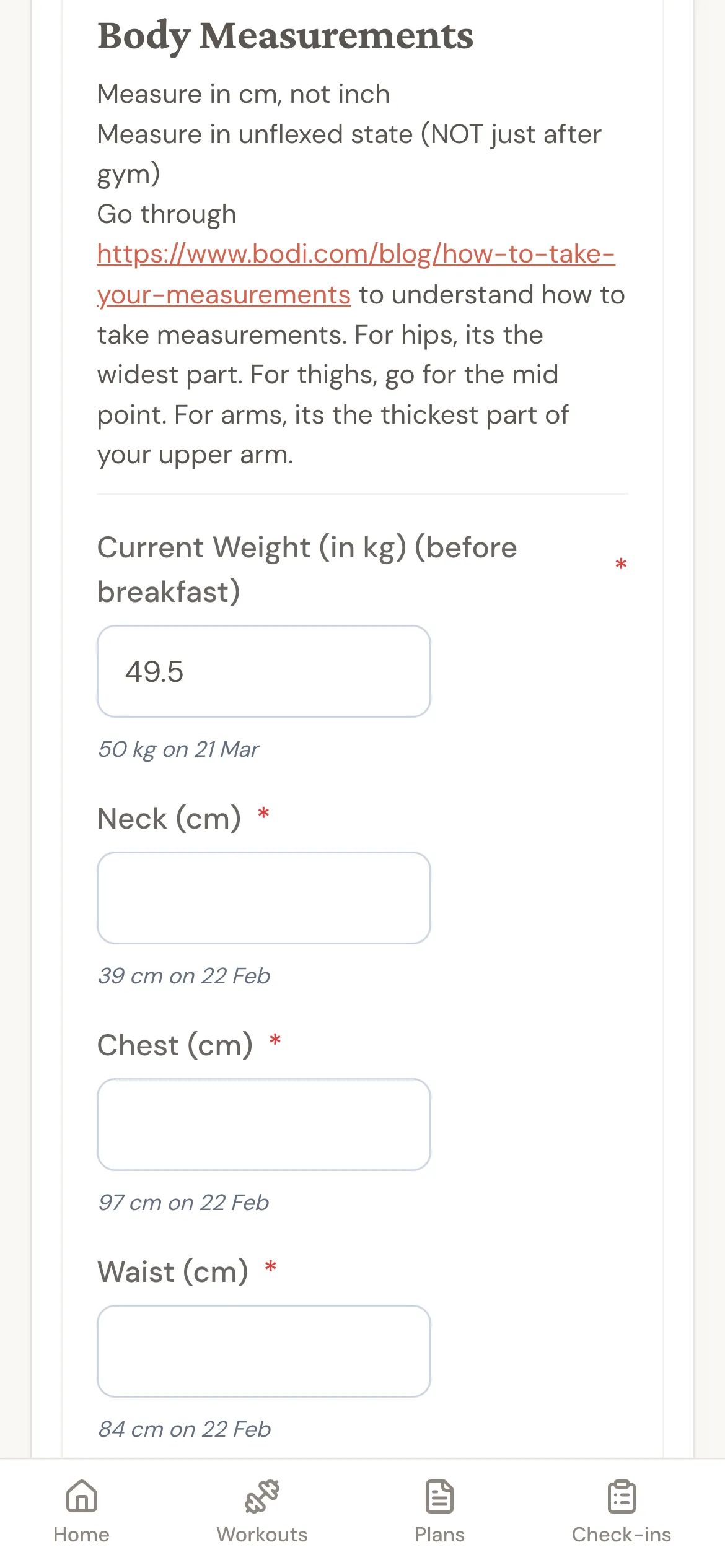
A few tips:
- You don't have to finish in one go. Your answers (except photos) save automatically. Close the app, come back tomorrow, your work will be there waiting.
- Photos are not saved in drafts — you'll need to attach them in the same session you submit. So if you plan to include progress photos, do that last.
- Be honest about how the week went, even when it wasn't great. Your coach can only adjust if they know what's actually happening.
When you're done, tap "Submit check-in" at the bottom. Your coach will see it the next time they open their dashboard.
Tracking your goals
Goals are how your coach (or you) keep score on what you're working toward — things like a target body weight, a number of workouts per week, a sleep average, or a specific exercise PR.
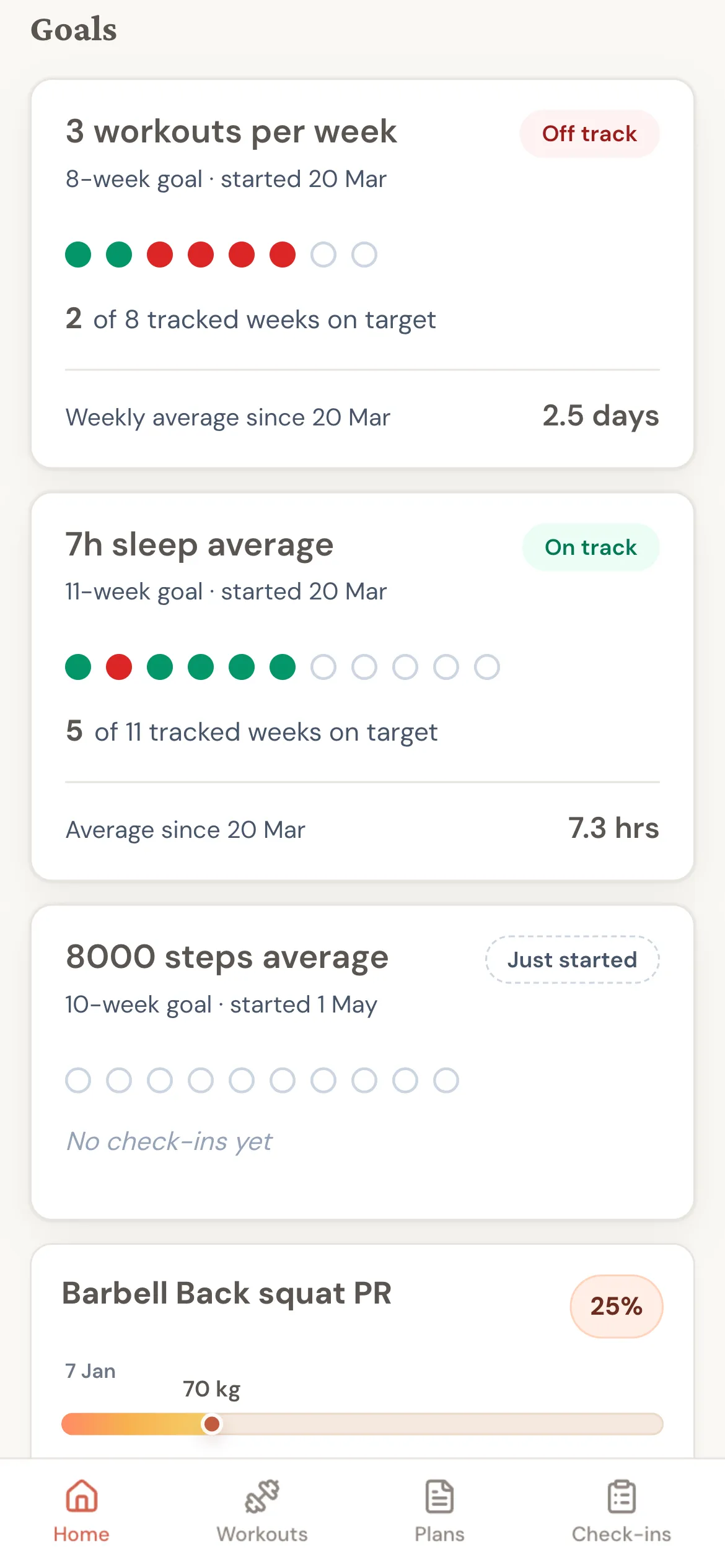
Each goal shows a status label — for example On track, Off track, Just started, Hitting recently, or Needs attention. The label updates as you submit more check-ins.
For some goals (like an exercise weight PR), you can update progress yourself by tapping "Update progress". For most goals tied to your check-in (like sleep or step counts), the app updates them automatically each time you submit a check-in.
If your coach has added a note about a goal, you'll see a "View progress notes" link on the goal card.
Your plans — meals and workouts
Tap "Plans" in the bottom nav to see your meal plan and workout plan.
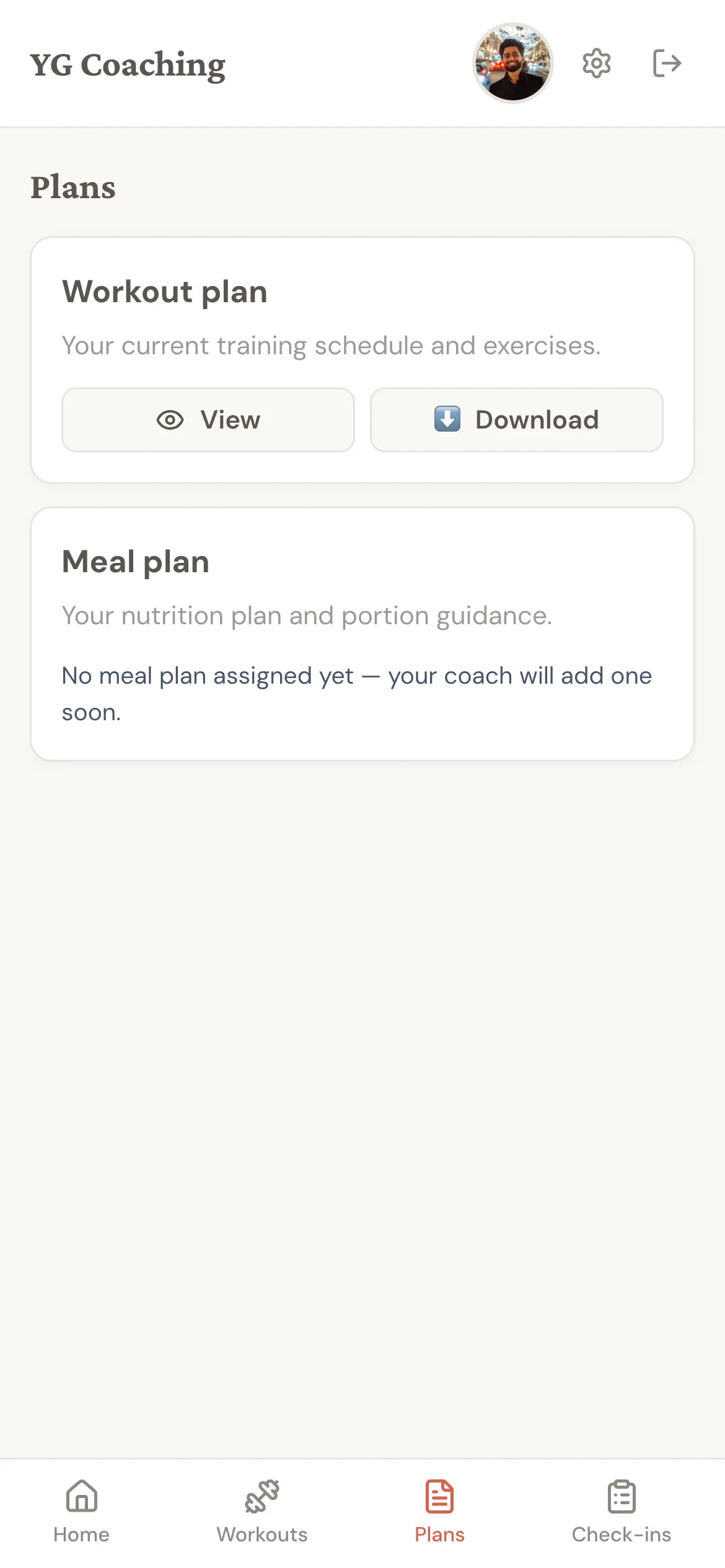
Each plan has two buttons:
- View opens the plan PDF in your browser for a quick look.
- Download saves the PDF to your phone. Handy for offline reference at the gym or kitchen.
Either button always pulls the latest version. If your coach updates your plan, the next time you tap View or Download you get the new one — you don't need a new link.
Your coach may also share extra PDFs or videos on this page, such as a welcome guide, nutrition handout, or onboarding video. These appear under Guides & videos from your coach below your meal and workout plans. See Guides and videos from your coach for more detail.
If a card says "No workout plan assigned yet" or "No meal plan assigned yet," your coach is still building it. They'll let you know when it's ready.
Logging your workouts
If your coach has set up training sessions for you, tap "Workouts" in the bottom nav.
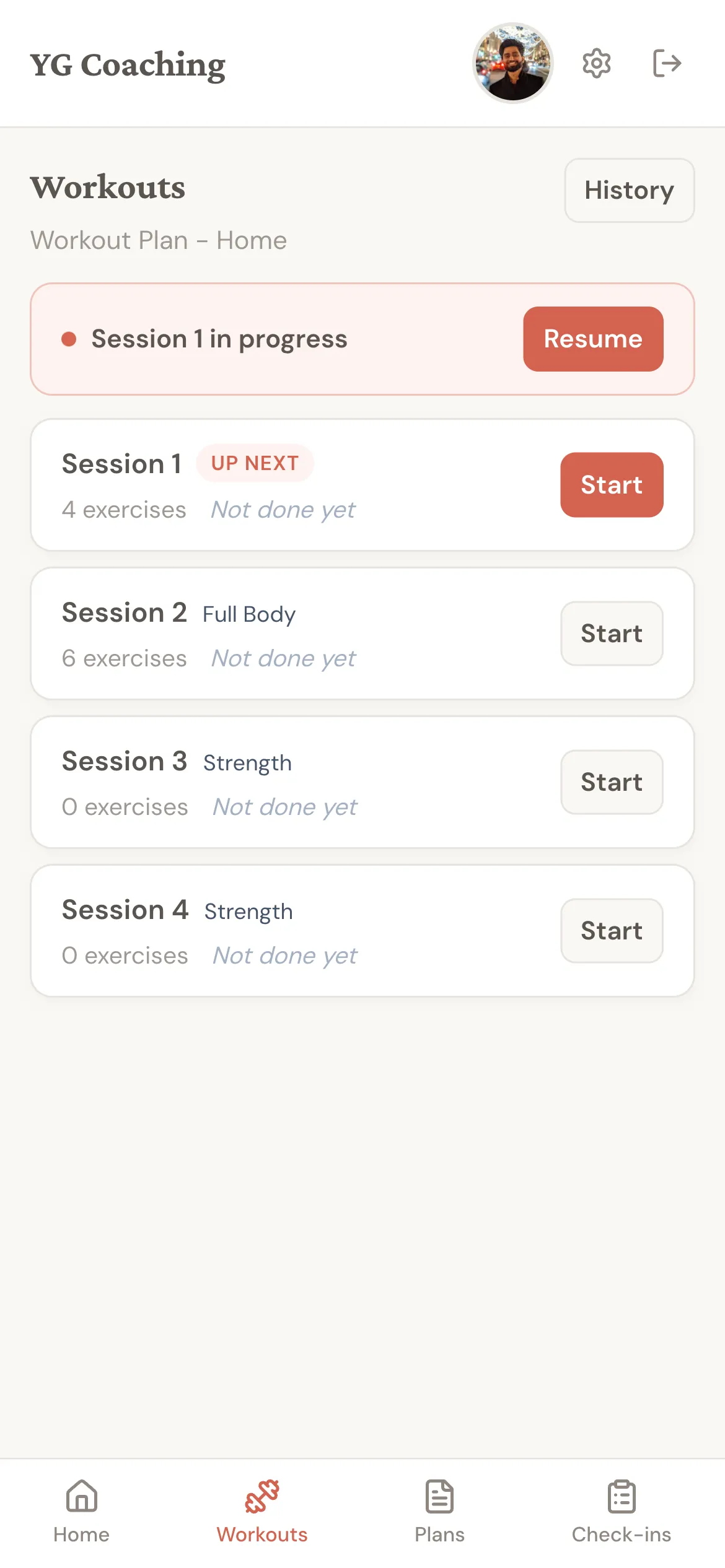
Tap "Start" on the session you're about to do. You'll see a screen with each exercise, the prescribed sets and reps, and a demo video link if your coach added one.
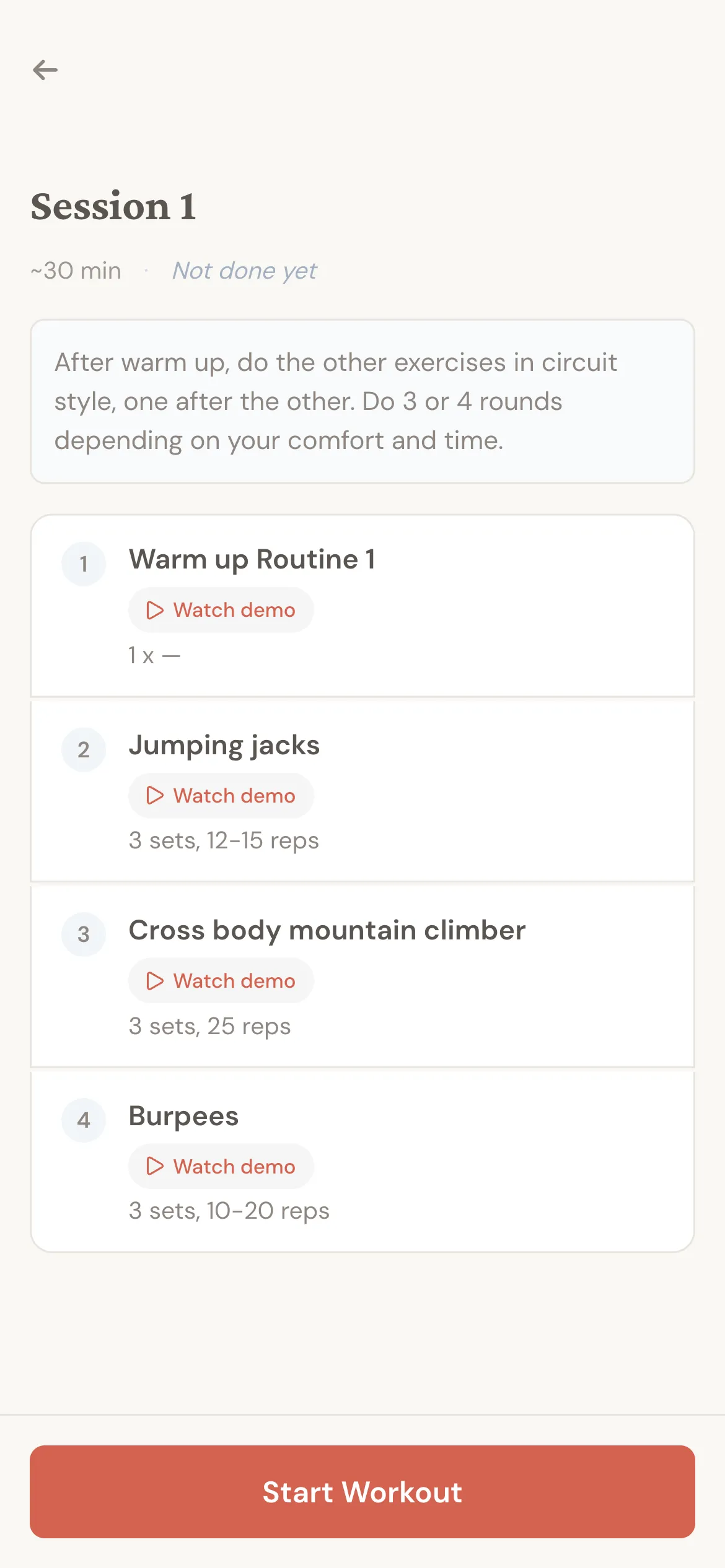
Tap "Start Workout" to begin logging. As you finish each set, record the weight and reps. At the end of the session you'll see a quick "How did it feel?" prompt before you wrap up. Some plans also let you upload a short video of yourself doing an exercise so your coach can give form feedback — if you don't see that option, it isn't enabled for your client app. Once your coach reviews a video, their notes appear pinned to the exact moments in the clip; see Coach feedback on your videos for what to expect.
If you start a session and have to leave, you can come back later and tap "Resume" to pick up — nothing is lost.
To see what you've logged in the past, tap "History" at the top of the Workouts page.
Looking back at past check-ins
Every check-in you submit is saved. Tap "Check-ins" in the bottom nav to see them in a timeline.
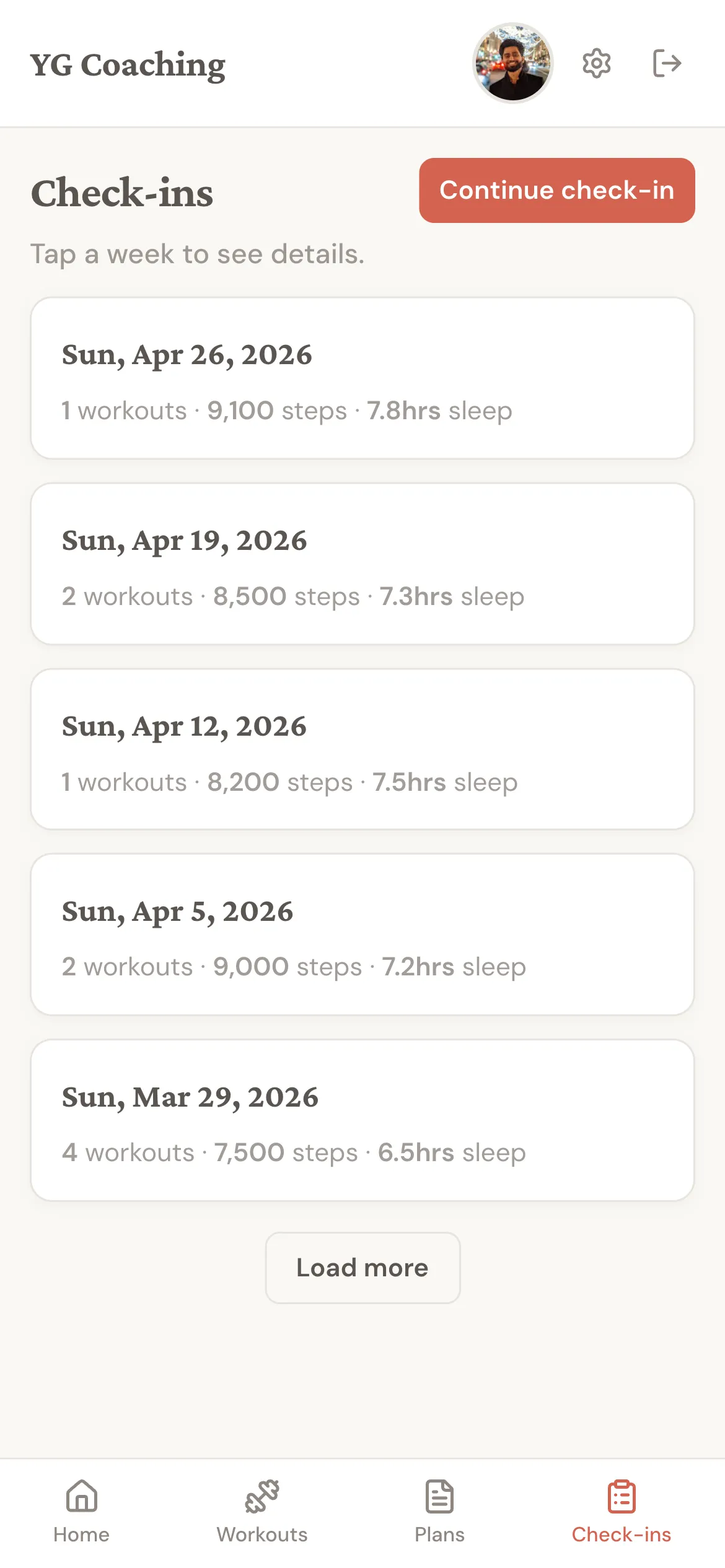
Tap any check-in to see what you submitted that week and read your coach's response (if they've written one). It's a great way to see how far you've come — sometimes the small wins are easier to spot looking back.
Settings and signing out
Tap the gear icon at the top right to open Settings. There you can:
- Switch between kilograms and pounds for weight.
- Switch between kilometres and miles for distance.
There's no support form here — if something isn't working, message your coach.
To sign out, tap the icon next to the gear (it looks like an arrow leaving a doorway). Sign out is always in the header — you don't need to go into Settings.
Need help?
If something isn't working or you have a question:
- Message your coach first. They know your situation and can usually help fastest. Most coaches reply within a day or two.
- If your coach can't help with something technical (like the app isn't loading at all), they can reach out to Assistant Coach support on your behalf.
You're set. Open your client app, submit your first check-in, and your coach will take it from there.