Coach feedback on your videos
If your coach has enabled video for an exercise in your plan, you can record a short clip while you're training. Your coach watches the clip later and leaves notes pinned to the exact moments in the video — so when you open it again, the feedback is lined up with the parts they're talking about.
This page covers what you'll see once your coach has reviewed one of your videos.
Where to find it
- Open the Workouts tab in your client app.
- Tap History at the top to see your past sessions.
- Tap the session that had the video your coach reviewed.
You'll see the workout details, and each exercise that had a video shows the video player right there.
What the video player looks like after a review
Once your coach has left feedback on a video, the player has a couple of small extras you might not have noticed before:
- Blue dots on the timeline. Each dot is a moment your coach wanted to highlight. One dot per comment.
- A small "1 comment" or "3 comments" badge near the top of the player. It tells you how many notes your coach left on this video.
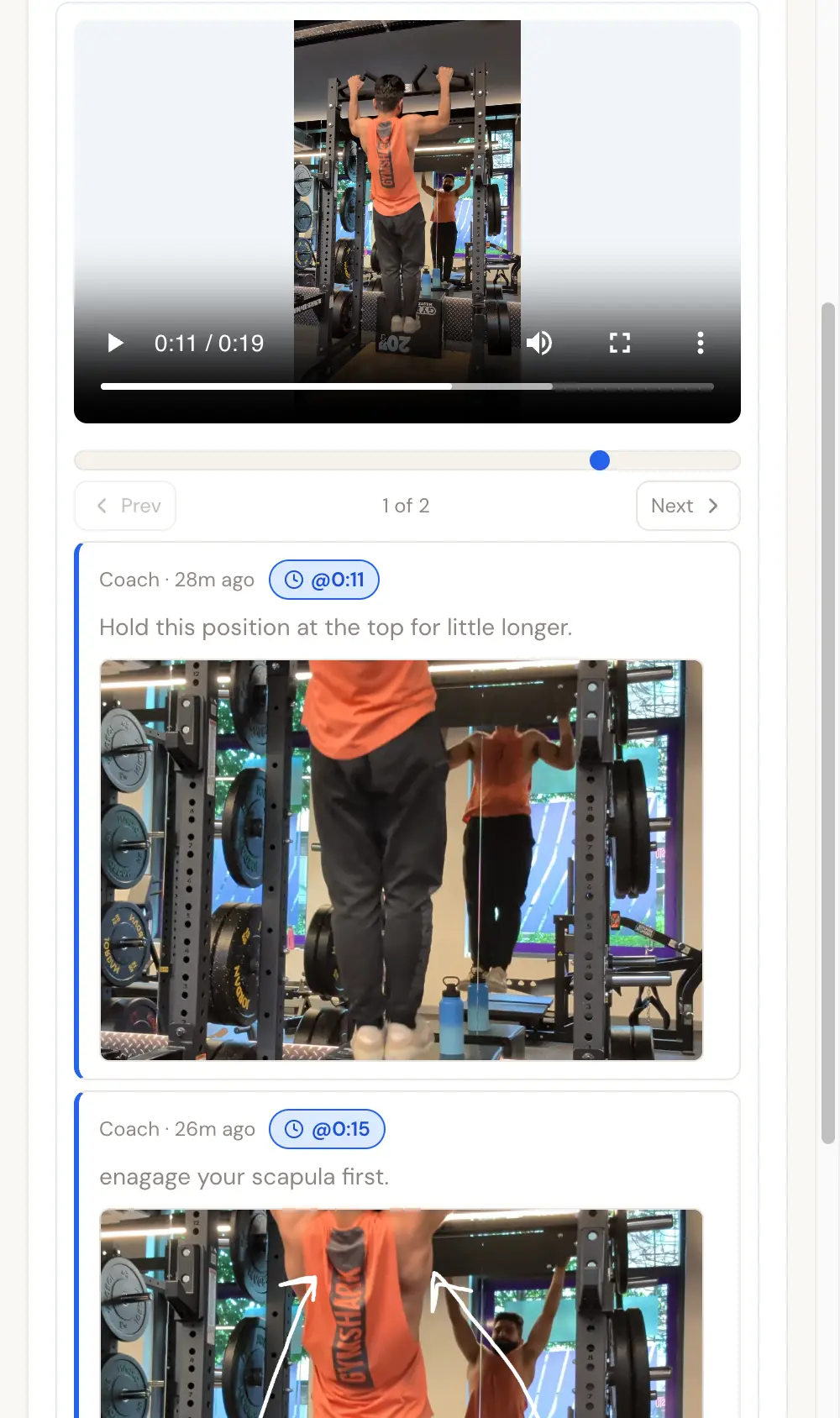
If you don't see either of these on a video you've uploaded, your coach probably hasn't got to it yet. Most coaches review videos in groups once a day or so, so feedback usually shows up the day after you upload — give it a day or two.
The comments under the video
Below the video, every comment your coach left appears as its own card, in order. Each card has:
- A timestamp — for example
0:04. That's the moment in the video the comment is about. - A still image (sometimes) — if your coach paused the video and drew on what they saw, that marked-up image shows up at the top of the card.
- The note — what your coach wrote.
- Extra images (sometimes) — extra photos your coach attached for reference.
Jumping to the exact moment
You have a few ways to jump the video to the moment a comment is about:
- Tap the blue dot on the video timeline.
- Tap the timestamp on the comment card (the small
0:04chip). - Tap anywhere on the comment card — the video jumps and the matching card briefly highlights so you don't lose track of which one you're reading.
The video keeps playing from there, so you can watch the exact rep that goes with the cue.
When your coach draws on a frame
When your coach pauses your video and draws on what they see — an arrow at your knee, a circle around your bar path, a line over your back angle — that drawing is saved as a small image on the comment card. Tap the image to open it full-screen for a closer look. Tap outside or hit the close button to come back to the workout.
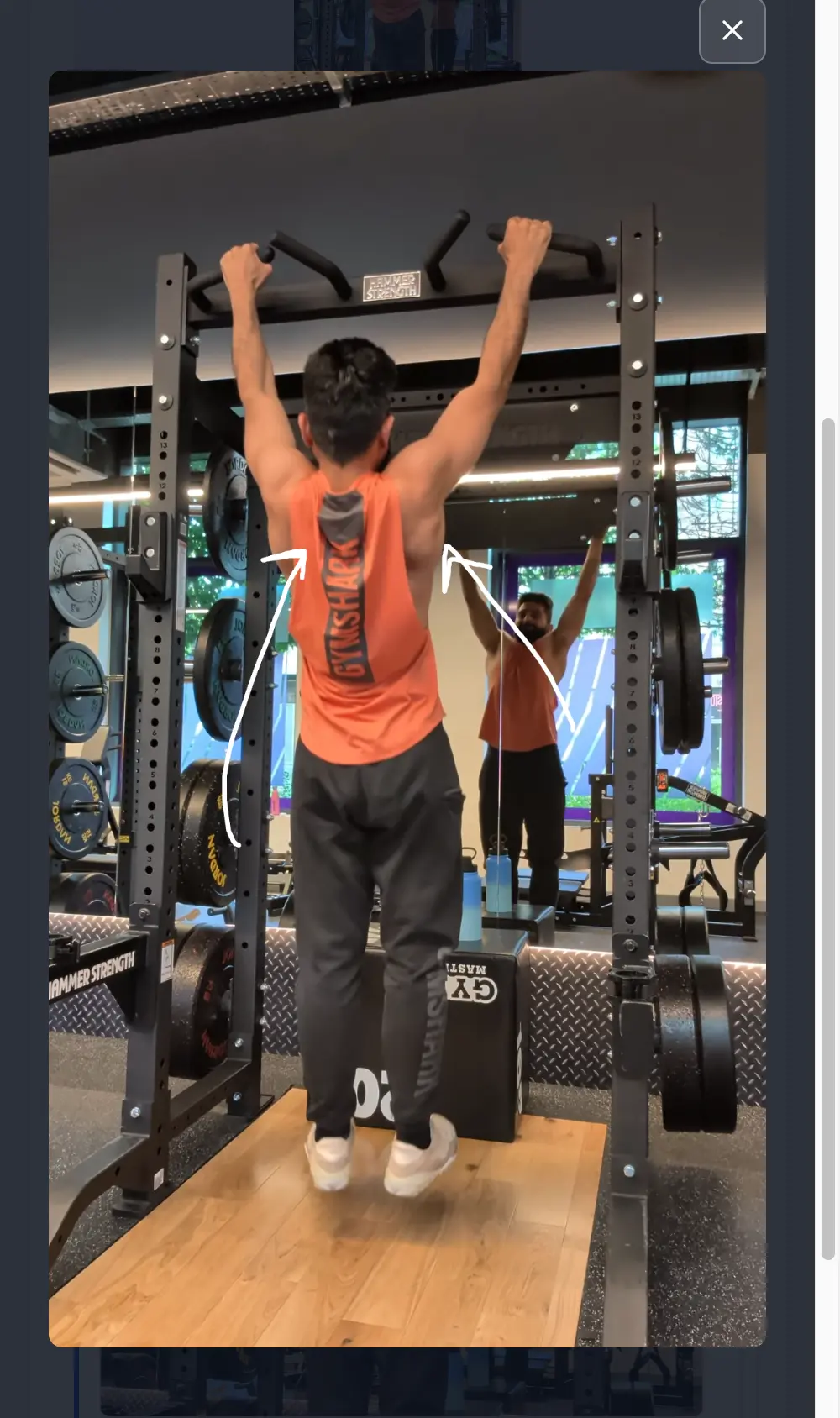
These drawings are usually the most useful piece of form feedback you'll get, because they show the exact moment your coach is talking about with the cue drawn right on top.
When the only thing in the comment is an image
Coaches sometimes leave just a drawing — no written words — when the cue is fully visual. That's intentional, not a missing message. Look at the drawing and the timestamp; the cue should be clear from what they've drawn. If it isn't, ask your coach the way you usually message them.
If you can't find your feedback
A few things to check:
- Are you looking at the right session? Coach feedback stays with the exact workout the video came from. Open Workouts → History and tap the right session.
- Did you upload the video only recently? Your coach gets a reminder for each new video, but they may not have got to it yet.
- Has the upload finished? If the video itself still says "Video uploading — check back shortly," it hasn't finished uploading yet. Wait a few minutes and refresh.
If none of those explain it, message your coach — they can confirm whether the comment was saved on their side.
Related
- Welcome to your client app — the rest of what your client app does, including check-ins, plans, and logging workouts.