Client Portal
Every client gets their own portal — a clean, focused interface where they can submit check-ins, view their plans, track goals, and stay connected with your coaching. The portal is branded to your business, so it feels like an extension of your coaching experience, not a third-party tool.
Your branding
Clients see your brand name throughout the portal — in the header and in welcome messages — not "Assistant Coach." If you set a brand name during onboarding (e.g., "FitLife Coaching"), that's what your clients see when they log in. If you didn't set one, the portal falls back to showing "Assistant Coach."
What clients see
The portal experience depends on the client's lifecycle stage.
Intake stage
New clients in the Intake stage see a single, clear prompt:
- A welcome message with your coach name/brand
- A "Start intake form" button that opens their assigned intake form
- A brief explanation of why the form matters: it helps you understand their background so you can create the best plan for them
Once they submit the intake form, they automatically move to the Active stage and the portal opens up with all features.
If you haven't assigned an intake form yet, they'll see a friendly message: "Your coach is preparing your intake form. Check back soon."
Active stage
Active clients get the full portal experience, organized into clear sections on their home page:
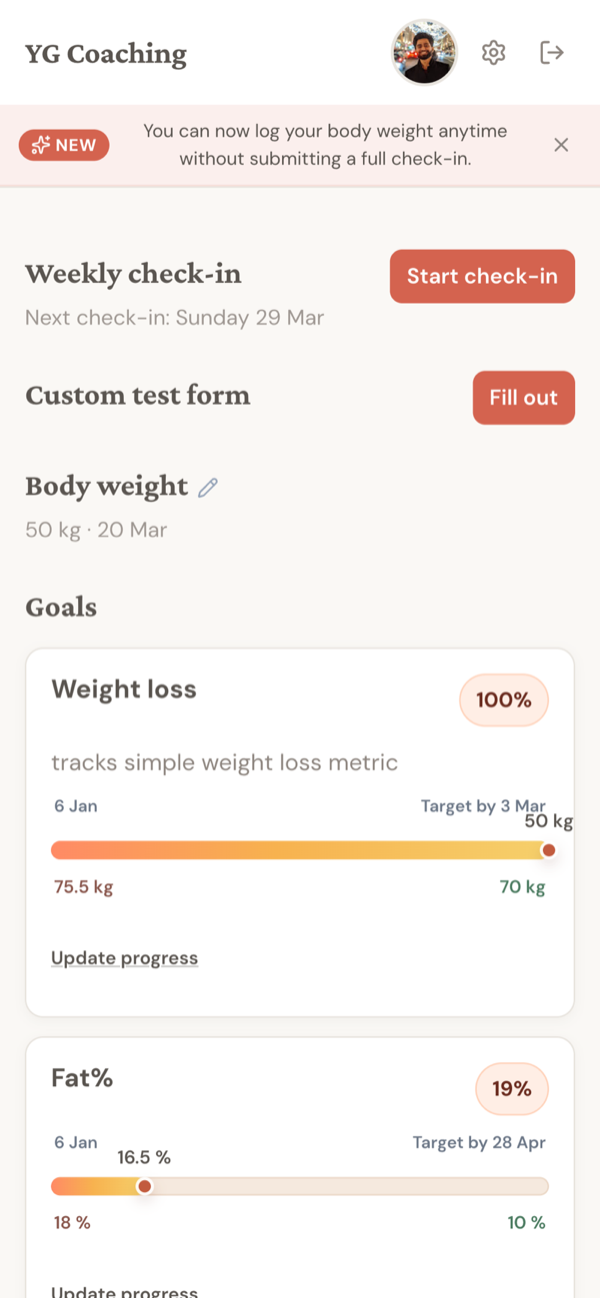
Weekly check-in
The most prominent section. Shows:
- Their next check-in date (based on the check-in day you've set)
- A "Start check-in" button to begin their weekly submission
- If they have a draft in progress: "Continue check-in" instead
Check-in form progress auto-saves, so they can start entering measurements, leave, and come back to finish later.
Goals
Active goals with visual progress tracking:
- Progress bar showing percentage complete
- Current value vs. target value
- Start and target dates
- Description and any progress notes you've added
- "Update progress" button for manually-tracked goals (like exercise PRs)
Clients can also toggle to see their completed goals with achievement notes — a nice motivational feature that reminds them how far they've come.
Plans
Cards for their active meal plan and workout plan:
- Meal plan — "Download PDF" button to get the latest version
- Workout plan — "Download PDF" button for their training program
If no plan is assigned, they see "No plan assigned yet" — clean and clear, no confusion.
Recent check-ins
The last 3 check-ins with a "View all check-ins" link. Each card shows the submission date and a summary. Clients can open any check-in to review their own data and read your response.
Additional forms
Any feedback or custom forms you've assigned appear here as well, with buttons to fill them out.
Check-in history
From the portal, clients can browse their full check-in history. They can see:
- All their submitted measurements and metrics
- Their subjective feedback responses
- Your coach response (if you've written one)
- Progress photos they've submitted
This gives clients ownership of their data and the ability to look back at their journey.
PDF downloads
Clients can download their active meal plan and workout plan as PDFs directly from the portal. The download always gets the latest version — if you update a plan and re-save, the next download reflects those changes.
This means you never have to manually email PDFs. The client always has access to the current version.
What clients cannot see
The portal is intentionally focused. Clients do not have access to:
- Your coaching notes or to-dos
- Other clients' information
- Form templates or builder tools
- Backend settings or configurations
- Anything from the coach dashboard
The portal is read-only for most things — clients can submit forms and update goal progress, but they can't modify plans, change their schedule, or alter any settings. That's all coach-side.