Form Templates
Every coaching business collects different information. Some coaches want detailed body measurements every week. Others care more about subjective feedback, sleep quality, or adherence. With Assistant Coach, you design the exact forms your clients fill out — from onboarding intake questionnaires to weekly check-ins to ad-hoc feedback surveys. No rigid templates you can't change. Your coaching process, your questions.
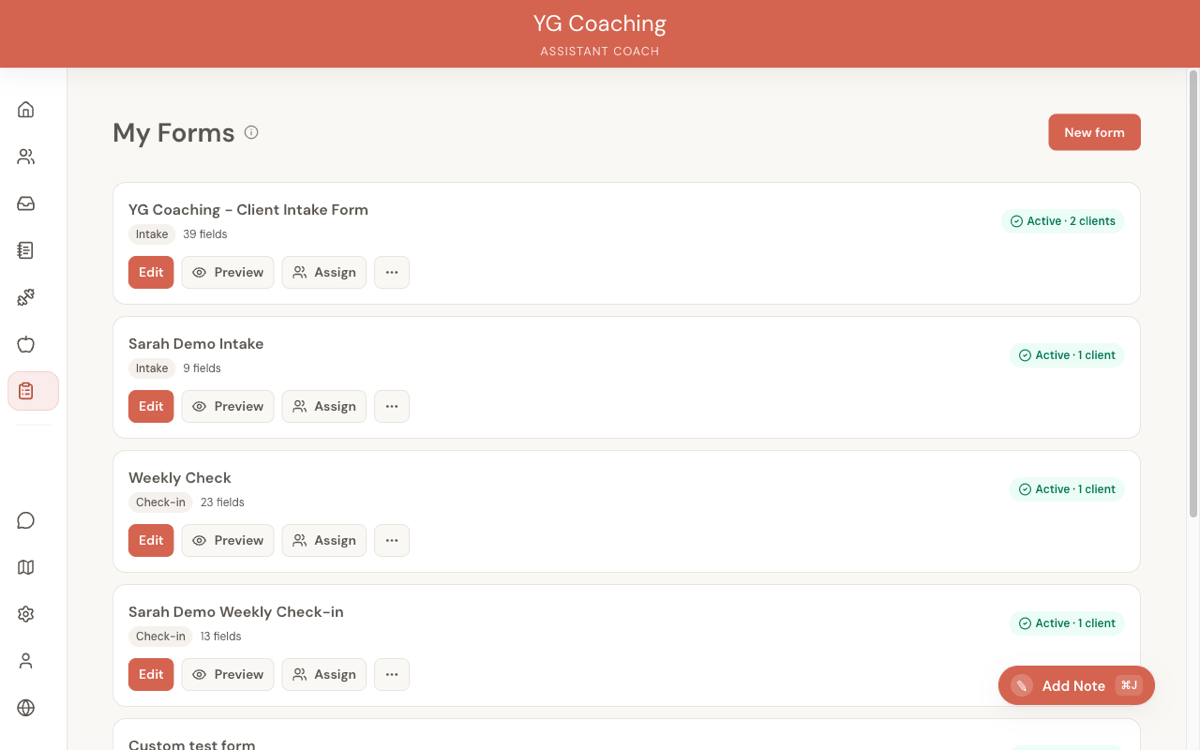
Form types
There are four types of forms:
- Intake — Completed once during onboarding. Collects a client's background: goals, training history, dietary preferences, medical conditions, injuries. After a client submits their intake form, they automatically move from the Intake stage to Active.
- Check-in — The recurring weekly form. Typically captures body measurements, training metrics, subjective feedback, and progress photos.
- Feedback — Ad-hoc forms for specific purposes (e.g., mid-program surveys, satisfaction questionnaires).
- Custom — Fully flexible forms for anything else you need.
Creating a form
Go to Forms in the sidebar and click Create Form (or start from a starter template).
Starter templates
The system provides pre-built templates for common use cases. These give you a solid starting point that you can customize — rename fields, add sections, remove what you don't need. Starter templates are copied into your account, so changes don't affect the original.
Building from scratch
The form builder lets you construct forms with:
Sections — Group related fields together. Each section has:
- A title (e.g., "Body Measurements", "Training This Week", "How You're Feeling")
- An optional description
- One or more fields
- Drag-and-drop reordering
Fields — Two categories:
Standard metrics — Pre-defined system fields that feed into reporting and charts:
- Weight, neck, chest, waist, hips, arms, thighs (body measurements)
- Days worked out, average sleep, average steps, water intake (lifestyle metrics)
Standard metric fields have fixed labels (so the system knows how to chart them) but you can choose which ones to include.
Custom questions — Your own fields with flexible input types:
- Text — Short answer
- Textarea — Long answer (for open-ended feedback)
- Number — Numeric input
- Select — Dropdown with options you define
- Checkbox — Yes/no or multi-select with options
- File — Photo/document upload (with configurable max files)
For each field, you can set:
- Label (required) — The question text
- Help text (optional) — Extra guidance shown below the field
- Required — Whether the client must fill it in
- Options — For select and checkbox fields
Preview
The builder includes a live preview that shows exactly how the form will appear to clients. This is useful for checking the flow and making sure questions are clear before assigning the form.
Managing forms
Setting an active form
For intake and check-in types, you can mark one form as active. The active form is the one that gets auto-assigned when you add new clients:
- Active intake form → auto-assigned to clients placed in the Intake stage
- Active check-in form → auto-assigned to clients placed in the Active stage
You can only have one active form per type.
Assigning forms to clients
There are two ways to assign:
- Individually — From a client's dashboard (Forms tab), assign a specific form template
- Bulk — From the form management page, assign a form to all clients who don't already have one of that type
Duplicating forms
Use the duplicate action to copy a form. This is useful when you want a variation — maybe a simplified check-in form for clients who don't track body measurements, or an intake form with different questions for a specific demographic.
Customizing forms per client
This is where things get really powerful. You can customize any form for an individual client without changing the template for everyone else. From the client's dashboard (Forms tab), you can:
- Add custom fields — Extra questions only this client sees
- Hide fields — Remove fields from the base template that aren't relevant for this client
- Add a custom section title — Group the custom fields under their own heading
The original template stays untouched for all your other clients.
Examples of when this is useful:
- A client is rehabbing a shoulder injury → add "Rate your shoulder pain 1-10" to their check-in
- A client has IBS → add "Any digestive issues this week?" as a weekly question
- A client is training for a marathon → add "Total running distance this week" as a number field
- A newer client doesn't track measurements yet → hide the body measurements section from their check-in
This means you can run one base check-in form for your entire roster while still asking the right questions for each individual client. No duplicate templates, no workarounds.