Tracking Goals
Goals give you and your client a shared, measurable target to work toward. They appear on the client's dashboard (for you) and on their portal (for them), with visual progress tracking that makes it clear how close they are.
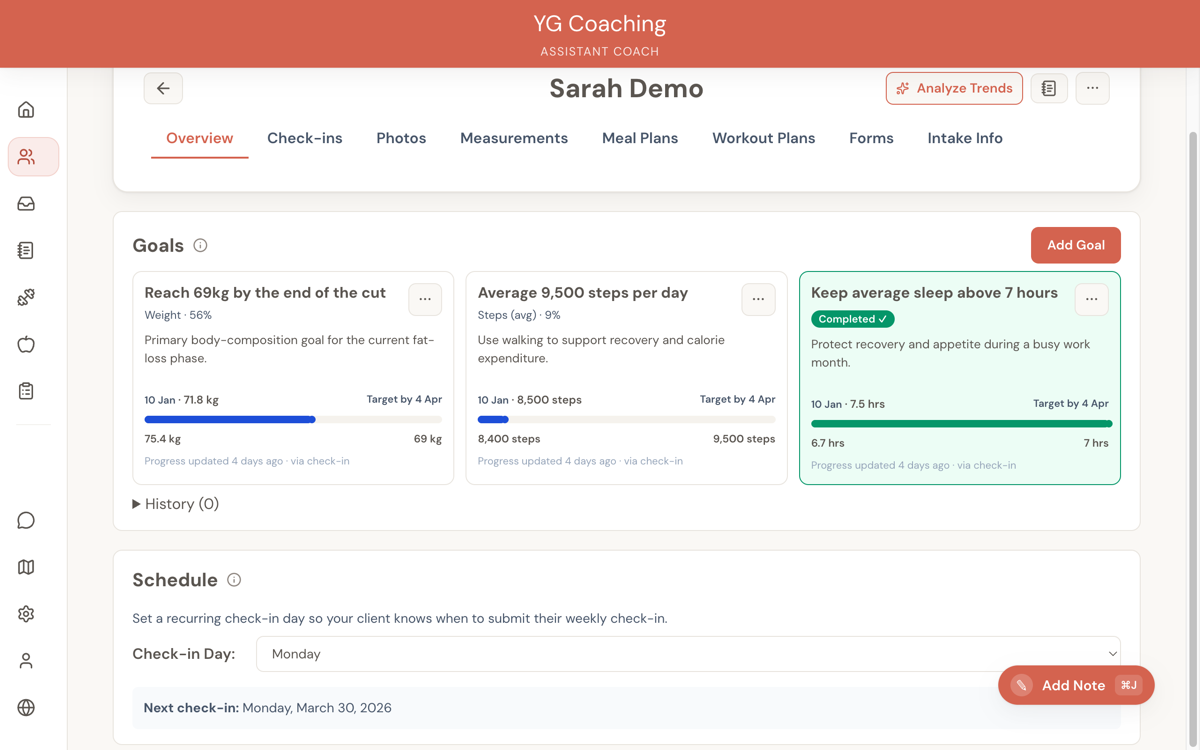
Creating a goal
From a client's dashboard, go to the Overview tab and click + Add Goal in the Goals section.
Choose a metric
Select what you're tracking. The available metrics are:
- Weight — Track body weight toward a target
- Average sleep — Hours of sleep per night
- Average steps — Daily step count
- Average water intake — Daily water in liters
- Days worked out — Training frequency per week
- Body fat percentage — Body composition
- Exercise weight — Track a specific lift (e.g., bench press weight)
- Exercise reps — Track reps for a specific exercise
- Free text — A qualitative goal without numeric tracking (e.g., "Run a 5K", "Complete 30-day challenge")
Set the details
Depending on the metric, you'll fill in:
- Target value — Where the client is heading (e.g., 75 kg, 10,000 steps)
- Start value — Where they're starting from (auto-populated from their latest data when applicable)
- Duration (weeks) — How long to reach the target. The system calculates the end date automatically.
- Description (optional) — Additional context or motivation
For exercise goals (weight or reps), you'll also select:
- The specific exercise from your library
- Load type: bodyweight or external weight
- Load value (in kg) for external loads
Each client can have up to 10 active goals at a time.
How progress is tracked
Progress updates come from two sources, depending on the metric:
Automatic tracking: For metrics that come from check-ins (weight, sleep, steps, water intake, days worked out), progress updates automatically as the client submits check-ins.
Manual tracking: For body fat percentage, exercise goals, and free-text goals, you update the current value manually from the coach dashboard. On the client portal, clients can update progress for goals that have a numeric metric — but free-text goals don't have an update action since there's no numeric value to track.
Progress visualization
Each goal shows:
- Progress bar — A visual bar from start to target, with a marker showing the current position
- Progress percentage — How far along they are (e.g., "65% complete")
- Start date and target end date — Shown above the progress bar
- Start value and target value — Shown below the progress bar
- Current value — Displayed prominently
For decrease goals (like weight loss), the progress calculation accounts for the direction — going from 90 kg to 75 kg with a current of 82 kg shows approximately 53% progress, not a negative number.
Managing goals
Update progress
Click Update progress on any goal to manually set the current value. Useful for exercise PRs or metrics not captured in check-ins.
Progress notes
Add notes to a goal to document milestones, observations, or coaching adjustments. Both you and the client can see these notes.
Complete a goal
When a client reaches their target (or you decide the goal is met), click Mark as completed. You can optionally add an achievement note — a message celebrating what they accomplished.
Completed goals move to the historical section, where they serve as a record of progress.
Abandon a goal
If a goal becomes irrelevant or needs to be replaced, use Abandon. You'll be asked for a reason. Abandoned goals also move to historical, but are distinct from completed ones.
Edit a goal
You can update the title, description, target, or end date of an active goal at any time.
Client portal view
Clients see their goals on their portal's home page:
- Active goals with progress bars and current values
- An "Update progress" button for manually-tracked goals
- Progress notes from you (read-only)
- A toggle to show completed goals with their achievement notes
This gives clients visibility into what they're working toward and how far they've come, which is a significant motivator — especially during plateaus.
Historical goals
Both completed and abandoned goals are preserved in a collapsible "Historical" section. This is useful for:
- Reviewing what a client has accomplished over time
- Understanding what goals were adjusted and why
- Setting context for future goal-setting conversations