Add a GIF to Your Feedback
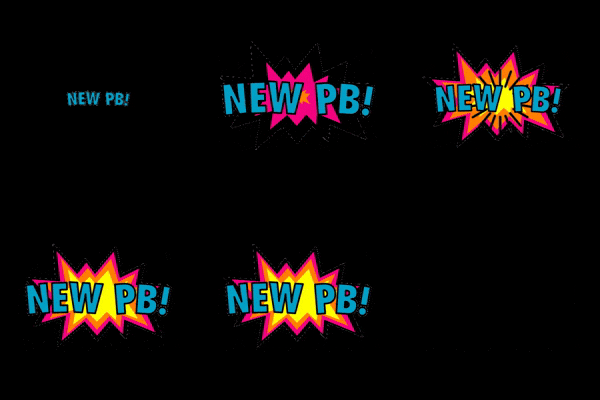
Good feedback is mostly words: what your client did well and what comes next. Sometimes a GIF says the rest, like a "New PB!" when they hit one, or a dancing donut when they log a treat honestly. It plays under your note in their client app, and it's a quick way to show you're in their corner.
Moments where a GIF works well
A new personal best
New best on your squat, 5kg up on last month. All those Tuesday sessions are paying off.
A hard week, and they still showed up
Tough week, and you still logged every day. That's the hard part done. Same again this week?

An honest treat
Clients who feel judged for a treat often stop logging it. A light reply keeps them logging honestly, and an honest week tells you far more than a perfect-looking one.
Thanks for logging the donuts! An honest log beats a perfect one, and one treat doesn't change your week.

A strong check-in
Waist down 2cm this month, and your sleep is the best it's been. Proud of you.

Keep the coaching in your words
A GIF adds warmth, and your note still does the coaching. Pair every GIF with a line that says what your client did well or what comes next. For serious moments, like an injury, a health worry or a client having a hard time, words on their own usually land better.
Where you can add a GIF
- A comment on a meal: click Add image
- A comment on an exercise: click Add image
- Session feedback on a whole workout: click Add image
- A check-in reply: click Add photos
You can't add a GIF to a note pinned to a moment in a form video.
How to add a GIF
First save the GIF to your computer, then add the file to your feedback.
Save a GIF from Google Images
- Go to Google Images and search for the moment with "gif" on the end, like proud of you gif.
- Click a GIF you like so it opens larger on the right.
- Right-click the large GIF and choose Save image as. On a Mac trackpad, click with two fingers.
Add it to your feedback
- Open the comment box where you want it and click Add image (on a check-in reply, Add photos).
- Pick the GIF you saved. It shows as a small moving preview, with a × to take it off again.
- Write your note and send it as usual.
You can also paste the saved file straight into the comment box.
What your client sees
Your GIF plays under your note in their client app, at a size that suits a phone screen. Tapping it opens it full size. On a check-in reply, it shows the same way your photos do.
If something goes wrong
- The GIF doesn't move. It was probably copied from the web page instead of saved. Copying a GIF usually picks up a still picture. Save it to your computer as above, then add the file.
- "That GIF is too big to attach. Try one under 5 MB." Choose a shorter or smaller GIF.