Calorie and Macro Calculator
When you start a client's meal plan, the calculator gives you a sensible starting point for daily calories and macros. You step through three short screens — profile, goal, macros — and the final numbers are yours to tweak before applying.
Everything the calculator suggests is editable. You stay in control of the final numbers.
When to use it
- Building a new client's first plan. No targets exist yet — the calculator saves you from doing the math by hand.
- Recalculating after a change. A weight change, a goal change, or a new training phase — anything that means the old numbers are no longer right.
Opening the calculator
From the client's Nutrition tab, click Create Meal Plan. A new plan has no targets yet, so the strip at the top of the builder says No daily targets yet and offers two buttons:
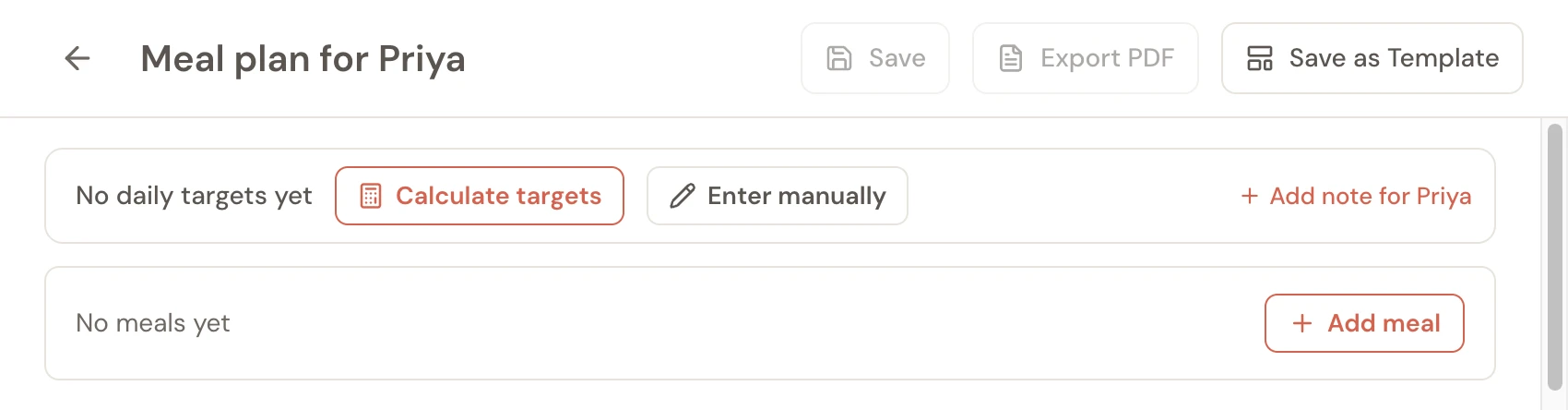
- Calculate targets opens the calculator.
- Enter manually opens the targets editor if you already know the numbers you want.
If a plan already has targets and you want to recalculate, click the pencil at the right end of the targets strip instead. A Recalculate from client profile button at the top of that window opens the calculator.
The three steps
The calculator is a short wizard. Pills at the top show where you are — click any pill to jump back at any time.
Step 1 — Profile
Five fields about who the client is.
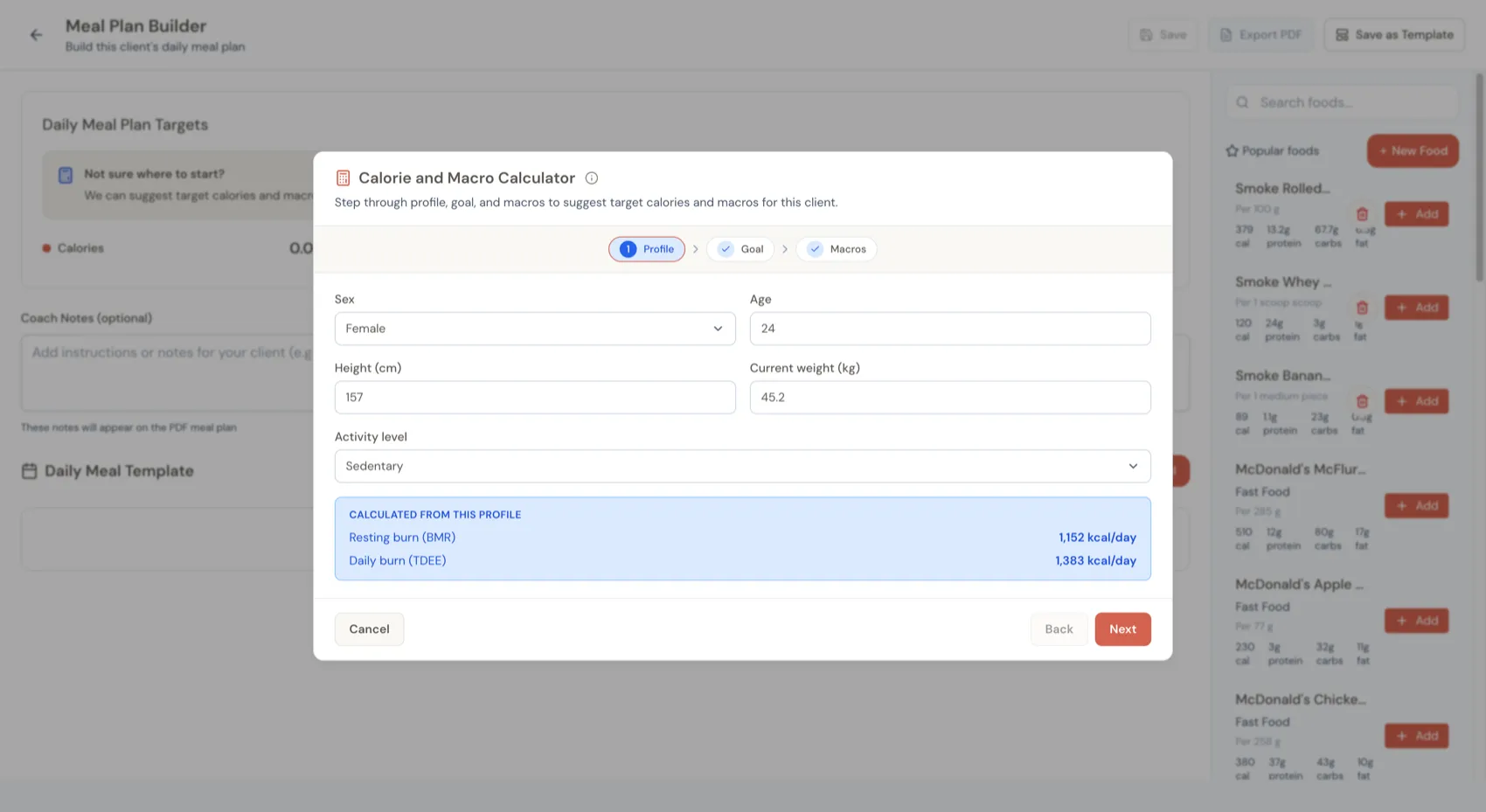
- Sex
- Age
- Height (cm)
- Current weight — pulled from their most recent check-in when one exists.
- Activity level — pick from Sedentary up to Extra active. Each option has a one-line description so it's clear which level fits.
Anything we already know about the client is filled in for you. A red asterisk (*) marks any field still missing.
As soon as all five fields are filled, a blue panel below shows two derived numbers:
- Resting burn (BMR) — what the client burns at rest, from the Mifflin–St Jeor formula.
- Daily burn (TDEE) — BMR scaled by the activity level you picked.
These two numbers carry forward as a small recap at the top of every later step, so you don't have to remember them.
Step 2 — Goal
Pick a goal, and (for fat loss or muscle gain) set a target weight and a timeline. The calculator works backwards from what the client wants to achieve.
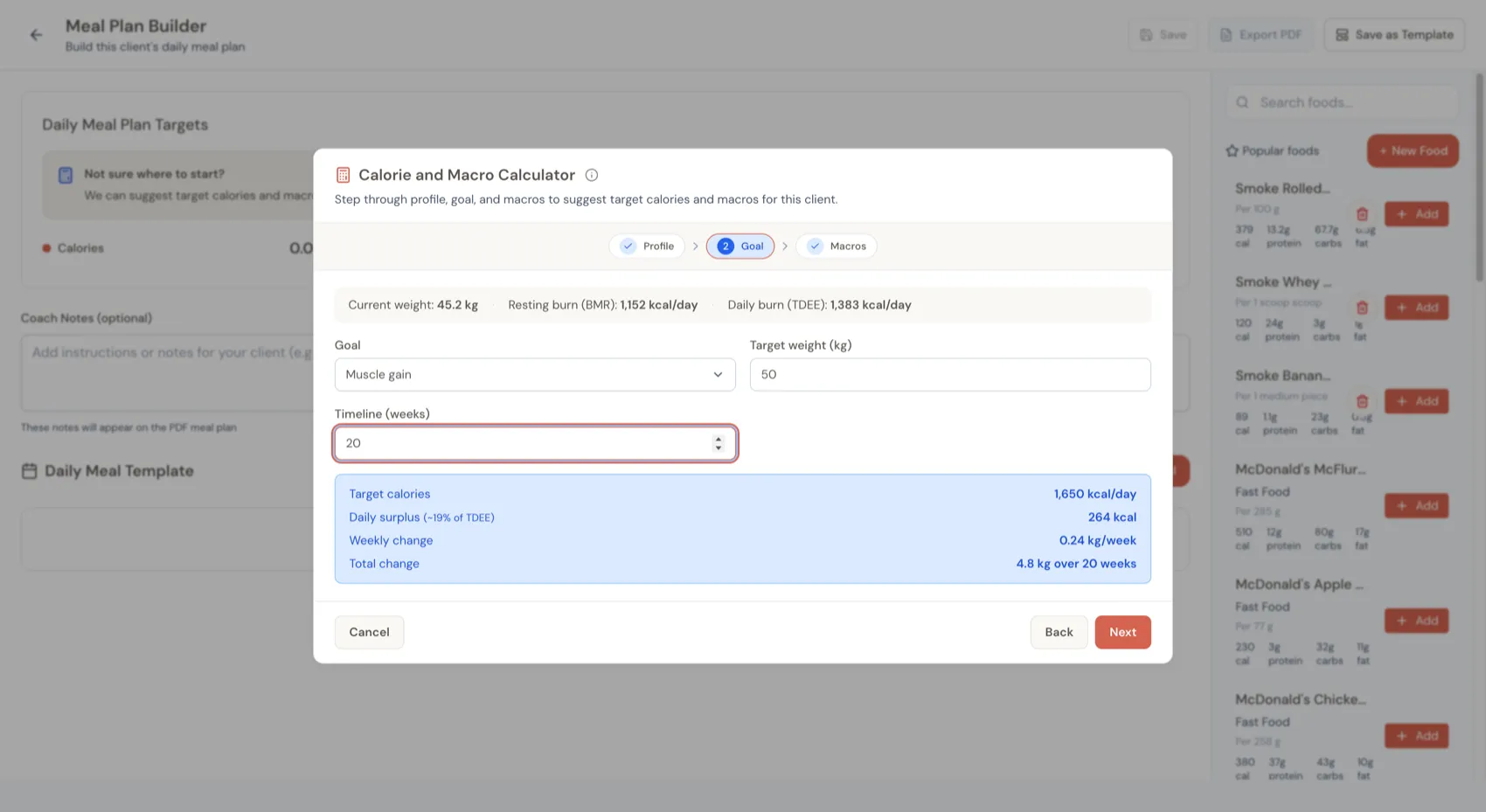
- Goal — Maintain, Fat loss, or Muscle gain.
- Target weight — what they want to reach. (Hidden when the goal is Maintain.)
- Timeline (weeks) — how long they have. (Hidden when the goal is Maintain.)
Once you fill in target weight and weeks, a blue panel summarises the plan:
- Target calories — the daily calorie target the client should eat to land at the target weight on schedule.
- Daily deficit (fat loss) or Daily surplus (muscle gain) — the gap between target calories and daily burn, with the percent of TDEE in brackets.
- Weekly change — how much weight they'll move each week.
- Total change — the full change over the timeline.
If the pace looks too steep or too gentle, change either the target weight or the weeks — the numbers update live.
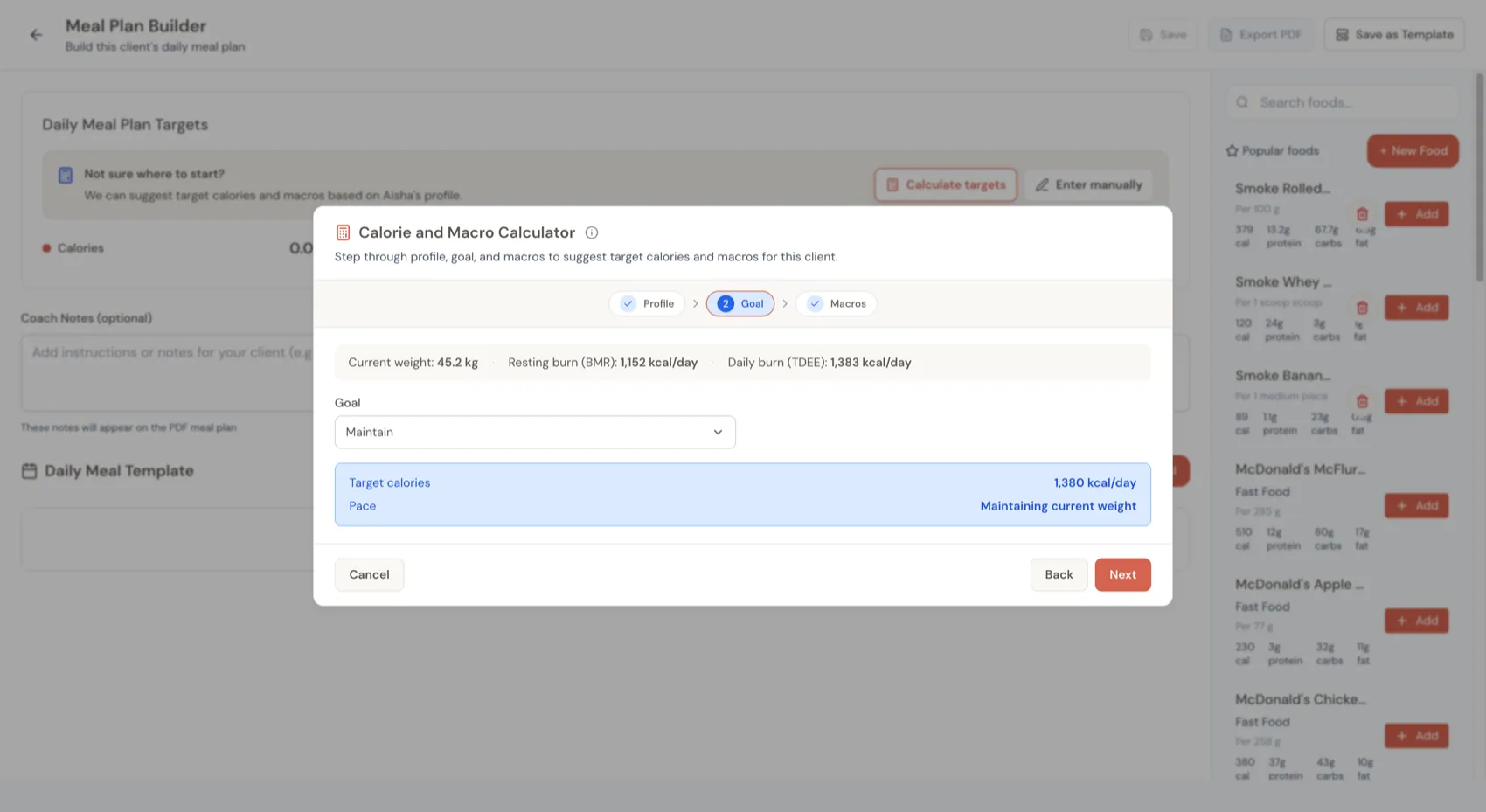
For Maintain goals, the timeline isn't needed. The calculator just uses the client's daily burn (TDEE) as the calorie target:
Step 3 — Macros
Set protein per kg of bodyweight, set fat as a percent of calories, and the calculator works out carbs to fill the rest. The final daily macros appear in a card below — already editable.
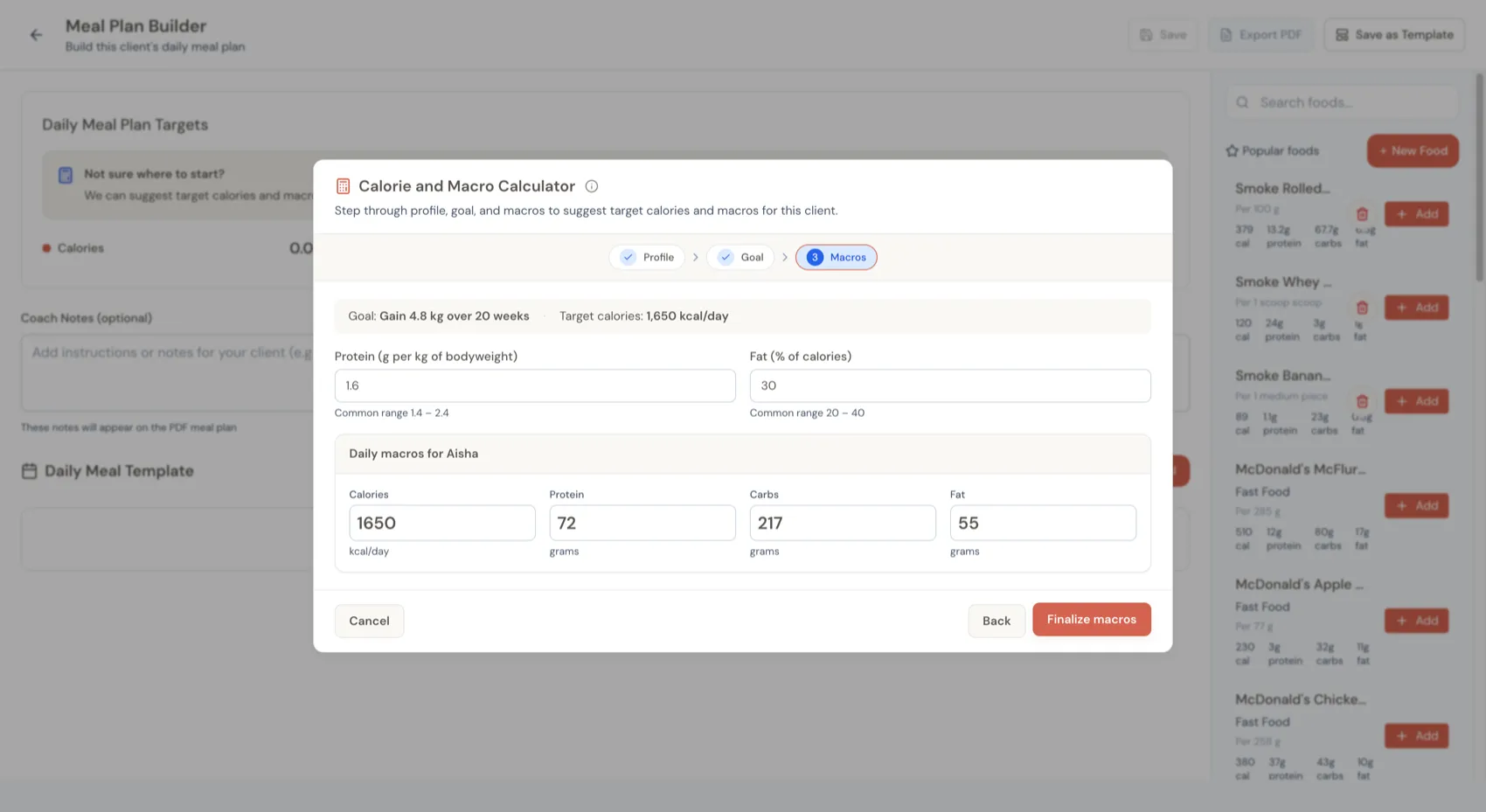
- Protein (g per kg of bodyweight) — default 1.6. Common range 1.4 – 2.4.
- Fat (% of calories) — default 30. Common range 20 – 40.
- Carbs — filled in for you from what's left.
Every macro in the Daily macros card is a real input — click into Calories, Protein, Carbs, or Fat and type your own number. If your edits and the calorie target stop adding up, the card flags the gap so you can rebalance.
When the numbers look right, click Finalize macros and they're written to the plan.
Heads-up warnings
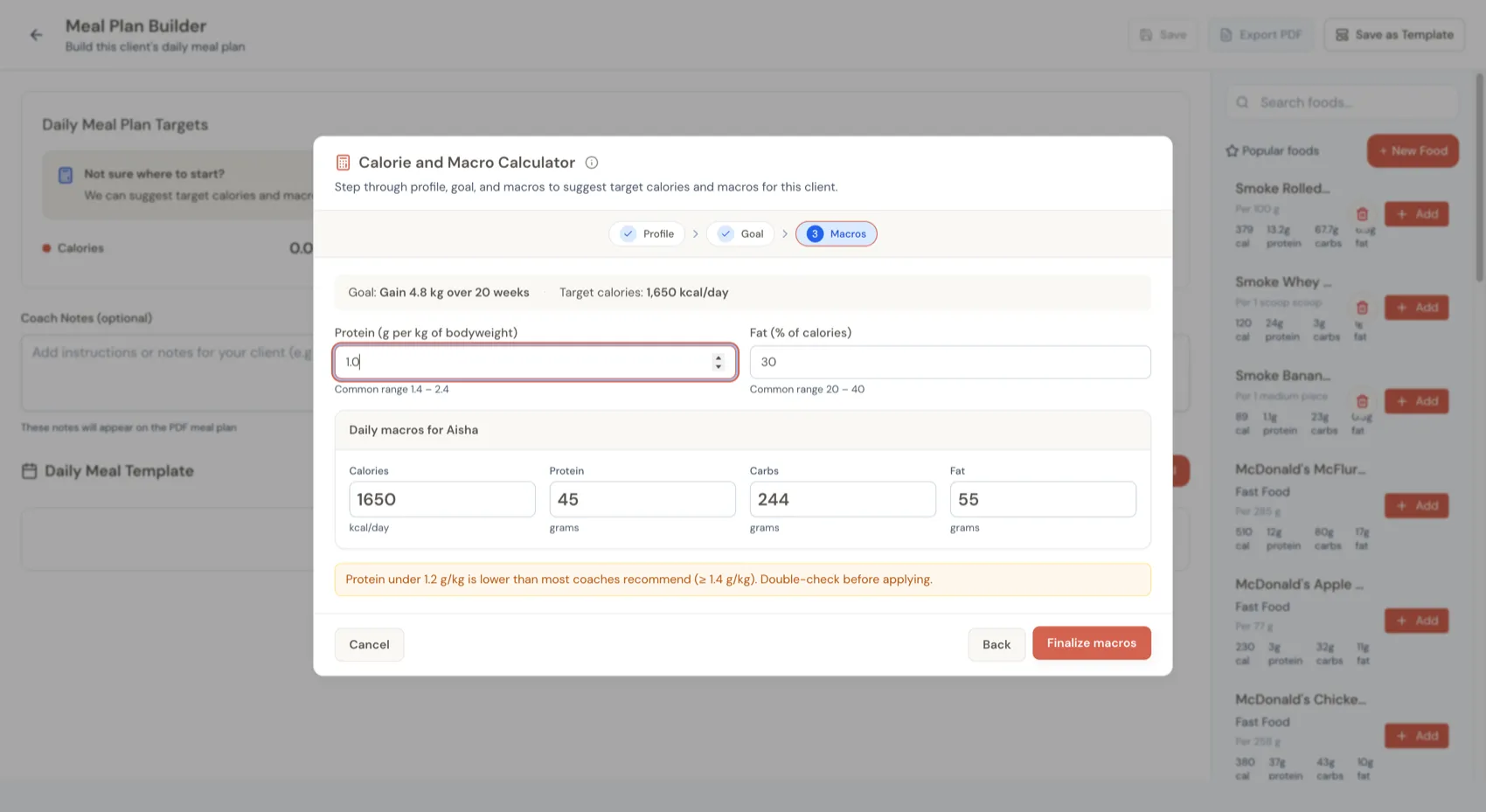
The calculator never blocks you, but it does flag numbers that look unusually low or high so you can double-check before applying:
- Calories below 1200 kcal for women.
- Calories below 1500 kcal for men.
- Calories above 5000 kcal.
- Protein under 1.2 g/kg (most coaches recommend at least 1.4 g/kg).
Filling in profile gaps
If the client's profile was missing details — say, their sex or activity level — and you filled them in inside the calculator, we save those back to the profile when you finalize. A quick toast confirms what was saved.
We only fill in empty fields. Anything the profile already has is left alone. And if you experiment without applying, nothing is saved.
When the suggested numbers don't feel right
The calculator is a starting point — not a replacement for your judgement. A few ways to nudge it:
- Lengthen the timeline if the pace looks too steep. Adding weeks softens the deficit.
- Shorten the timeline for a faster phase.
- Type your own protein g/kg and fat %.
- Override the outputs directly. Type whatever calorie or macro values you want into the Daily macros card.
If you've already got a number from another tool you trust, use that. The calculator's job is to handle the easy cases quickly.
Templates
The calculator only shows up on plans assigned to a specific client. Templates don't have a client profile to read from, so for templates you enter the targets manually. As soon as you assign a template to a client, the calculator is available on their plan.
Where the numbers come from
The info icon next to the calculator title summarises the math:
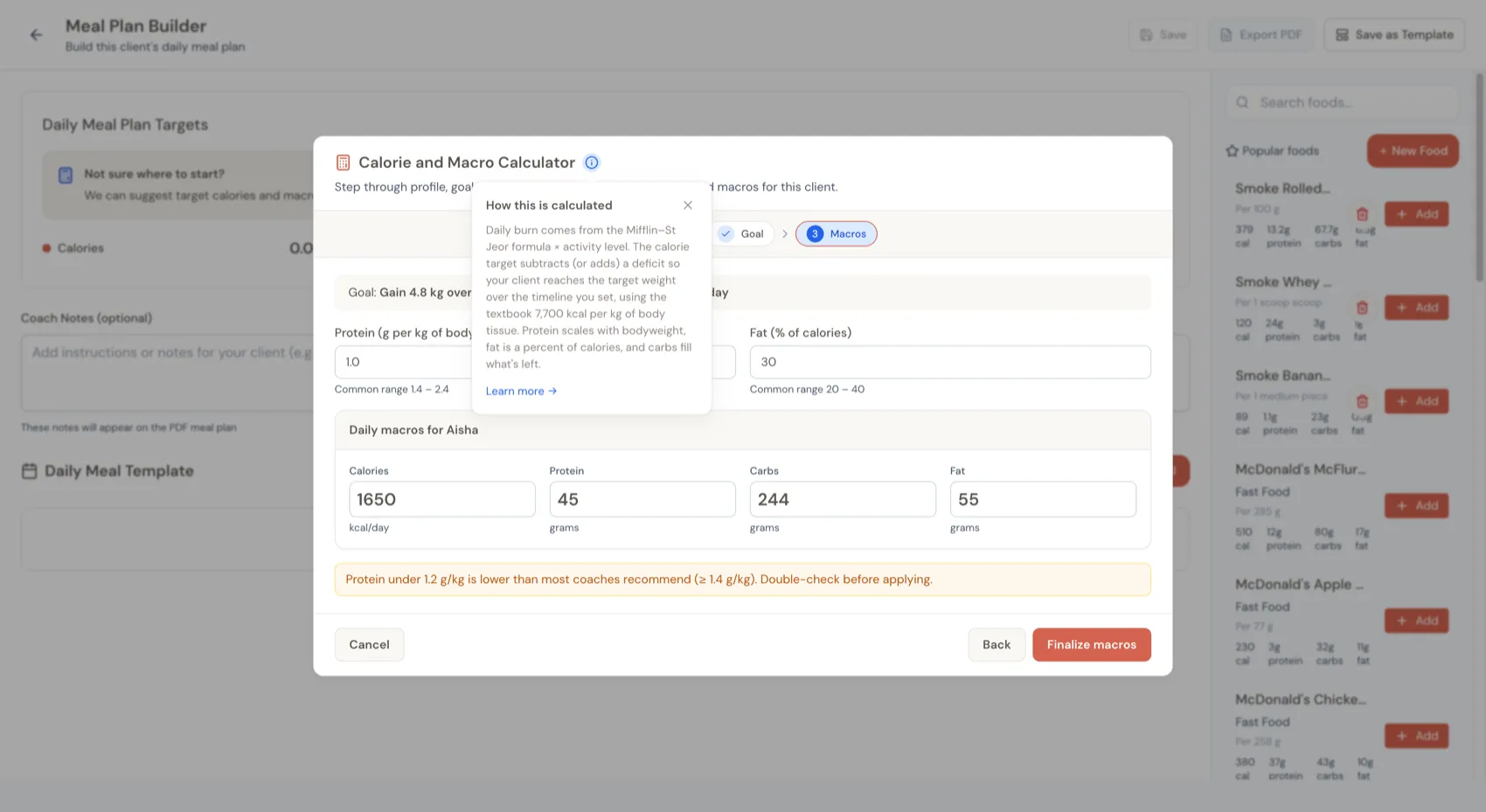
For coaches who like the full breakdown:
- Daily burn (TDEE) uses the Mifflin–St Jeor formula combined with the activity multiplier.
- Calorie target = TDEE minus a daily deficit (or plus a surplus) sized so the client reaches their target weight over the timeline you set.
- Daily energy delta = (weekly weight change × 7,700 kcal/kg) / 7. The 7,700 kcal/kg figure is the textbook estimate for energy stored per kg of body tissue.
- Protein grams = protein per kg × current weight.
- Fat grams = (calories × fat %) / 9.
- Carb grams = whatever calories are left, divided by 4.
Calories round to the nearest 10; macro grams round to whole numbers. It's a guide, not a guarantee — refine it from what you see in the client's check-ins over time.