Food Library
The food library is your searchable database of foods with nutritional data. It powers the meal plan builder — when you add a food to a meal, you're pulling from this library.
Core food library
The core food library is always available. It contains the standard foods every coach can search, plus the custom foods coaches create today. Custom foods are currently shared with other coaches, so the core library grows as coaches add useful entries.
Regional food libraries
Your clients don't all eat the same foods. A client in São Paulo eats feijão and farofa; a client in Munich eats Quark and rye bread; a client in Mumbai eats Amul paneer and a Yoga Bar. Regional food libraries are extra collections of local foods, with accurate local nutrition data, that you can switch on so they appear in your food search while you build meal plans.
Each library is off by default. You turn on only the ones that match the clients you coach, and your core food library stays available either way.
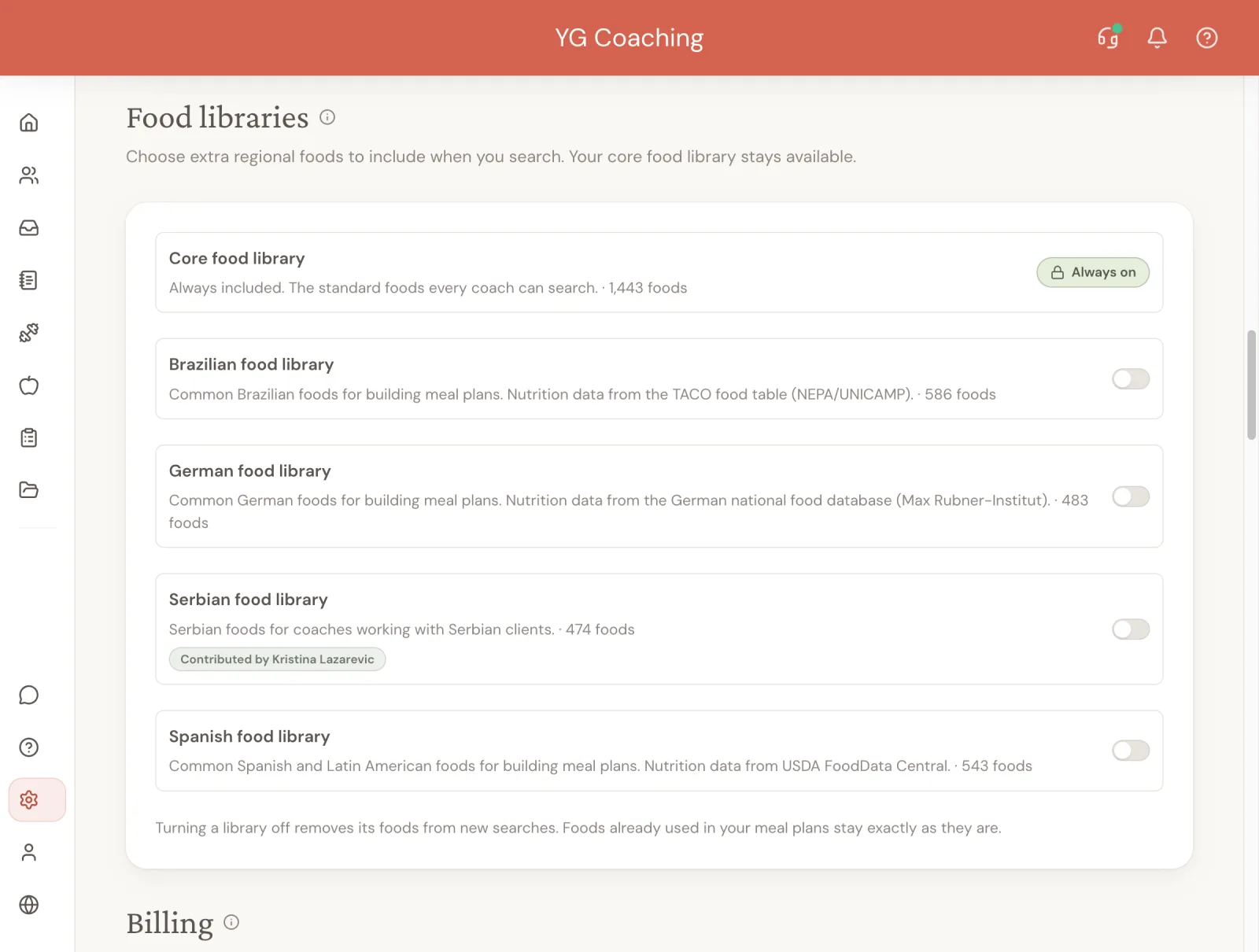
Libraries available today
| Library | Foods | Nutrition data from |
|---|---|---|
| Brazilian | 586 | TACO food table (NEPA/UNICAMP) |
| German | 483 | German national food database (Max Rubner-Institut) |
| Spanish and Latin American | 543 | USDA FoodData Central |
| Serbian | 473 | Contributed by a coach on the platform |
| Indian packaged foods | 929 | Open Food Facts contributors |
We add more over time.
The Brazilian, German, and Spanish libraries take their foods from national food databases, so the macros reflect the local version of a food rather than a US substitute. The Serbian library was contributed by a coach on the platform from the foods her own clients eat.
The Indian library covers something different: branded packaged products, listed by brand, rather than raw ingredients. Its numbers come from the packaging as recorded by Open Food Facts contributors, so they match what your client reads on the pack.
Turning a library on
- Open Settings.
- Find Food libraries.
- Turn on the library you want to use.
The change saves immediately, and those foods then appear when you search while building meal plans. Each coach chooses their own libraries, so turning one on does not change another coach's searches.
When to use it
Turn on a library when you coach clients who eat that region's foods. It saves you from building the same local staples by hand for every client, and it keeps the macros accurate to what your client actually eats, which makes the plan easier for them to follow.
Turning a library off removes its foods from new searches. Foods already used in your meal plans and templates stay exactly as they are. If you later reuse a template containing one of those foods, Assistant Coach will ask you to turn the library on first.
Can't find a regional food in the meal builder? Use Manage food libraries below the no-results message to go straight to the right setting.
Searching for foods
In the meal plan builder, click + Add food at the end of a meal to open the Add food window.
- Before you type, it lists your most used foods: the ones you've put in your meal plans and templates most often, each starting at the amount you usually use. If you haven't built a plan yet, it shows the foods most popular with other coaches instead.
- Type at least 2 characters to search the library. Foods you've used before come first, marked Used before.
- Each result shows its amount box, calories, protein, carbs and fat. Change the amount and the numbers follow.
You can also browse and search the whole library from Nutrition › Foods in the sidebar.
Creating custom foods
Can't find what you need? In the Add food window, click + New food at the bottom, or Create "…" as a new food at the end of your search results (the name you searched for is filled in). From Nutrition › Foods, click New Food.
The creation form includes:
- Food Name (required) — e.g., "Overnight Oats with Honey"
- Category (optional) — e.g., "Grains", "Protein", "Dairy"
- Serving Size — Defaults to 100
- Unit — Choose from grams, ml, cup, piece, or serving
- Nutrition per serving:
- Calories
- Protein (g)
- Carbs (g)
- Fat (g)
Once created, the food is immediately available in your search results. When you create it from the Add food window, it appears at the top of the list, ready to add.
Custom foods remain part of the shared core library. Regional libraries contain curated reference foods and cannot be edited or deleted from the regular food-management screen.
When creating custom foods, think about how your client will measure them. If a food is more naturally measured by the piece (like eggs) or by the cup (like rice), set the serving unit accordingly. This makes the meal plan clearer for the client.
Managing custom foods
Custom foods you've created are marked in the library. You can:
- Edit — Update the name, category, or nutritional values
- Delete — Remove a custom food from your library
There's one important safeguard: you cannot delete a food that's currently used in any meal plan. You'll need to remove it from all plans first. This prevents accidentally breaking existing meal plans.
How nutritional calculations work
When you add a food to a meal and set a quantity, the system calculates the nutritional values proportionally:
Formula: (food's nutrition per serving) × (your quantity) ÷ (food's serving size)
For example, if a food has:
- 200 calories per 100g serving
- You set the quantity to 150g
- Calculated calories = 200 × 150 ÷ 100 = 300 calories
The same formula applies to protein, carbs, and fat. The builder shows whole numbers.
These per-food numbers roll up into meal totals (shown on each meal's row) and then into the day's totals (the main option of each meal), shown in the targets strip at the top of the builder.
Search tips
- Search by name: "chicken breast", "brown rice", "protein shake". Close spellings still match, so "chiken" finds chicken.
- Start from your own foods: open Add food without typing to see the foods you use most, at your usual amounts.
If a search returns no results, you'll see an option to create the food right from the search, so you never have to interrupt your workflow to add something new.