Meal Templates
A meal template is a reusable nutrition plan you build once and reuse on any client. When you assign a template to a client, Assistant Coach creates a fresh draft meal plan for them — same macro targets, same meals, same foods — and you can tweak it before making it active.
If you keep building the same kind of cutting plan, maintenance plan, or training-day high-carb day for client after client, templates save you that work.
Where to find templates
Click Nutrition in the sidebar — Meal Templates is the default tab. Your full Foods library sits right next to it.

Each card on this page is one template. The card shows:
- The template name and description — what the structure is and who it's for
- Meals, foods, calorie target, and macros — the shape of the plan at a glance
- Assigned to N clients — how many clients have already received a plan from this template (or Not assigned yet)
- Assign — pick a client and create a draft plan from this template
- Edit — open the template in the meal plan builder
- More (the three-dot menu) — duplicate or delete the template
Two ways to build a template
Build from scratch
Click New Meal Template at the top right of the Meal Templates tab. Assistant Coach drops you into the meal plan builder with no client attached.
Set the macro targets (calories, protein, carbs, fat), add meals, add foods to each meal. The builder works exactly the same as building a client meal plan — see Creating Meal Plans for the basics.
The only differences in the builder when you're editing a template:
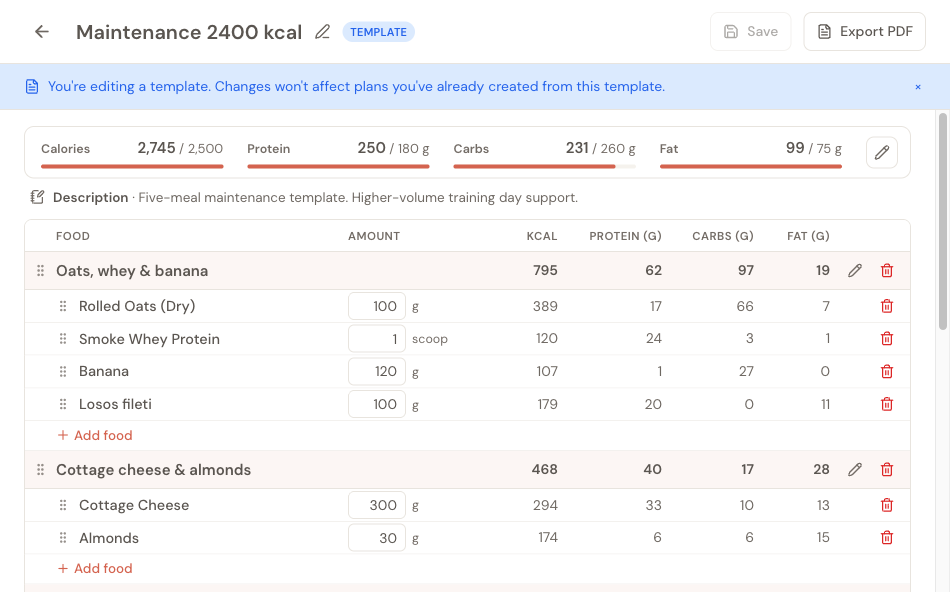
- The header shows a TEMPLATE badge so you always know you're not editing a client's plan
- A reminder strip at the top says "You're editing a template. Changes won't affect plans you've already created from this template."
- There's no Activate toggle and no client name — those only apply when a plan belongs to a specific client
- Instead of a note for a client, the line under the targets strip is the template's Description. Click + Add description to write one. It's shown on the template card and carries over to any plan you create from this template.
- Setting targets offers Enter manually only: there's no client profile for the calculator to work from.
Save an existing client plan as a template
Already built a great meal plan for one client and want to reuse it?
- Open the client's dashboard and go to their Nutrition tab
- Open the plan you want to save
- From the plan's actions menu, choose Save as template
- Give the template a name and (optionally) a description, then Save
The template lands in your Meal Templates library. The client's original plan stays exactly as it was.
Assigning a template to a client
From any template card, click Assign. A dialog opens with a list of your active clients.

Pick a client and click Assign. Assistant Coach creates a new meal plan for that client — a full copy of the template's macro targets, meals, and foods — and saves it as a draft. It's not active yet.
This is intentional. You can:
- Open the new plan from the client's dashboard
- Adjust anything that's specific to this client (different calorie target, swap a food, change quantities)
- Then activate it
The same template can only be assigned to a given client once. If you try a second time, Assistant Coach will tell you the template is already assigned and point you back to the existing plan.
What happens when you edit a template
This is the most important rule, and the reminder strip in the editor is there to make sure it doesn't surprise you:
Editing a template does not change any plans you've already assigned to clients.
When you assign a template, Assistant Coach copies it. The client's plan and the template are independent from that point on. You can keep refining the template for future clients while existing clients keep their plan exactly as it was.
The same is true for deleting a template — clients who already have a plan from it keep that plan.
Seeing which clients already have a plan from a template
On any template card that shows Assigned to N clients, click the count.

You'll see each client who's been assigned this template, their plan status (draft or active), the date they were assigned, and a link to open that plan.
This is useful when you want to check who's actually using a template, or jump straight from the library into a client's meal plan.
Duplicating and removing templates
From the three-dot menu on any template card:
- Duplicate — makes an exact copy. Useful when you want to create a variation (e.g. "Cutting 1600 kcal" alongside "Cutting 1800 kcal") without rebuilding from scratch.
- Delete — removes the template from your library. Plans already assigned to clients stay with them and aren't affected.
Tips
- Templates work best as macro-level structures — a typical day at a given calorie target — rather than micro-tuned plans for one specific client. Build them once, then personalise after assigning.
- Name templates by what the plan is for, not who you built it for (e.g. "Maintenance 2400 kcal", "Cutting 1800 kcal"). They're meant to be reused.
- Use the description field to record when you'd reach for this template — phase, goal, training day type. Future you will appreciate it.
- Once a template is assigned, the client's plan is theirs to evolve week to week. Keep refining the template separately, and assign a fresh copy when you want a client to start over with a newer version.