Meal Plan PDF Export
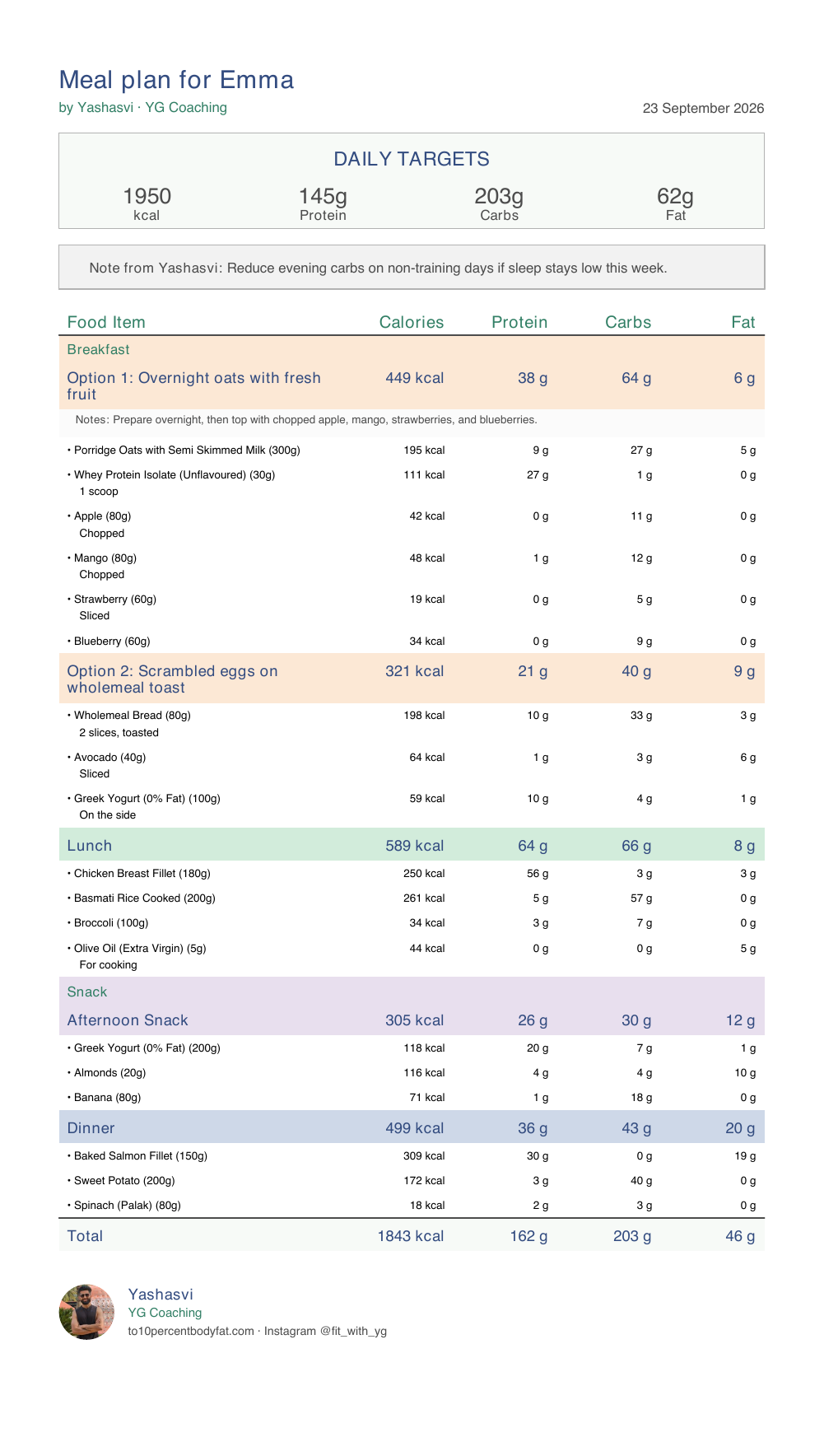
Every meal plan can be exported as a clean, professionally formatted PDF that you can share with your clients. The PDF is designed to be something a client can save on their phone, print out, or reference during meal prep.
How to export
There are several ways to get the PDF:
From the meal plan builder: Click the Export PDF button in the builder header. The PDF downloads to your device.
The export button is disabled for unsaved plans. Save your changes first, then export.
From the client's Meal Plans tab: Each plan card has two PDF actions:
- Download (download icon) — Downloads the PDF directly
- Preview (eye icon) — Opens the PDF in a new browser tab
What's included in the PDF
The exported PDF contains everything your client needs to follow the plan:
- Daily Targets — The calorie, protein, carbs, and fat targets you set for the plan, displayed prominently at the top
- Coach notes — Any notes you've written in the plan (instructions, tips, prep reminders)
- Each meal — Listed in order (breakfast, lunch, dinner, snacks, etc.)
- Meal name
- Individual food items with quantities and units
- Per-food nutritional breakdown
- Meal-level notes (if any)
- Meal nutritional totals
- Plan Total — A summary row at the bottom of the meal table showing what all the foods add up to, so clients can see how the plan compares to the targets
Meals that have no foods and no notes are automatically excluded from the PDF to keep it clean.
The format is designed to be useful in a kitchen, not just on a screen.
Your name on the plan
The PDF is yours as much as it is your client's, so it carries your name from top to bottom:
- The top of the page says what the plan is and who it's for — "Meal plan for Emma" — with by you underneath. If you've set a brand name, it reads "by Alex Morgan · Peak Performance Training".
- Your note to the client is signed by name, so it reads as "Note from Alex:" rather than a generic label.
- The end of the plan is signed off like a letter: your photo, your name, your brand name and your links.
There's nothing to set up. It uses the name and brand name from your Profile page, and the photo from your coaching website. If you haven't added a photo, your initials appear instead, so the plan still looks finished.
Choosing which links appear
Under Settings → PDF exports you'll find a switch for your website and one for your Instagram. Both are on.
- If you haven't added a website of your own, your coaching website address is used instead, so clients have somewhere to find you.
- If you haven't added a link at all, nothing is printed for it and the switch stays off until you add it on your website page.
Turn a switch off whenever you'd rather keep a plan plainer, and the rest of the sign-off stays.
Macro-only plans
You don't need to add individual foods to export a useful PDF. If you set macro targets but haven't added meals or foods yet, the PDF exports with just the Daily Targets box, coach notes (if any), and your branding. This is useful when you want to give a client their macro goals quickly without building out a full food plan.
Client access
When a meal plan is active, your client can open it right inside their client app — they'll find it under the Meals tab, laid out as easy-to-read cards with their daily targets, your notes, and each meal's foods and portions. From that same screen they can also download the plan as a PDF to save or print. Either way, you don't have to send anything manually — it's always there for them.
If you update the plan and re-save, both the on-screen view and the PDF download always show the latest version.
Tips for good meal plan PDFs
Set accurate macro targets before exporting. The PDF displays your targets prominently at the top — these are the numbers your client will reference daily, so make sure they reflect what you've actually prescribed. If foods are added, the Total row at the bottom shows how close the plan comes to hitting those targets.
Use coach notes. A few lines of context — "Drink 3L water daily", "Swap meals as needed to fit your schedule" — make the PDF much more useful than a raw food list.
Add meal-level notes for specific instructions. "Eat within 30 minutes of training" on a post-workout meal, or "Can substitute with Greek yogurt" on a snack.
Name custom meals clearly. If you're using custom meal types beyond the standard breakfast/lunch/dinner, give them descriptive names that make sense to the client.