Voice Messages
Some feedback lands better when your client hears it in your voice. A week that went sideways, a change to their plan, a win you want them to feel: a voice message carries the warmth and nuance that a written reply can lose. With Assistant Coach you can record a voice message of up to 5 minutes right on your check-in reply, and your client plays it in their client app.
Voice messages are included on the Starter and Pro plans. You can add one recording to a check-in reply.
Recording a voice message
Open a check-in and click Coach Response. Under the reply box, next to Add photos, you'll see Voice.
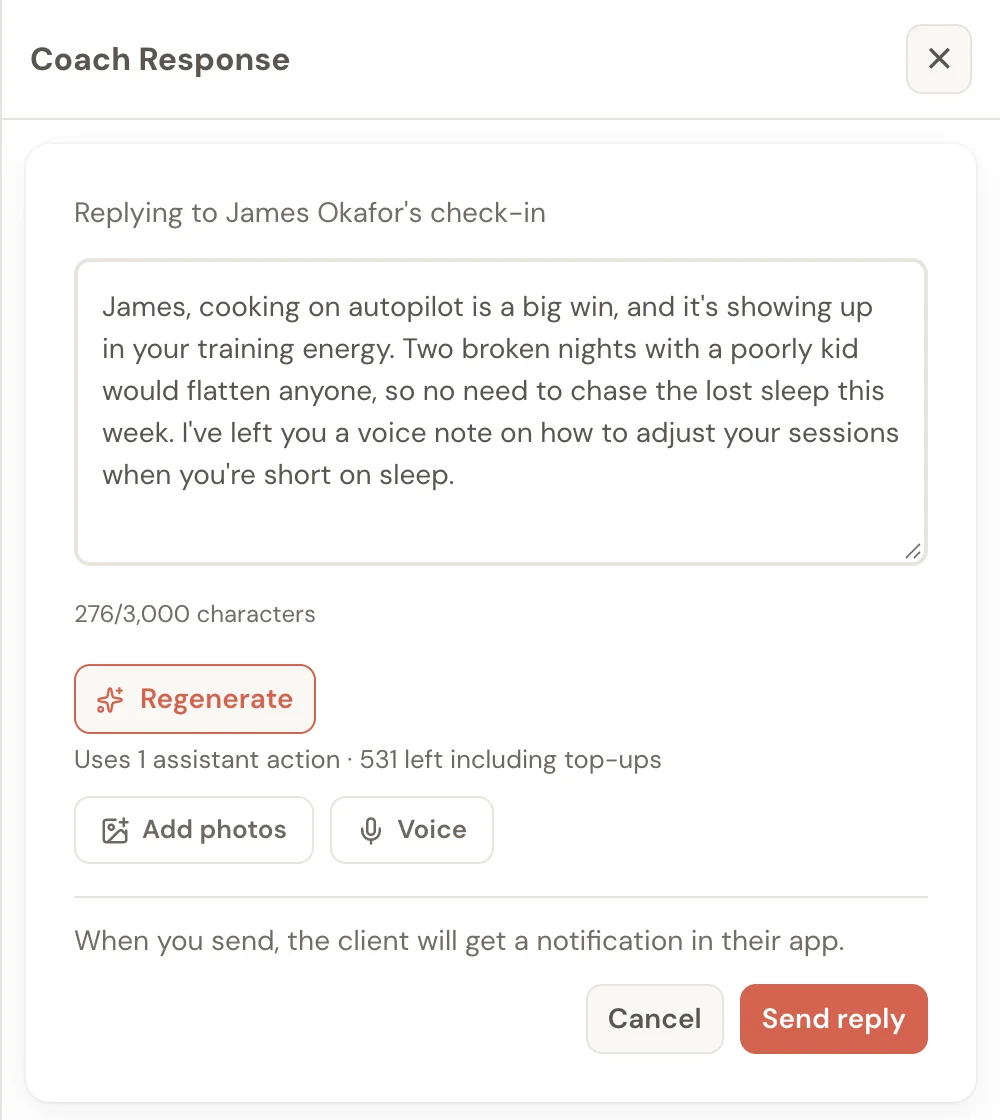
- Click Voice. The first time, your browser asks to use your microphone; allow it.
- Talk to your client. The timer shows how long you've been recording, out of 5 minutes, and the bars move as you speak.
- Click Stop when you're done.
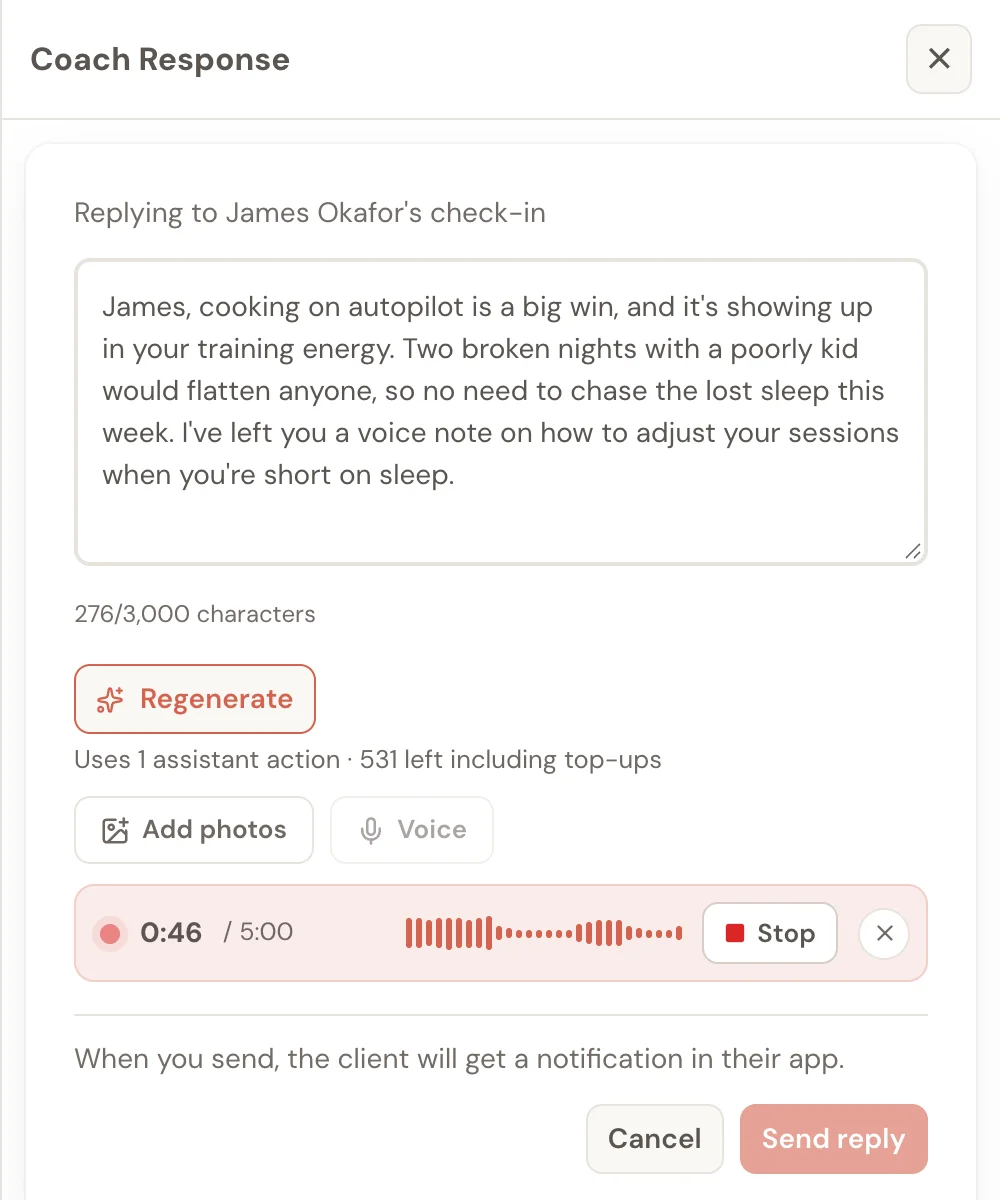
If you want to start again while you're still recording, click the ✕ next to Stop, then Discard. At 5 minutes the recording stops by itself and keeps everything you said.
Sending it
As soon as you click Stop, your voice message starts uploading. You'll see "Uploading voice message…" for a moment, and Send reply unlocks once it's ready. You can keep writing your text or adding photos while it uploads.
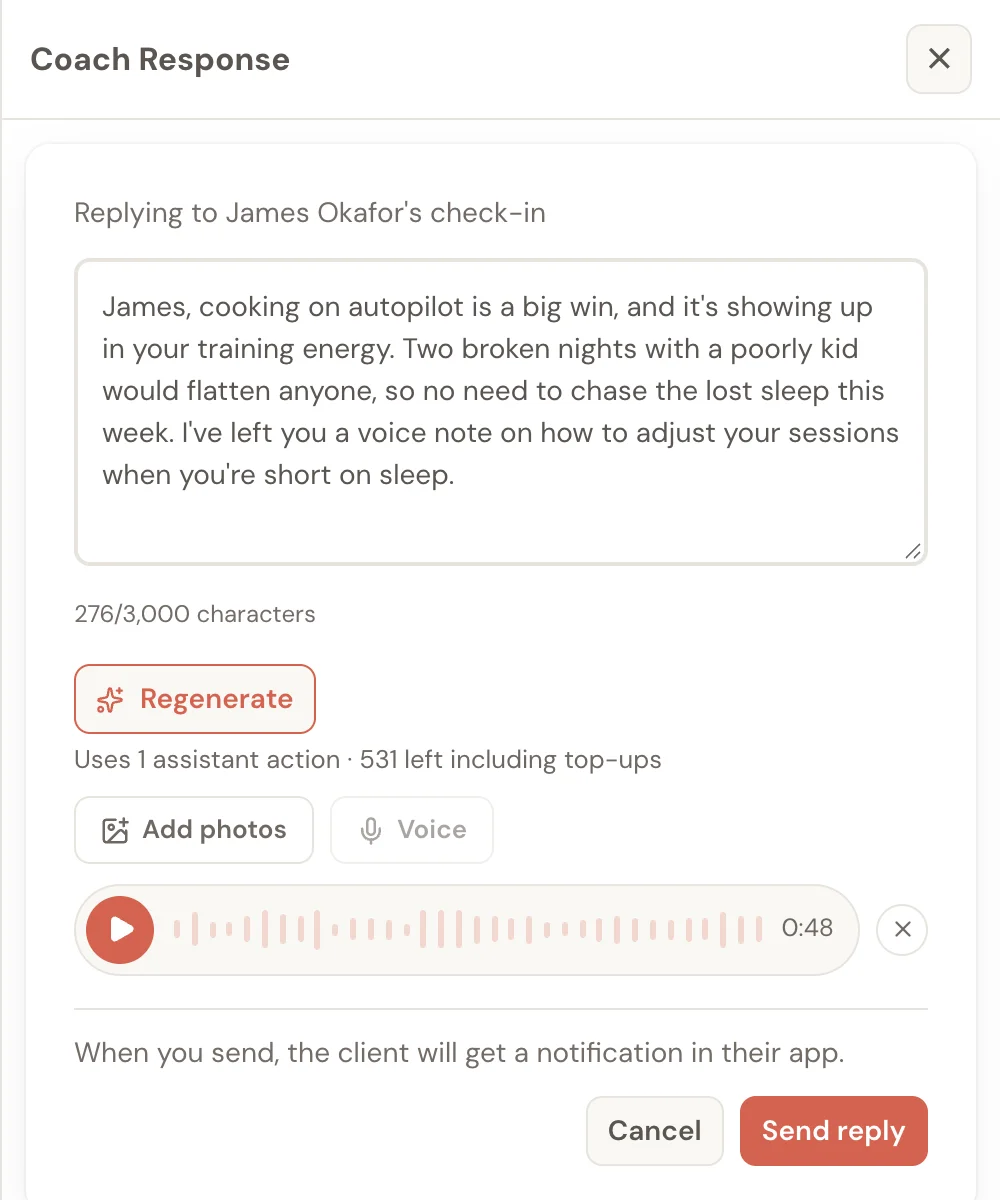
Before you send, you can:
- Listen back with the play button.
- Record it again: click the ✕ beside the voice message, click Discard, then click Voice.
- Send it on its own: a voice message with no written text is a complete reply.
Click Send reply and your client gets a notification in their client app, just like any other reply.
If the upload doesn't go through, you'll see "We couldn't upload this voice message. Your recording is still here." Click Try again. Your recording, text and photos all stay where they are, so there's nothing to redo.
Whenever a voice message you haven't sent would be lost, whether you click ✕, click Cancel or close the reply, Assistant Coach asks first. Click Keep voice message to carry on, or Discard to delete it.
What your client sees
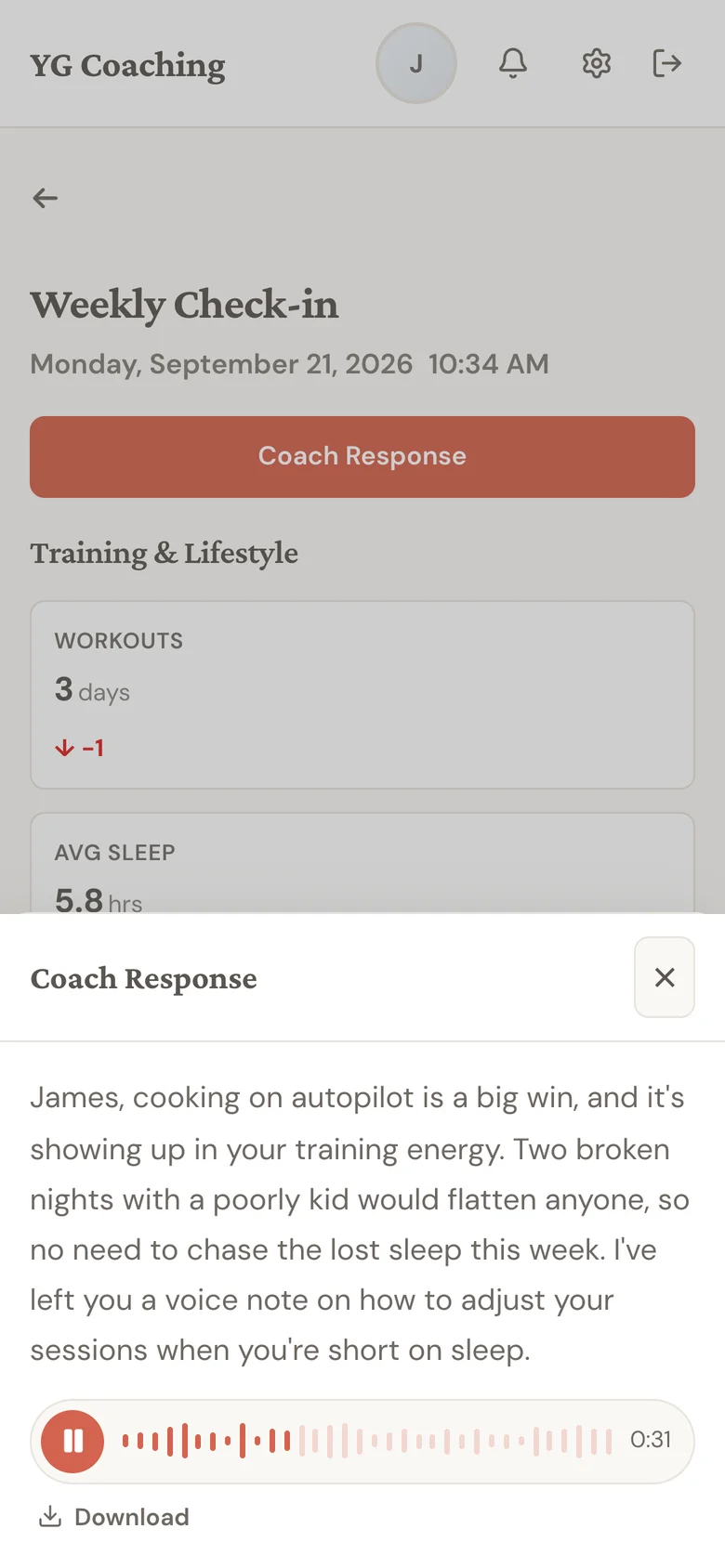
Your client opens the check-in in their client app and taps Coach Response. The voice message sits under your written reply. While it plays, the time counts down, so they can see how much is left. They can also tap Download to save the voice message to their phone.
After you've sent it
Your reply shows the voice message under your text, with its own Download, so you can keep a copy or share it elsewhere.
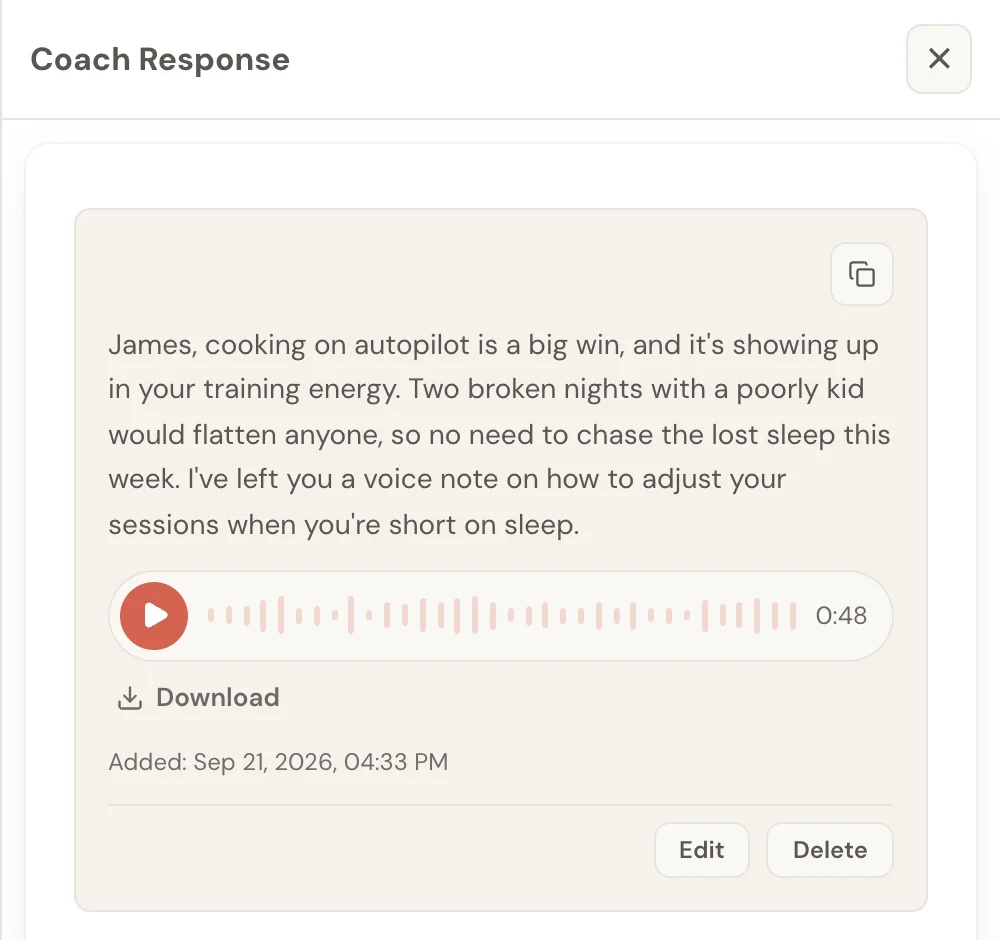
To change it, click Edit on the reply:
- To replace the voice message, remove it with ✕, click Voice and record a new one, then click Update reply.
- To remove it, click ✕ and then Update reply. Your written text stays as it is. If the message was the whole reply, confirm that you want to delete the now-empty reply.
Updating a reply doesn't send your client another notification.
A voice message stays with the check-in reply it belongs to. It's only removed if you remove or replace it, or delete the whole reply.
Good to know
- Assistant actions: recording and sending voice messages doesn't use any.
- Only on check-in replies, for now. Voice messages aren't available on meal or workout comments yet.
- Voice messages go one way. Your client listens and can download them, but can't record a voice message back.
- Free plan: you'll see Voice with a lock. Click it to see which plans include voice messages.
If the microphone doesn't work
If you see "Microphone access is off", your browser has been told not to use your microphone for Assistant Coach. Allow microphone access for Assistant Coach in your browser settings, then click Voice again.
If you see "Voice messages can't be recorded in this browser", try another browser or device. Your clients can still play voice messages you've already sent.
Tips for voice messages that land
Use your voice for the human part, and text for the plan. Your voice is best for encouragement, reassurance after a hard week, or explaining the "why" behind a change. Put the practical steps (new targets, a swapped exercise, what to do this week) in the written reply too, so your client can look them up again later.
Keep it short. One to two minutes is plenty for most weeks. Your client is more likely to listen all the way through, and more likely to press play next week too.
Stick to one main message. Open with their name and the thing you most want them to take away, then stop. If you have a second point, it can wait for next week's reply.
Save it for the moments that matter. A voice message every so often, when a week was tough or a win was big, means more than one on every reply.