Exercise Videos & Workout Photos
Clients can record a short video of any exercise and snap a photo at the end of a workout. You review the footage from your dashboard and leave feedback pinned to the exact second of the video. You can also draw on the paused frame — useful for showing them exactly what to fix.
Workout photos are available to all clients with workout logging enabled.
Recording exercise videos (client side)
During a workout, your client can record a short video for any exercise. The client films a set, you review it later, and your notes are waiting before their next session.
What the client does
- A camera icon shows up on each exercise while they're logging a workout.
- Tapping it opens their phone camera.
- The video uploads in the background while they keep training — they don't have to wait.
- If they go offline mid-upload, it queues and finishes when they're back online. If something fails outright, they see a clear status and can record again.
Workout photos (client side)
At the end of a workout, or later from Workout History, the client can add a photo to the session. It shows up in the workout details for both of you, and the client can share it as a card with their session stats and an optional "Coached by" line with your business name. See Shareable Workout Photos for the full walkthrough.
Reviewing videos on your dashboard
When a client records exercise videos, you'll see them in the workout details on your dashboard.
To find them:
- Open the client's dashboard.
- Go to Workouts → Logs.
- Open the workout day that has the video. The video player shows up directly under each exercise that has one.
A new finished upload also creates a workout video review to-do on your home page, so you don't have to go looking for new footage. See Workout Video Review To-dos for how that queue works.
Videos that are still uploading show a "Video uploading — check back shortly" message. Videos that didn't upload successfully show a short error. Everything else plays directly in the dashboard.
When there's no video this session
Clients don't film every exercise every session — most weeks they film one or two, or none at all. That used to leave you reading numbers with no idea how the movement actually looked.
Now, if a client has ever filmed an exercise before, the last video they sent shows up under that exercise even when this session has none. You'll see a small card with a play button:
- The date it was filmed — so you can judge at a glance whether it's still worth watching. A clip from last week says something different to one from five months ago.
- The session it came from, how long it is, and how many notes you left on it.
Click the card and the video opens right there in the session you're reviewing. Your notes from that day are still on the timeline, so you can see what you told them last time. Click Hide to close it again.
Nothing appears for an exercise the client has never filmed.
Using it well
The most useful moment for this is when you're about to write a note. Before you type "keep your chest up" for the third block in a row, open the last clip and check whether the cue you already gave has landed. If it has, you're coaching the next thing instead of repeating yourself. If you genuinely can't tell from footage that old, that's your signal to use Ask for video and get a fresh one.
It's also the fastest way to decide whether an exercise is worth a video request at all. Watch fifteen seconds from a month ago; if the movement looked fine and the numbers have moved sensibly since, you probably don't need a new clip this week.
Why you can't comment on it
Older footage opens read-only — you can watch it and read your past notes, but there's no + Add comment button.
That's deliberate. A note added there would land on the older session in your client's app, not the one you're reviewing now, which is almost never what you meant. If watching the old clip gives you something to say, say it on the session in front of you — either as a note on the exercise or as session feedback at the bottom of the panel.
Leaving video feedback
Each video has its own player with a few extra controls sitting on top:
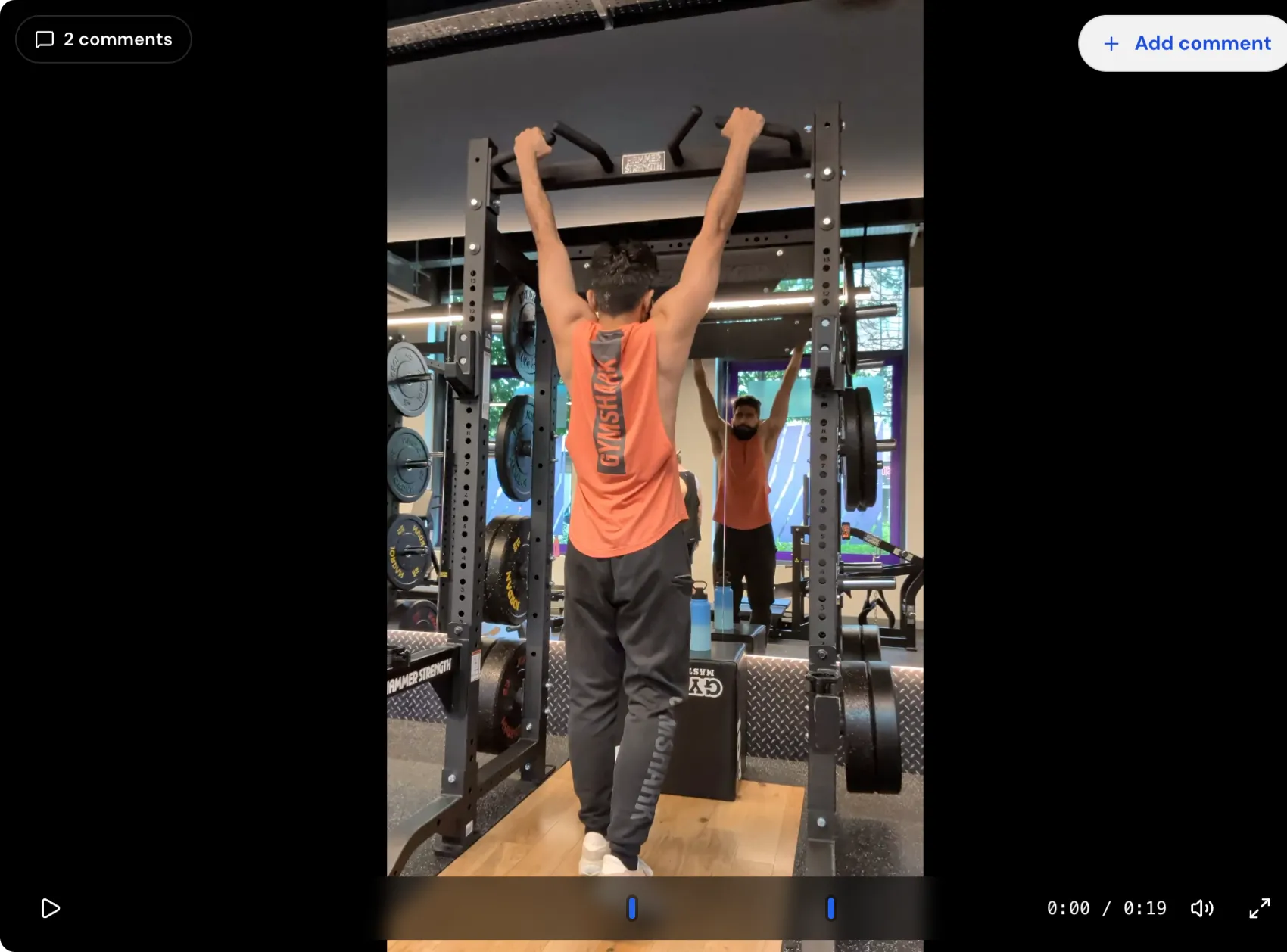
- + Add comment — top right of the video. Tap it to start any new comment.
- N comments badge — top left. Appears once the video has any past comments. Tap to open the comments list.
- Blue markers on the timeline — one per past comment, placed at the exact second it was about.
- Rotate — the circular-arrow button in the bar along the bottom, next to full screen. If a clip plays on its side, tap it to turn the picture a quarter turn at a time. It only changes your view: the client's video isn't edited. If you add a comment while it's turned, the frame you draw on is turned the same way.
The flow when you add a comment
- Watch the video until the moment you want to coach.
- Tap + Add comment. The video pauses, the current frame is grabbed as a still, and the exact second (for example
0:04) is remembered. - The Add comment window opens. The paused frame fills the screen, the timestamp shows in the header, and the drawing tools sit beside the frame on desktop or below it on phones.
- Optional: draw on the frame to show what you mean — an arrow at the knee, a circle around the bar path, a quick line over the back angle. Pick a colour from the toolbar. Undo and Clear are right there.
- Optional: type a short note below the frame.
- Optional: attach extra reference images using the paperclip icon in the typing area. Thumbnails appear in a strip below the text.
- Tap the Post button. The label includes the timestamp — for example Post at 0:04 — so you can see exactly which second the note is pinned to.
After posting, the window closes, the video stays paused at the same moment, and a new blue marker appears on the timeline.
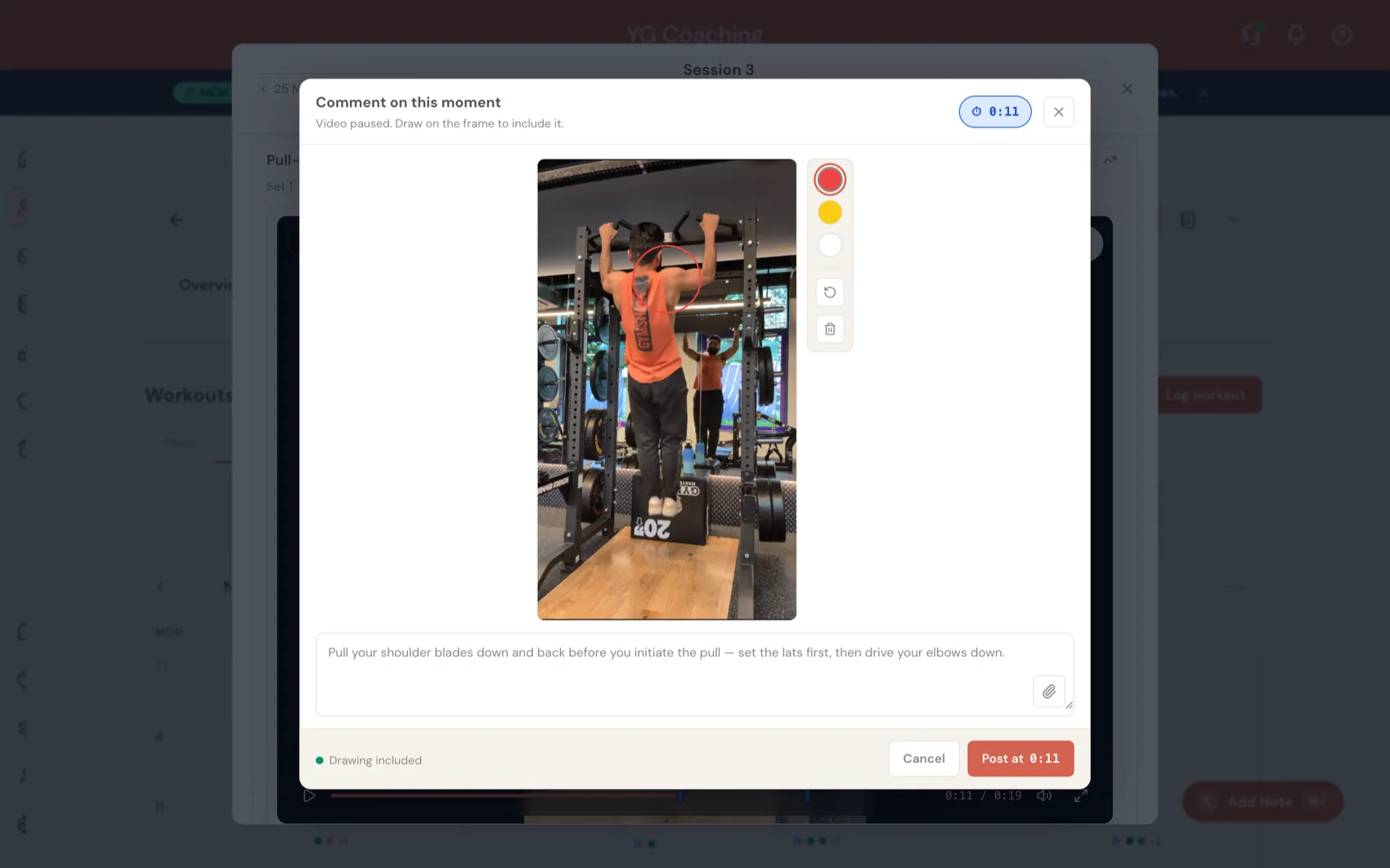
Drawing and writing are both optional, but at least one of them is required — a comment can't be empty.
Using AI form review
Under a finalized exercise video, Assistant Coach can watch the clip and draft private coaching cues for you.
On the Pro plan, this happens automatically. Once a video finishes uploading, you'll see "Reviewing this clip automatically — this can take a few minutes." while the assistant watches it, and the draft appears under the video with no button to click and no assistant action spent — however many clients you have.
Below Pro, click Generate AI form review under the video to ask for one yourself. This uses 1 assistant action.
The AI draft can include:
- What it thinks it saw in the clip, including camera angle and visible equipment.
- Form cues with evidence from the video.
- Camera or visibility notes where it cannot assess something safely.
The draft is private to you. Your client never sees it automatically. Review it, edit it, and publish only the cues you actually want the client to receive.
AI form review is a coaching assistant, not a replacement for your judgment. It may miss context, over-read an awkward camera angle, or avoid commenting when the clip is not clear enough. If generation fails, no assistant action is used. If a draft already exists for that video, opening it again does not consume another action.
If an automatic review can't be generated, the video shows "Couldn't review this video automatically." and the manual Generate AI form review button is still there to use.
The status chip
While you're composing, a small chip at the bottom of the window tells you what's actually going to be saved:
- Drawing included (green dot) — you drew on the frame, so your drawing is saved with the comment.
- No drawing (grey dot) — you didn't draw, so just the note and the timestamp are saved.
You don't have to think about checkboxes — Assistant Coach saves whichever pieces you actually used.
If the screenshot doesn't work
A few videos won't let us grab a still — usually because of how the phone recorded them. If that happens, the comment window still opens with the timestamp attached and a short note explaining what happened. You can still type a note, attach extra images, and the comment is pinned to the right moment.
Coming back to existing comments
Once a video has at least one comment, you have two ways to revisit them.
Timeline markers
Each past comment shows as a blue marker on the timeline at the exact second it was about. Tap a marker to open a small card with the paused-frame thumbnail, your note, and the timestamp.
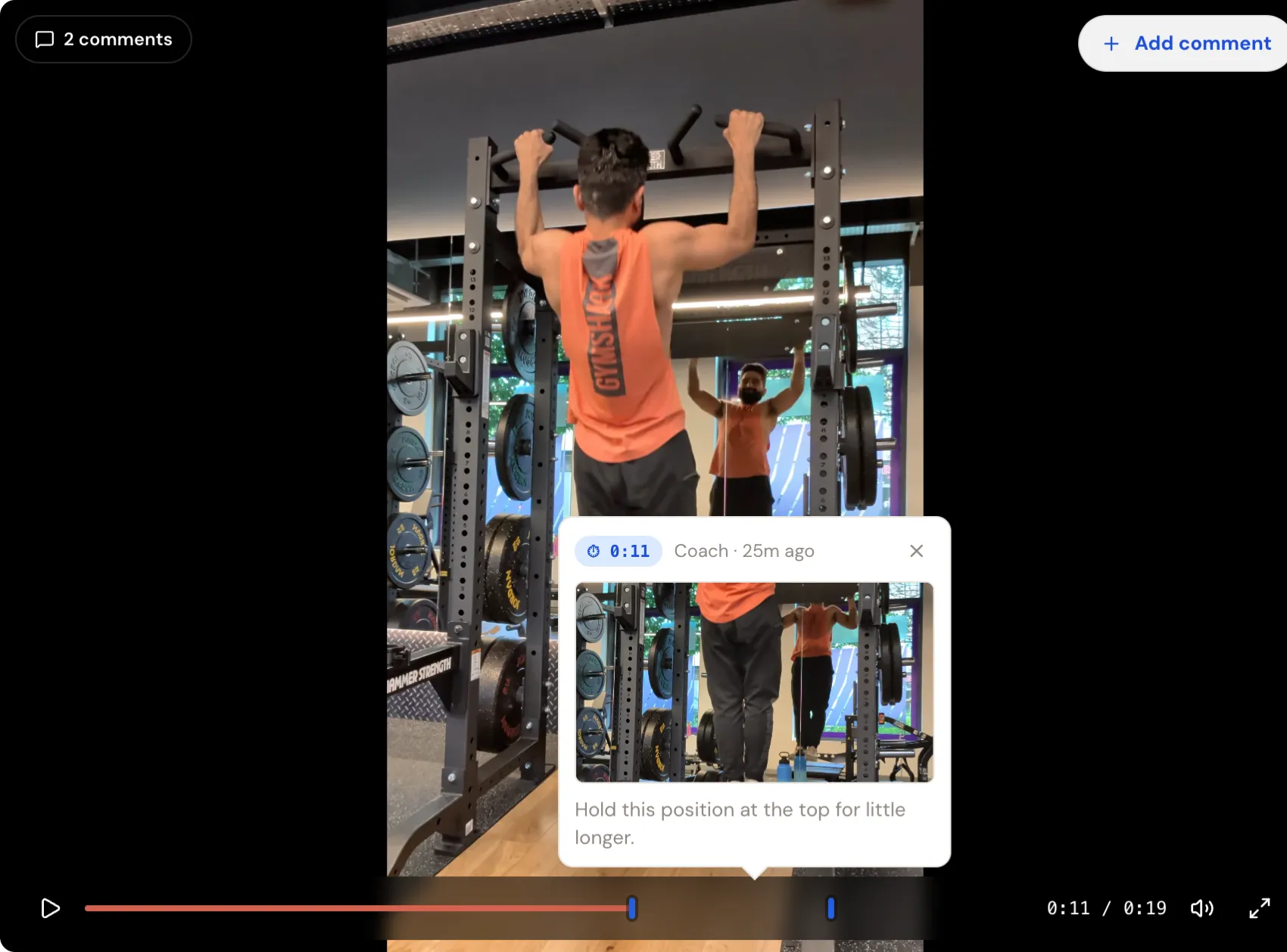
On phones, the card slides up from the bottom of the screen so it has more room.
Comments list
Tap the N comments badge in the top left of the video. A list slides out from the left of the video. Each row shows:
- The paused-frame thumbnail (if you drew one).
- A short "Nm ago" label.
- The exact timestamp (for example
⏱ 0:04). - Your note.
- Edit and Delete buttons.
Tapping a row jumps the video to that moment and pops up the small card. From the same row you can edit the text in place or delete the comment (with a quick confirmation).
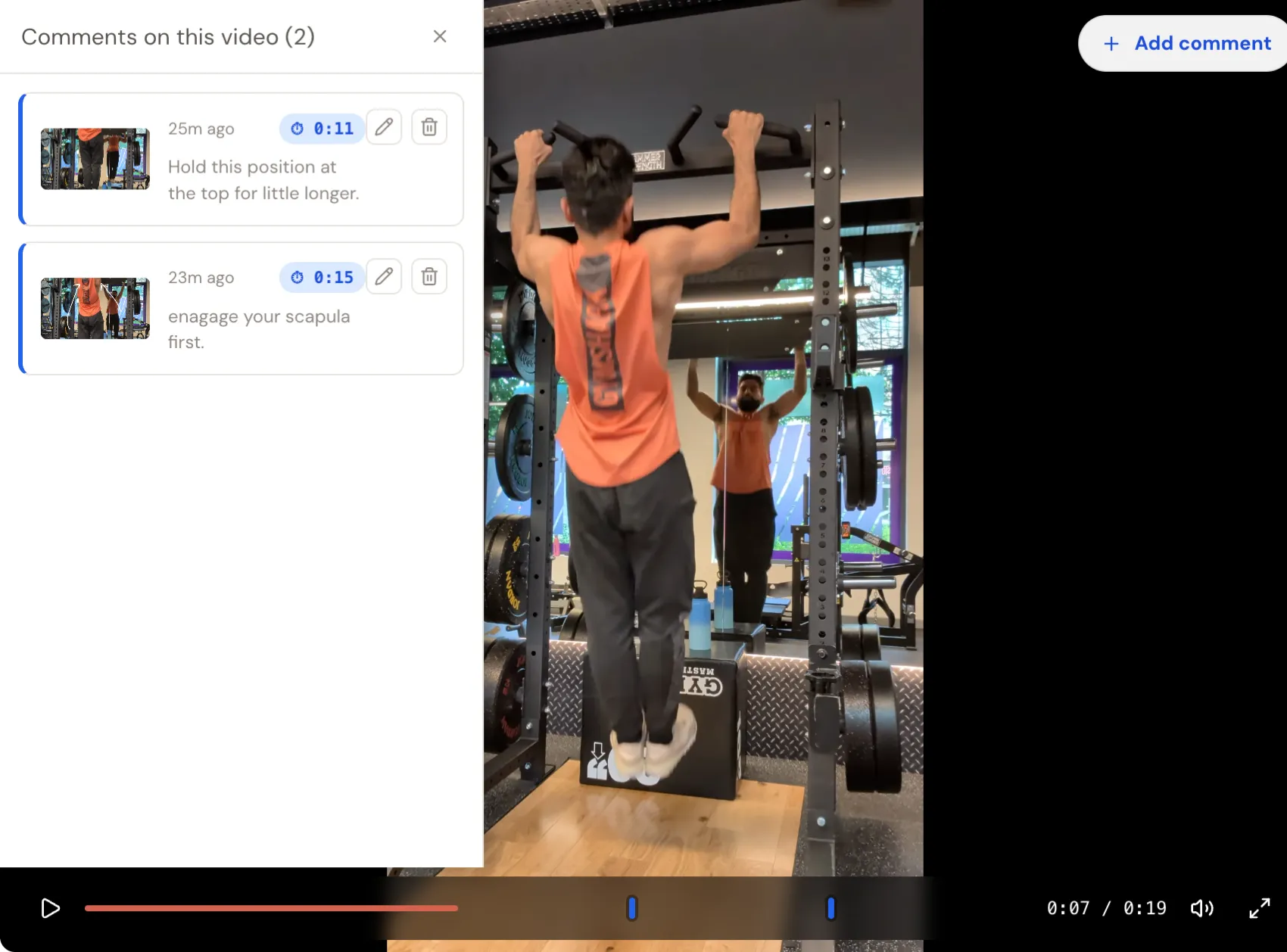
The list covers only the left half of the video, so the video and its play controls stay visible and usable on the right.
What your client sees
Every comment you post is visible to the client the next time they open that workout in their client app:
- The same video, with the same blue markers on the timeline.
- A list of comment cards below the video. Each card shows the timestamp, your drawing (if you drew one), any extra images, and the note text.
- Tapping a marker or a card jumps the video and highlights the matching comment.
- Tapping the image opens a larger view.
For the full client-facing reference — useful when explaining the experience to a new client — see Coach feedback on your videos.
How your client sees feedback
Your comment is saved to the video and appears in your client's client app. If notifications are enabled for the client and available for the account, the app may also notify them; the saved comment is the source of truth.
Marking the session reviewed
The workout video review to-do clears when you do any of these on the session:
- Leave a comment on any video in that session.
- Send Session feedback at the bottom of the workout panel.
- Tap Mark session reviewed.
The first time you reviewed the session is kept as the record, so you can always tell when you finished that round. If the client uploads another video to the same session later, the to-do comes back. Full mechanics in Workout Video Review To-dos.
Related docs
- Reviewing Workout Logs — how the rest of the workout log review works (sets, reps, adherence, session feedback).
- Workout Video Review To-dos — how new footage shows up on your home page so you don't have to go hunting for it.
- Reviewing Client Workouts — coaching playbook on what to actually look for in videos and how to write feedback your client can act on.
- Coach feedback on your videos — the client-side view of the same feature.