Coach Workout Logging
Some workouts your clients log themselves. Others they don't — because you're standing in front of them holding a clipboard, because they trained earlier and messaged you the numbers, or because they just forgot. Coach workout logging lets you record the session for them, in the same place all your other client workouts live.
Once you've logged it, the session shows up in the client's workout history like any other. Their goals, exercise history, personal records, and progress charts all keep moving forward — you don't have to maintain a separate spreadsheet.
When to use it
A few common situations:
- In-person sessions. You're at the gym with a client. You coach the lift, they do the lift, you write down the numbers as you go.
- Catching up a missed log. Your client trained, told you what they did, but didn't tap it into the app. Log it for them so the history stays complete.
- Online clients who text their workouts. Some clients prefer to send you a quick message with their sets and reps. Drop those into the logger so they live in the right place.
You don't need to set up a special "in-person" client type — anyone you coach can be logged for. Some sessions they log, some you log. Both work.
Where to find it
Open the client's dashboard, go to the Workout tab. The Log workout button sits at the top of the Workouts section, next to Create Workout Plan.
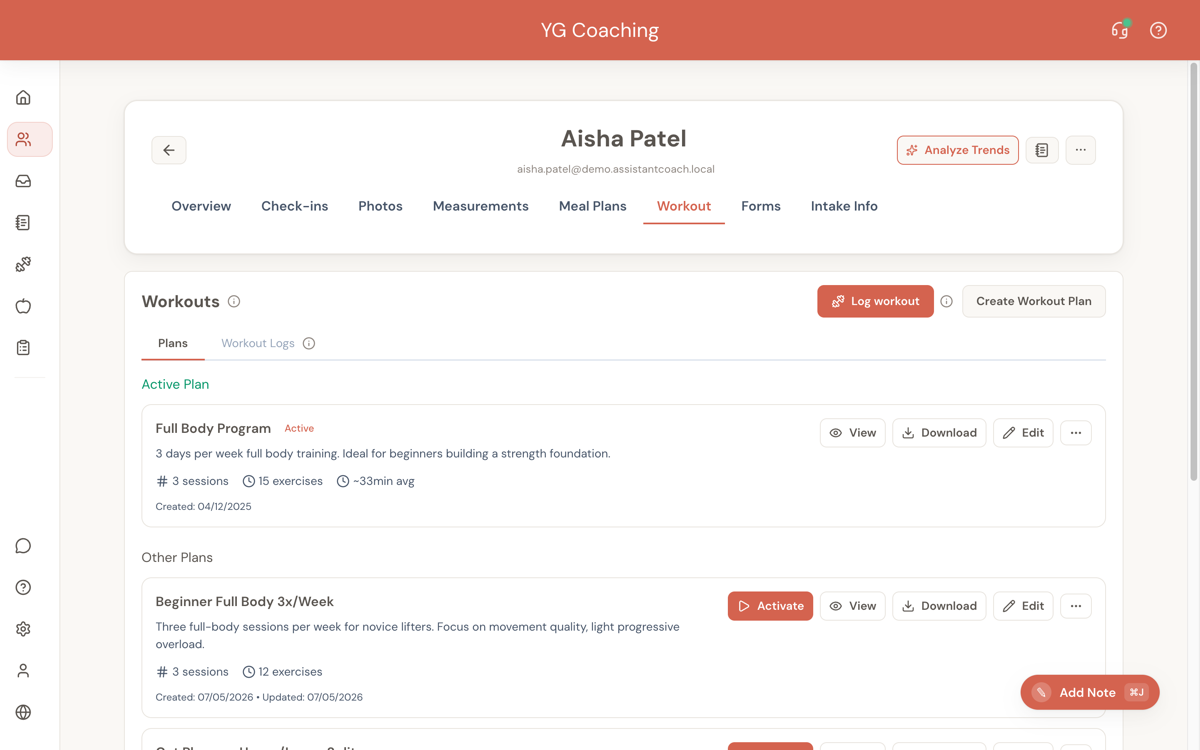
The button is available on both the Plans sub-tab and the Workout Logs sub-tab, so wherever you are inside Workouts, it's one click away.
The button is enabled once the client has an active workout plan with at least one session. If your client doesn't have a plan yet, create one or activate one of their existing plans first. The session you log against is picked from the active plan.
Pick a session
Clicking Log workout opens a small picker showing every session in your client's active plan.
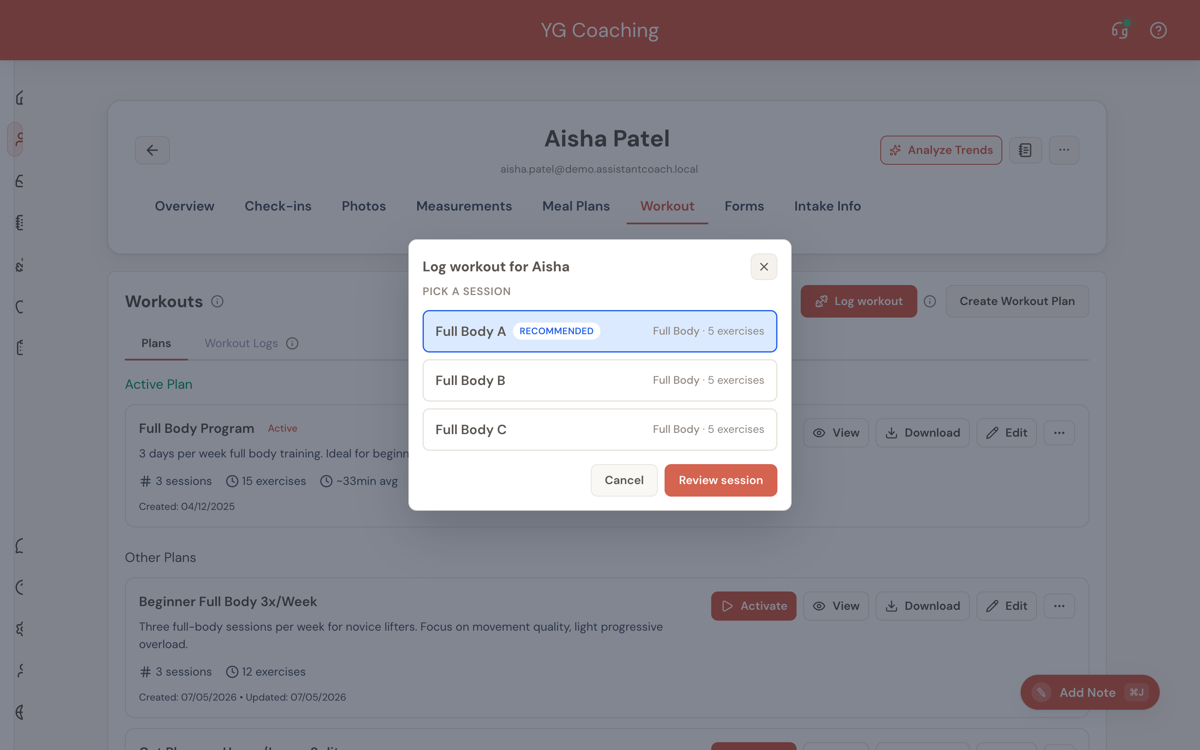
A few things the picker tries to do for you:
- Pre-selects the recommended session. Based on what your client has done most recently, the picker guesses which session is up next — usually the one that follows in their normal rotation. You can pick a different one with one tap.
- Shows session metadata. Each row tells you the session type (Full Body, Upper, Push, etc.) and how many exercises are in it, so you can confirm you're picking the right one without opening the plan.
Tap Continue when you're happy with the pick.
Review the session before you start
Before the logger opens, you see a quick overview of the session you're about to log. This is the same screen your client sees when they start a workout from their client app.
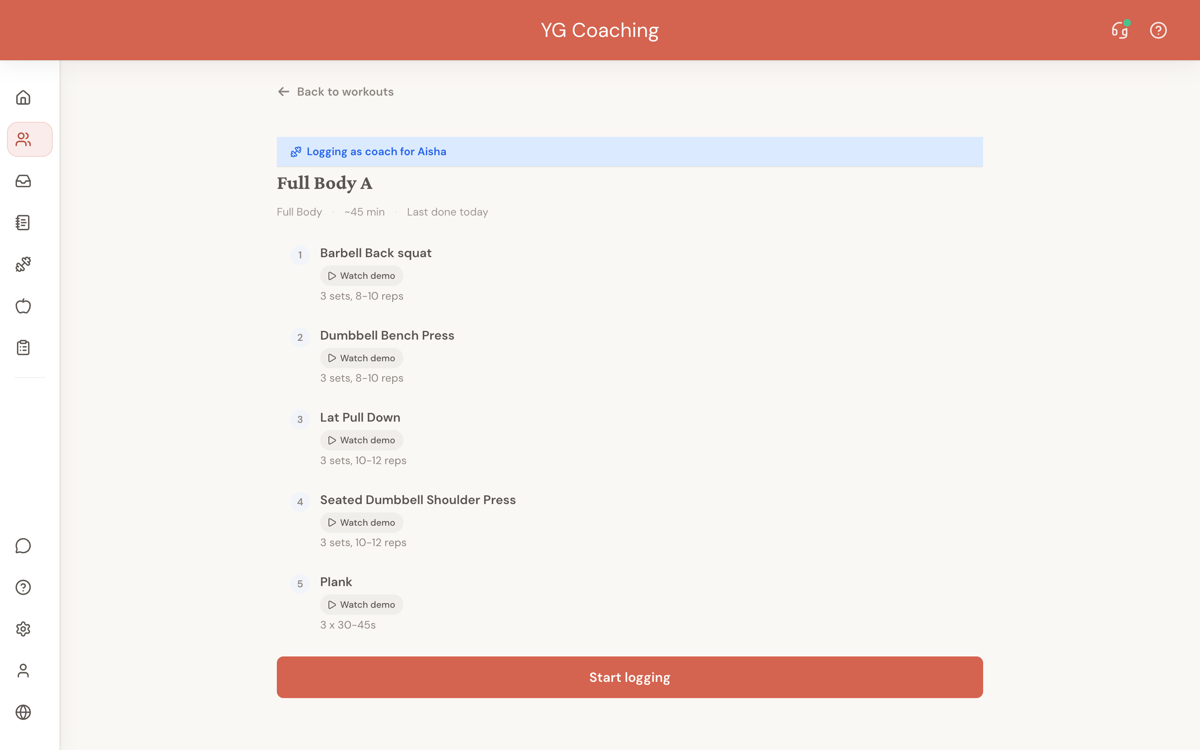
What you'll see here:
- A blue Logging as coach for [client name] badge at the top. This stays with you the whole time — it's how you'll always know whose log this is.
- The session name, type, and roughly how long it usually takes.
- Every exercise in the session with the prescribed sets and reps.
- A Watch demo link for any exercise that has a video — handy if you're coaching someone through a movement for the first time.
This review screen is a useful debrief too. If you're training someone in person, you can walk through the session out loud before you start: "We've got squats, dumbbell bench, lat pulldown, shoulder press, then plank."
When you're ready, tap Start logging.
Logging the session
The logger itself is the same one your clients use in their client app. If you've watched a client log a workout — or logged one yourself for testing — you already know how it works. Sets are added one at a time, the rest timer kicks in after each set, and you can swipe between exercises.
A few things that are different in coach mode:
- The "Logging as coach for [client name]" badge stays visible the whole time so you never lose track of whose session you're recording.
- Weights are shown in your client's preferred units. If they train in kilograms, you log in kilograms — even if your own settings are in pounds. This keeps their history clean and consistent.
- The session is automatically marked as reviewed. You were there when it happened, so there's no separate workout to review later. (Compare this with workouts your client logs themselves, which appear in your review queue.)
Tap End → Complete when you're done. The session is saved to your client's history.
What happens if there's an unfinished workout
Your clients can only have one workout in progress at a time. If you start a new session for a client who has an older, half-finished log sitting around, Assistant Coach handles it for you:
- The older, unfinished session is saved before the new one starts.
- The new session you're about to log opens normally.
- You'll see a short note letting you know the older session was tidied up. You can tap to open it and check what was captured if you want.
Nothing gets thrown away — the old session stays in the client's history, just marked as completed at the point you started the new one.
Where it shows up in your dashboard
Once you've logged a session, it appears in the client's Workout Logs sub-tab alongside any workouts they've logged themselves. Open the session and you'll see a small Logged by you badge in the header so it's easy to tell at a glance.
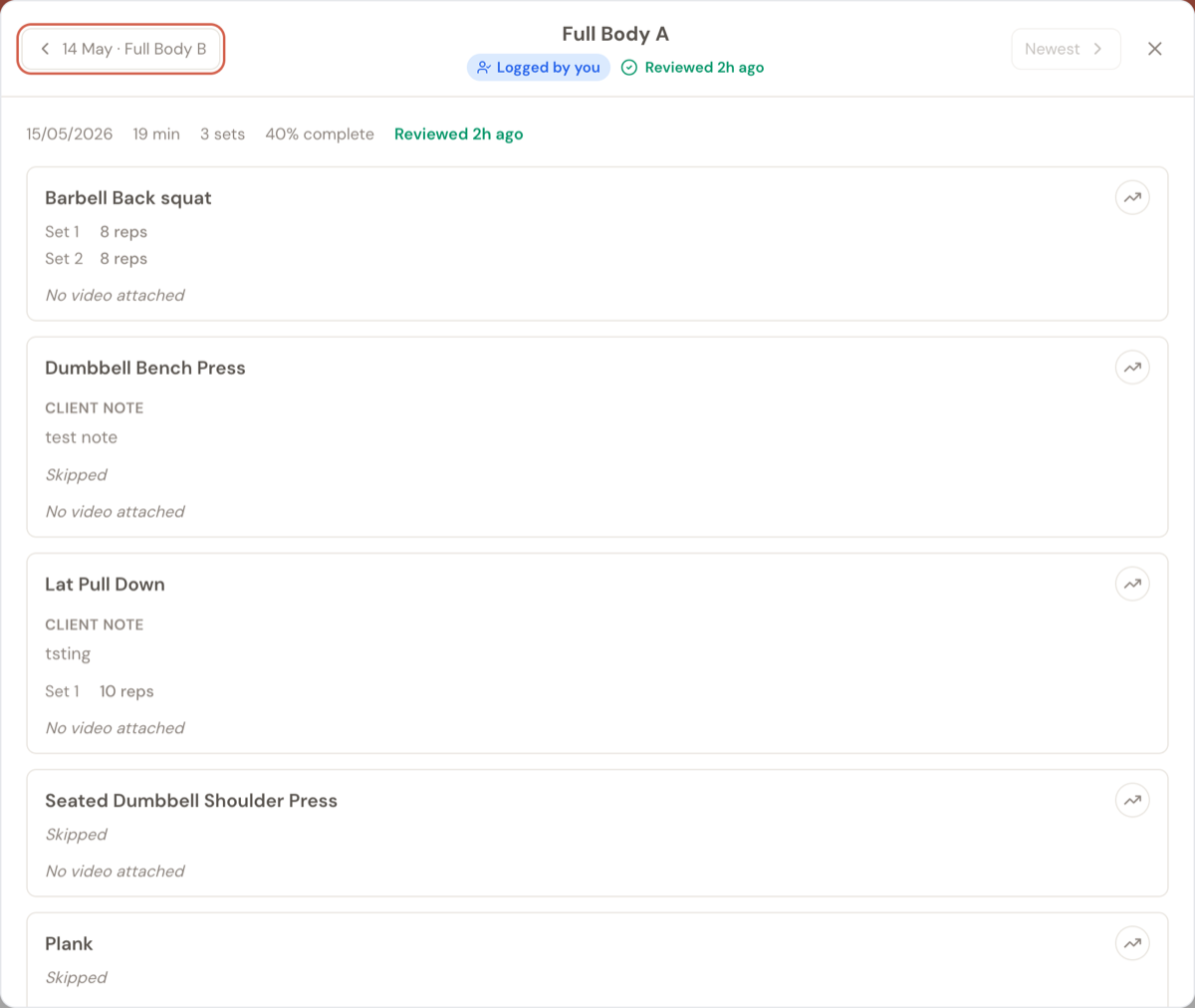
Because you logged the session yourself, it's marked Reviewed automatically. The badge and the reviewed mark are the only differences — everything else (sets, exercise notes, the feedback panel, exercise history) works the same way as a session your client logged.
You can still add written feedback if you want — for example, technique cues to revisit next session, or a quick "great work today" note for the client to read.
What your client sees
Your client sees the session in their own workout history with a Logged by coach badge.
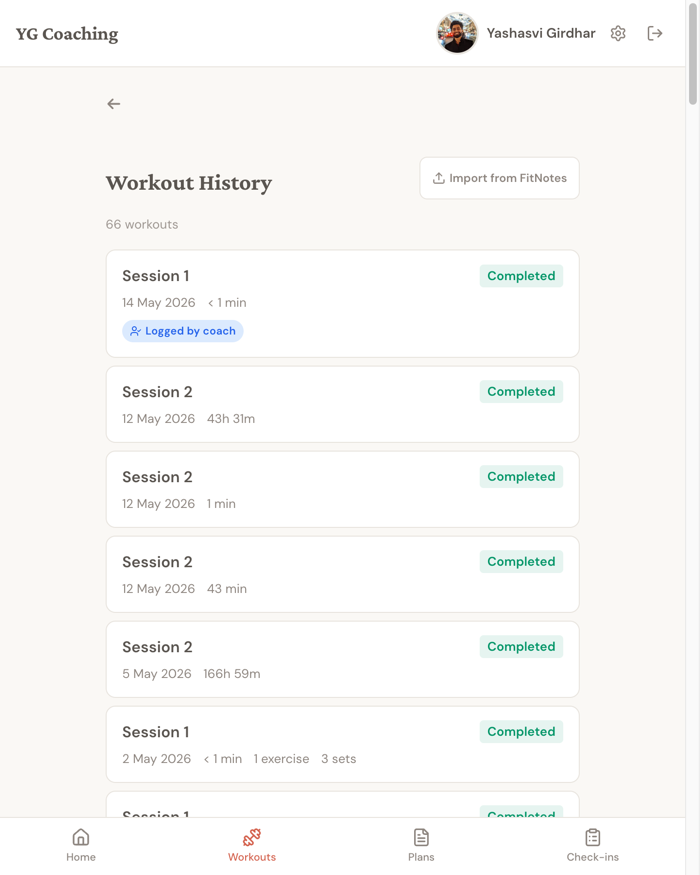
When they open it, they see exactly what you logged — same sets, same reps, same notes. A line at the top of the detail view tells them which coach logged it and when, so there's no ambiguity. This transparency is intentional — the client app is theirs, and any session attributed to them should be clearly labelled with who recorded it.
Coach-logged sessions count towards their goal progress and personal records just like any other workout. If a coach-logged session beats a previous PR, the client sees it celebrated the same way.
Tips
- Use the demo video links when you're coaching a new exercise. If a client hasn't done a movement before, tap Watch demo from the pre-workout review screen — it opens the same video your client would see in their client app. Good for a quick form refresher mid-session.
- Log as you go, not at the end. The logger is built to be used during the workout, between sets, while the client rests. Trying to remember every set after the session is over is more painful than logging in real time — and the rest timer doubles as a coaching cue.
- Add an exercise note for anything worth remembering. Pain, equipment swaps, "used the Smith machine because the squat rack was busy" — drop it in the per-exercise note. Your future-self reviewing the log next week will thank you.
- For in-person clients who never log themselves, you become the source of truth. They still benefit from everything else in their client app — check-ins, photos, measurements, goals — but the workout history depends on you keeping it up to date.