Client Dashboard
The client dashboard is where all the information for a single client lives. Click any client card from your Clients directory to open it.
The dashboard is organized into tabs across the top. Here's what each one gives you.
Overview
The default tab when you open a client's dashboard. It brings together the most important information at a glance.
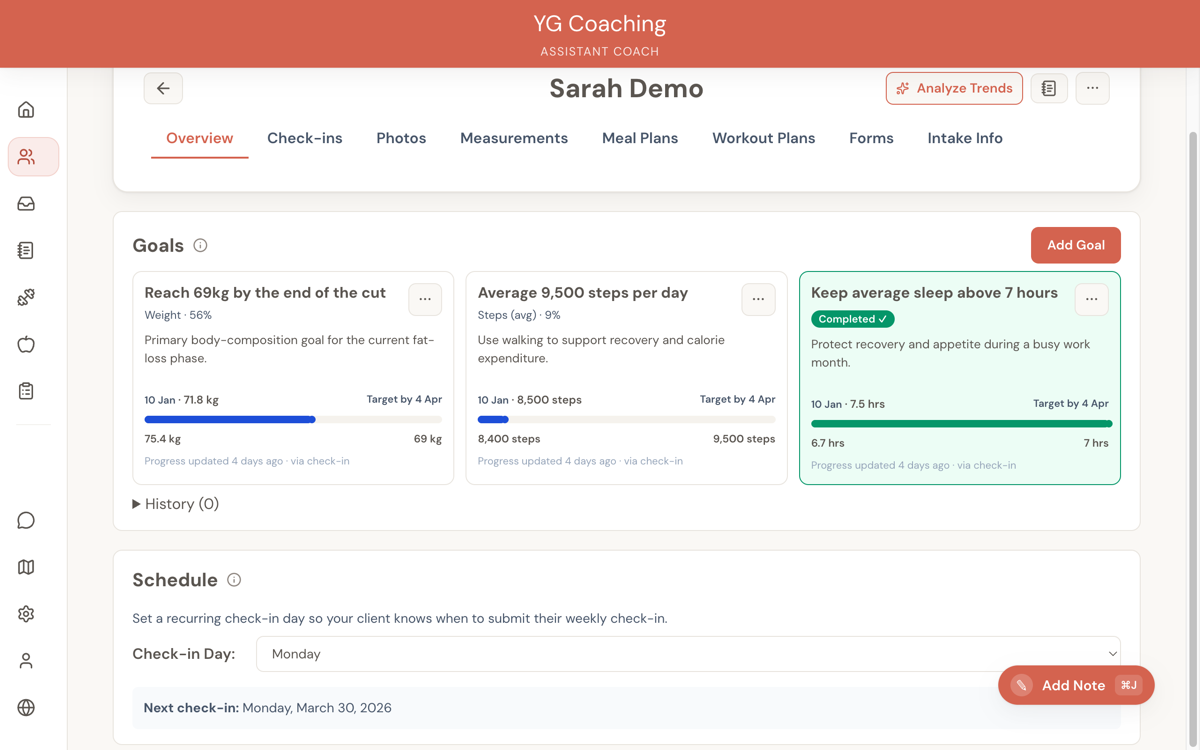
Goals
If you've set goals for this client, they appear here with visual progress bars showing how close they are to their target. Each goal displays:
- Title and description
- Current value vs. target value
- Progress percentage
- Start and end dates
You can add new goals, update progress, mark goals as completed, or abandon them — all from this section. See Tracking Goals for details.
Schedule
This is where you set the client's check-in day — the day of the week they're expected to submit their weekly check-in. Pick any day from Sunday to Saturday using the dropdown.
Once set, the system calculates their next check-in date and tracks their adherence rate — a rolling 5-week average of whether they've been checking in on time.
Latest check-in
A brief preview of the client's most recent check-in, so you can quickly see where things stand without switching tabs.
Check-ins
A reverse-chronological list of every check-in this client has submitted. Each entry shows the date, whether it's been reviewed, and whether you've written a response.
Click any check-in to open the full review interface with measurements, metrics, subjective feedback, and progress photos. See Reviewing Check-ins for the full breakdown.
Photos
A progress comparison interface that lets you compare photos across check-ins. Select two check-in dates and view front, side, and back angles side by side — the same comparison tool available in the check-in review screen, but accessible here as a standalone tab for quick access.
Measurements
Charts showing how body measurements have trended over time. Metrics include:
- Body: Weight, neck, chest, waist, hips, arms, thighs
- Activity: Days worked out, average sleep, average steps, water intake
Data points come from all check-ins, so the more check-ins a client submits, the richer these charts become.
Meal Plans
Lists all meal plans you've created for this client — both the active plan and historical ones.
The active plan appears at the top with a green badge. Historical plans are in a collapsible section below.
For each plan, you can:
- Edit — Open it in the meal plan builder
- Duplicate — Create a copy to use as a starting point for a new plan
- Activate/Deactivate — Toggle which plan the client sees
- Export PDF — Download or preview the plan as a PDF
- Delete — Permanently remove the plan
Click Create Meal Plan to start building a new one. See Creating Meal Plans.
Workout Plans
Same structure as Meal Plans. Lists all workout plans with the active one highlighted at the top.
Each plan shows its name, description, duration in weeks, number of sessions, and when it was assigned.
You have the same actions: edit, duplicate, activate/deactivate, export PDF, and delete. Click Create Workout Plan to build a new one. See Creating Workout Plans.
Forms
Shows all forms assigned to this client — intake, check-in, feedback, and custom forms.
From here you can:
- Assign a form template to the client
- Unassign a form
- Customize a form for this specific client (add extra fields, hide fields from the base template). Customizations only affect this client — they don't change the original template.
See Form Templates for more on the forms system.
Intake Info
Displays the client's intake form responses, organized by the sections you defined in your intake form template.
Sections are collapsible, so you can expand just the parts you need. If the client hasn't completed their intake yet, you'll see a message explaining that intake data will appear once submitted.
This tab is a quick reference for the foundational information about a client — their background, goals, medical history, dietary needs, and anything else you asked during onboarding.
Header actions
At the top of every client dashboard, you'll find:
- Notes button — Opens the notes drawer on the right side, where you can view and create notes for this client. See Notes & Todos.
- Three-dot menu — Contains the Archive/Unarchive action. See Archiving Clients.