Reviewing Check-ins
When you open a check-in, you get a comprehensive view of everything the client submitted — along with comparison data from previous check-ins so you can spot trends without doing the mental math yourself.
Getting to a check-in
There are two main paths:
- From your home to-do list — Click on any pending check-in item. This is the fastest way during your daily review workflow.
- From the client's dashboard — Go to the Check-ins tab and select any check-in from the list.
The review interface
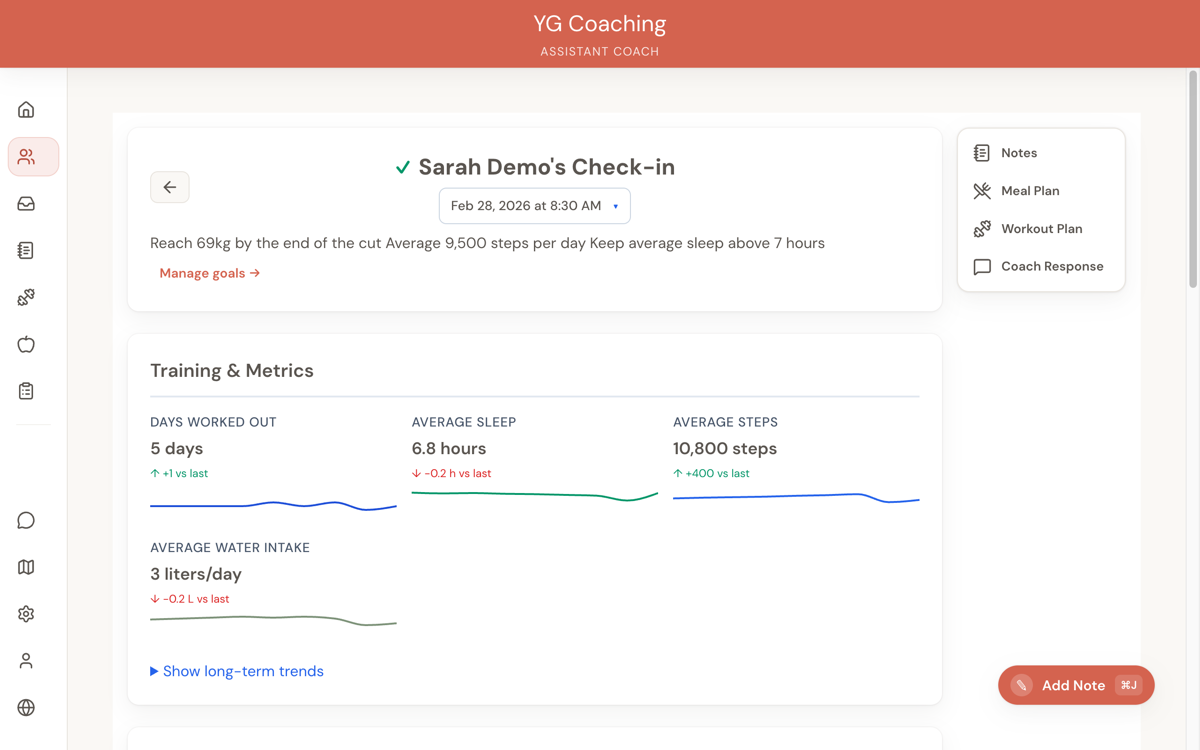
Header
At the top, you'll see:
- The client's name with a status indicator (checkmark if reviewed, clock if pending)
- The check-in date — click the dropdown to navigate between this client's check-ins
- Mark as Reviewed button (only visible for pending check-ins)
- Active goals strip showing the client's current goals at a glance
Navigation
You can move between a client's check-ins quickly:
- Arrow keys — Left and right arrow keys jump to the previous or next check-in
- Date dropdown — Click the date to see a list of all check-ins and jump to any one
Training & lifestyle metrics
Each metric is displayed with:
- Current value — What the client reported this check-in
- Delta badge — The change compared to the previous check-in (e.g., "+0.5 kg" or "-2,000 steps"), color-coded green for positive trends and red for negative
- Mini trend chart — A sparkline showing the last 12 data points, so you can see the trajectory at a glance
Below the metrics, there's an expandable long-term trends section with full charts across all check-ins.
Body measurements
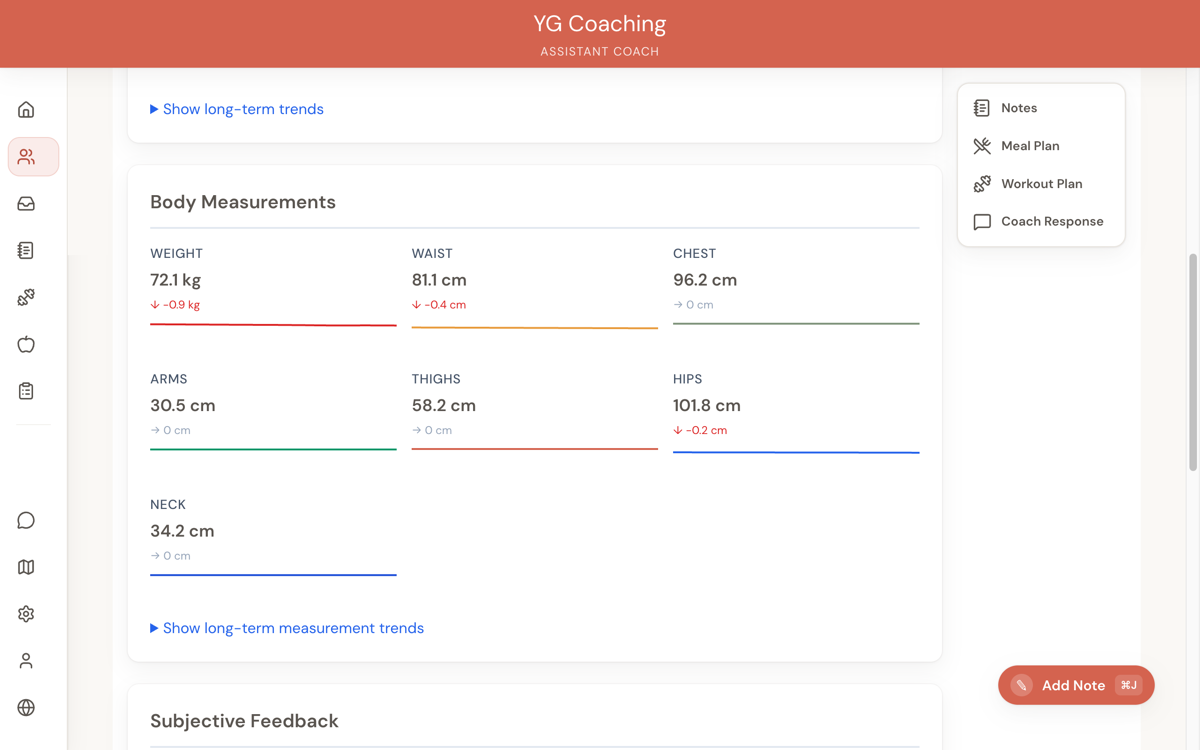
Same format as the training metrics — current values, deltas, and trends — for weight, neck, chest, waist, hips, arms, and thighs.
Each measurement has its own color in the trend charts for easy visual distinction. Missing measurements (not all clients track everything) are handled gracefully — you'll only see data that was actually submitted.
Subjective feedback
Your client's written responses to the questions in your check-in form. Displayed as question-and-answer pairs, each answer highlighted in a card for readability.
This is often the most valuable part of a check-in — it tells you how the client is actually feeling beyond the numbers.
Progress photos
If the client uploaded photos, they appear in a comparison viewer with two modes:
Current vs. Previous Compares this check-in's photos against the immediately preceding check-in. Useful for week-to-week progress.
First vs. Current Compares the very first check-in photos against this one. Shows the total transformation since coaching began.
For each mode, you can switch between front, side, and back angles.
The photo viewer includes:
- Side-by-side comparison — Both images displayed next to each other for easy visual comparison
- Zoom controls — Zoom in up to 5x for detail
- Rotation — Rotate images in 90° increments if a photo was uploaded at an angle
- Pan — When zoomed in, drag to move around the image
Photos are cached locally for performance, so switching between modes and angles is fast even with many check-ins.
The "First vs. Current" comparison is a powerful coaching tool. When a client is feeling stuck, showing them how far they've come since day one can be incredibly motivating.
The actions sidebar
On the right side of the review screen, you'll find quick-access buttons for:
- Notes — Opens the notes drawer, showing any notes linked to this check-in. You can also create new notes here.
- Meal Plan — Opens a preview of the client's active meal plan (if they have one).
- Workout Plan — Opens a preview of the client's active workout plan.
- Coach Response — Opens the response drawer where you can write or view your response.
On mobile, these actions move to buttons in the header.
Marking as reviewed
When you've finished reviewing, click Mark as Reviewed in the header. This:
- Removes the check-in from your home to-do list
- Updates the review status indicator to a checkmark
- Records that the review is complete
You can still access the check-in later — marking it reviewed just clears it from your pending queue.