Reviewing Workout Logs
When a client completes a workout, it appears in the Logs sub-tab under the Workouts section on their dashboard. You can drill into each workout, see exactly what they did, and give feedback.
Finding workout logs
On a client's dashboard, go to the Workouts section. You'll see two sub-tabs:
- Plans — Your workout plan management (creating, editing, activating)
- Logs — Completed workout history with adherence stats
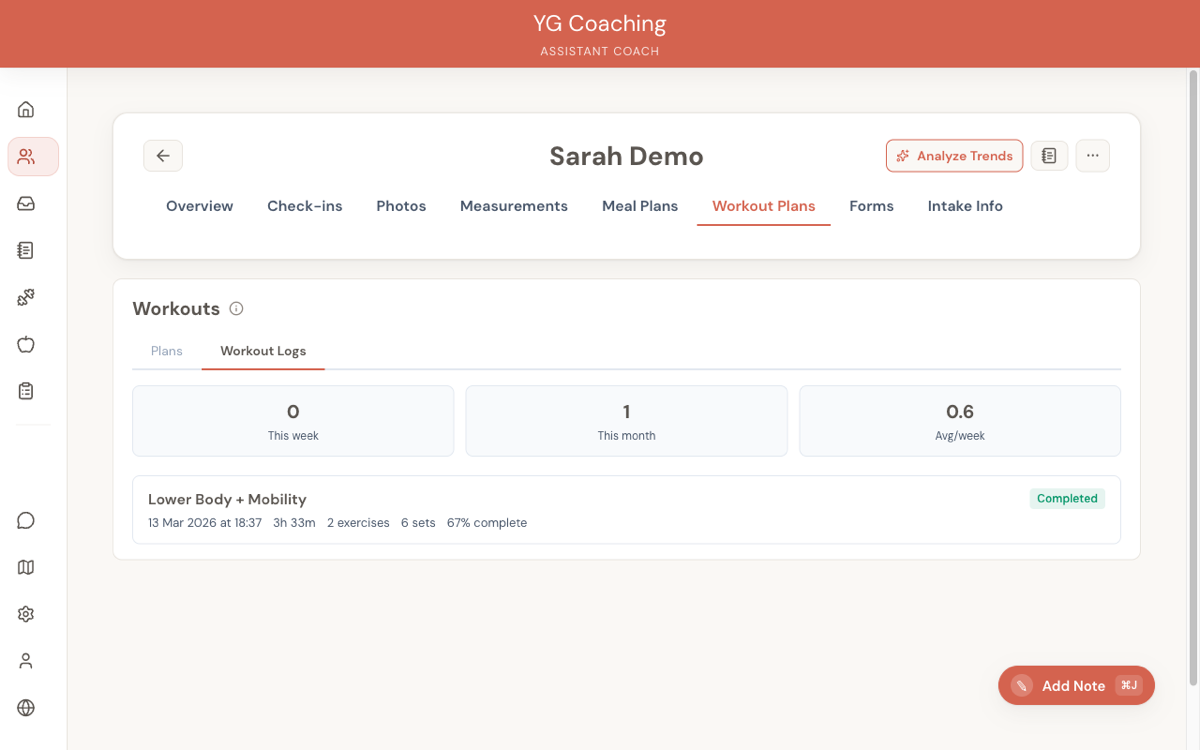
The Logs tab shows workouts in reverse chronological order (newest first).
Adherence stats
At the top of the Logs tab, summary stats give you a quick read on the client's consistency:
- Workouts this week
- Workouts this month
- Average sessions per week
Workout log cards
Each workout log card shows:
- Session name (e.g., "Upper Body Day 1")
- Date and duration
- Total volume
- Completion: exercises completed / total, sets completed / prescribed
- Status badge — Completed or Incomplete
Drill-down detail
Expand a workout card to see the full exercise-by-exercise, set-by-set breakdown:
- Exercise name with prescribed target (e.g., "4 × 10 @ 135 lb")
- Each set: actual reps × weight, with delta indicators showing how the client compared to their prescription (e.g., "▼5lb", "▲2 reps")
- Skipped exercises — Clearly marked if the client didn't log any sets
- Added exercises — Exercises the client added mid-workout (not in the plan) show with an "Added by client" badge so you can see what extra work they chose to do
- Client session note — If the client wrote a note about how the session felt
- PRs — Any personal records hit during the session
Giving feedback
Each workout has a Give Feedback button that opens a feedback drawer. Write free-text feedback — training cues, encouragement, adjustments for next time.
- Feedback is visible to the client in their workout history
- You can edit or delete feedback after posting
- The feedback appears with your name and a timestamp
This works similarly to check-in responses — a direct coaching touchpoint tied to a specific workout.
Exercise trend graphs
From the Logs tab, you can view per-exercise performance trends to assess progression:
- Weight — Best weight per session over time
- Volume — Total volume (sets × reps × weight) per session
- Estimated 1RM — Using the Epley formula
These are the same graphs your client sees in their portal, giving you a shared reference point for coaching conversations.
Goal integration
When a client completes a workout, any goals linked to exercises in that session update automatically. For example, if a client has an "Increase bench press to 100 kg" goal and they hit 95 kg in today's session, the goal progress updates without anyone touching it.
You'll see the updated progress on the Goals tab — no need to manually cross-reference workout logs with goal targets.