Creating Workout Plans
The workout plan builder lets you create structured training programs organized into sessions, each filled with exercises from your library. Clients see the active plan on their portal and can download it as a PDF.
Opening the builder
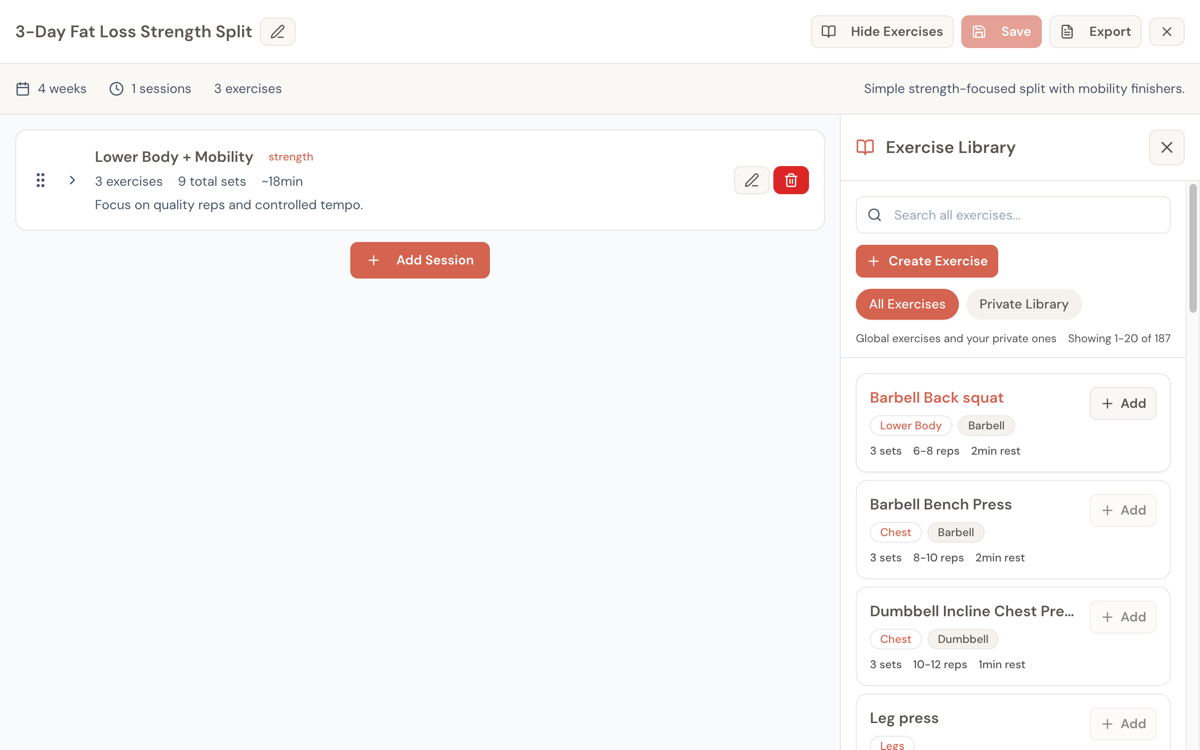
From a client's dashboard, go to the Workout Plans tab and click Create Workout Plan. This opens the builder in a two-pane layout:
- Left side — Your plan structure: sessions and their exercises
- Right side — Exercise library: search, browse, and add exercises
Plan details
At the top of the builder, you'll set the plan metadata:
- Plan name (required) — e.g., "Phase 2 — Hypertrophy Focus"
- Description — A brief summary of the program
- Duration — How many weeks this plan runs (1–52)
- Notes — Internal notes for yourself (not shown to the client)
A summary bar below the header shows the plan at a glance: duration in weeks, number of sessions, and total exercise count.
Building sessions
Click Add Session to create a training session. Each session represents a single workout day.
For each session, you can set:
- Session name — e.g., "Upper Body Day 1", "Leg Day", "Full Body A"
- Session type — e.g., "Strength", "HIIT", "Cardio" (optional, shown as a badge)
- Session notes — Instructions or reminders for this specific workout
Sessions auto-name themselves ("Session 1", "Session 2", etc.) and default to "Strength" type, but you can rename and retype them.
Reordering sessions
Drag sessions by the grip handle to reorder them. This lets you arrange the training week however you want — push/pull splits, upper/lower, or any other structure.
Session stats
Each collapsed session card shows a quick summary:
- Number of exercises
- Total sets across all exercises
- Estimated duration
- Session type badge
Adding exercises
With a session expanded, you can add exercises from the library panel on the right.
Search and browse
- Search — Type to search by exercise name, muscle group, or equipment
- Browse — When not searching, you'll see popular exercises sorted by usage
- Filter by scope — Toggle between "All Exercises" (global + your custom ones) and "Private Library" (only exercises you've created)
Adding to a session
Click on an exercise in the library to add it to the currently selected session. If you have multiple sessions, a picker lets you choose which one.
The exercise is added with its default parameters from the library:
- Sets — Number of sets (default: 3, range: 1–10)
- Rep range — Text field like "8-12", "5x5", or "AMRAP" (default: "8-12")
- Rest period — In seconds (default: 90, range: 30–600)
Configuring exercises
Once an exercise is in a session, you can customize:
- Sets — Adjust the number
- Rep range — Set any format: "8-12", "3x5", "AMRAP", "30 seconds"
- Rest period — Time between sets in seconds
- Weight notes — Coaching cues like "RPE 8", "60% 1RM", "Heavy", or specific weights
- Exercise notes — Form cues, modifications, or special instructions
Reordering exercises
Drag exercises within a session to change their order. You can also drag an exercise from one session to another — it moves to the end of the target session.
The system prevents adding the same exercise to the same session twice.
YouTube demo links
If an exercise in your library has a YouTube URL, a play icon appears next to its name. Clicking it opens the demo video. This is useful for:
- Reviewing proper form while programming
- The client can see these links in context when viewing their plan
See Exercise Library for how to add YouTube links to exercises.
Saving
The builder uses manual save. An indicator shows whether you have unsaved changes. Click Save to persist everything — sessions, exercises, ordering, parameters.
For new plans, the first save creates the plan. Subsequent saves update it.
Activating
After saving, activate the plan from the client's Workout Plans tab. Only one workout plan can be active at a time per client — activating a new plan deactivates the previous one.
Once active, the plan appears on the client's portal and is available for PDF download.
Duplicating
Use the Duplicate action on any plan card to create a copy. This is the fastest way to create a progression — duplicate the current phase, bump up the volume or intensity, and save as the next phase.
The duplicate includes all sessions, exercises, and parameters.