Creating Meal Plans
The meal plan builder lets you create structured nutrition templates for your clients, complete with macro targets, individual meals, and per-food nutritional breakdowns. Clients see the active plan on their portal and can download it as a PDF.
Opening the builder
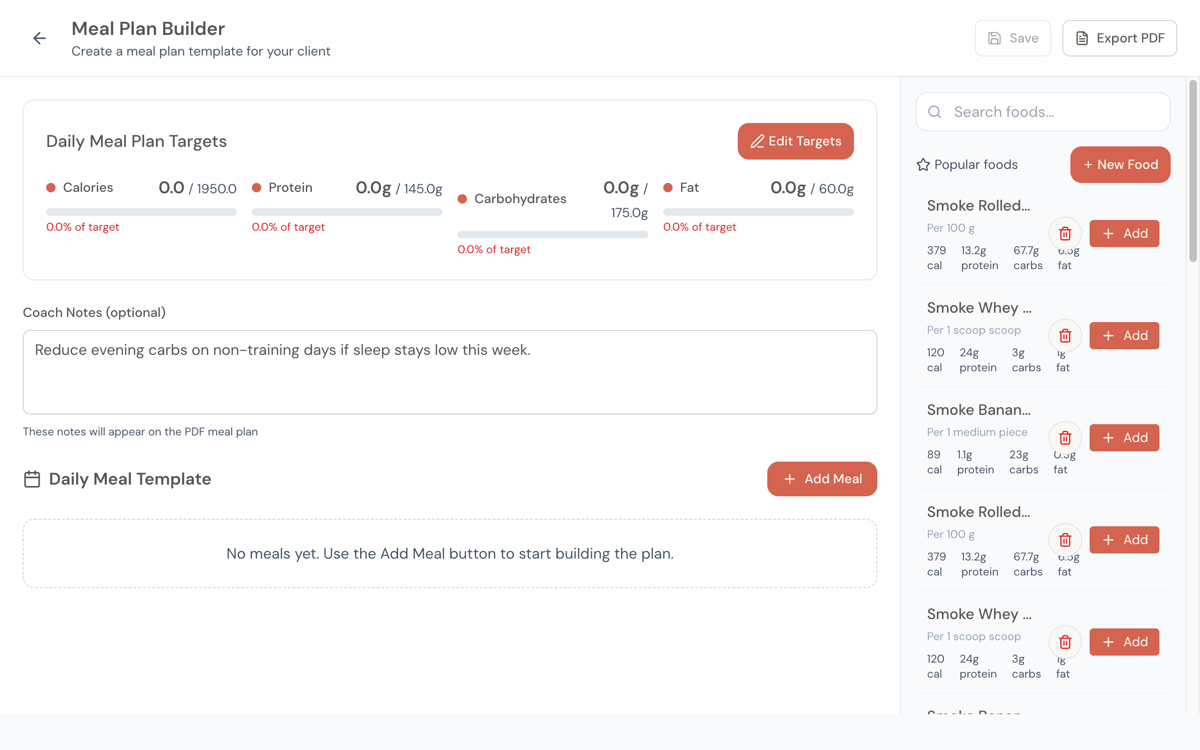
From a client's dashboard, go to the Meal Plans tab and click Create Meal Plan. This opens the meal plan builder in a two-pane layout:
- Left side — Your planning area: nutritional dashboard, coach notes, and meal template
- Right side — Food search panel: find foods, view popular items, or create custom foods
Setting macro targets
At the top of the builder, you'll see the Nutritional Dashboard — a live overview of how your plan stacks up against the targets you've set.
By default, the plan starts with placeholder targets (2,000 calories, 150g protein, 200g carbs, 67g fat). You'll want to customize these for your client.
Click Customize Targets (or Edit Targets if already set) to open the targets modal:
- Daily Calories Target — Total calorie goal
- Protein (grams) — Shows the percentage of total calories
- Carbs (grams) — Shows the percentage of total calories
- Fat (grams) — Shows the percentage of total calories
As you adjust the macros, the modal shows the calculated calorie total from those macros. If it differs from your calorie target by more than 50 calories, you'll see a note pointing out the discrepancy — useful for catching math errors.
Adding meals
Click Add Meal to add a meal to the template. You'll see a menu with common meal types:
- Breakfast, Lunch, Dinner, Snack
- Pre-Workout, Post-Workout
- Tea/Coffee, Brunch, Supplement, Supper, High Tea
- Custom Meal — Create a meal with any name you want
Meals that are already in your plan are greyed out to avoid duplicates. Once added, each meal appears as a collapsible section that you can expand to manage its foods.
You can reorder meals by dragging them via the grip handle on the left side of each meal header. This is useful for arranging meals in the order your client will eat them.
Adding foods to meals
- Select a meal — Click on a meal section to highlight it. You'll see a helper text pointing you to the search panel.
- Search for a food — Type in the search panel on the right. Results appear as you type (after a brief delay for faster performance).
- Click Add — On the food you want. A modal appears letting you:
- Adjust the quantity before adding
- See the calculated calories for that quantity
- Choose which meal to add it to (if you have multiple meals)
The food is added to the selected meal with auto-calculated nutritional values.
When the search panel is empty, it shows your most popular foods — the ones you use most across all meal plans. This saves time for staple items you include regularly.
Adjusting quantities
After adding a food, you can change its quantity directly in the meal section. The nutritional values recalculate in real-time as you type.
The calculation works like this: if a food has 200 calories per 100g serving, and you set the quantity to 150g, it shows 300 calories. All macros scale proportionally.
Removing foods
Click the trash icon next to any food to remove it from the meal. The meal's totals update immediately.
Moving foods between meals
You can drag a food from one meal and drop it into another. The system prevents you from adding the same food to the same meal twice — you'll see a warning toast if you try.
The nutritional dashboard
As you build the plan, the dashboard at the top updates in real-time:
Each macro (calories, protein, carbs, fat) shows:
- Current total vs. target (e.g., "1,850 / 2,000")
- Progress bar — Color-coded: green when you're at 90%+ of target, yellow in the middle range, red when well below, and orange when over
- Percentage of target (e.g., "92.5%")
- Amount over or under (e.g., "-150 cal")
- For macros specifically: the percentage of total calories that macro represents and its calorie contribution (e.g., "32.5% of calories — 650 cal")
This gives you a live scorecard while you build, so you know exactly where you stand at every step.
Coach notes
Below the nutritional dashboard, there's a notes field where you can write instructions or context for your client — things like "Focus on post-workout protein" or "Prep meals on Sunday."
These notes appear on the exported PDF, so your client sees them alongside the plan itself.
Meal-level notes
Each individual meal also has a notes field. Click the notes area in an expanded meal to add meal-specific instructions — like "Eat within 30 minutes of training" for a post-workout meal.
Saving and activating
The builder uses manual save — changes aren't persisted until you click Save. An orange dot on the save button indicates unsaved changes.
After saving:
- Activate the plan from the client's Meal Plans tab (or from the plan card actions). Only one meal plan can be active at a time — activating a new plan deactivates the previous one.
- The active plan becomes visible on the client's portal and available for PDF download.
Duplicating a plan
If you want to create a variation of an existing plan (maybe adjusting macros for a new phase), use the Duplicate action on any plan card. This creates an exact copy — same meals, foods, quantities, and targets — that you can then modify independently.
This is much faster than building from scratch when you're making incremental changes between phases.