Signing out & switching accounts
When you're done coaching for the day — or you just want to step away from a shared computer — here's how to sign out. The steps are slightly different for the coach app and the client app.
Sign out of the coach app
-
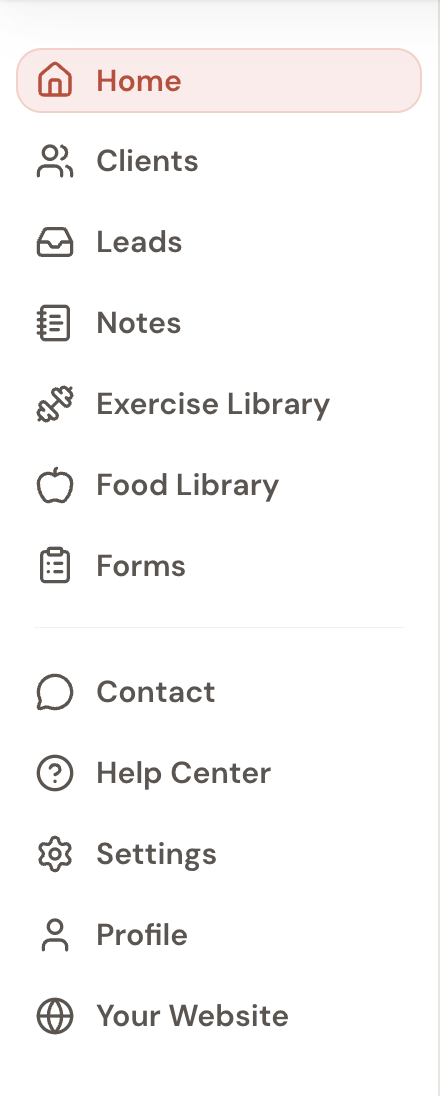
In the left sidebar, look near the bottom for Profile (the person-shaped icon). Click it.
The sidebar shows just icons by default — move your mouse over the sidebar and the labels appear, like in the picture below.
-
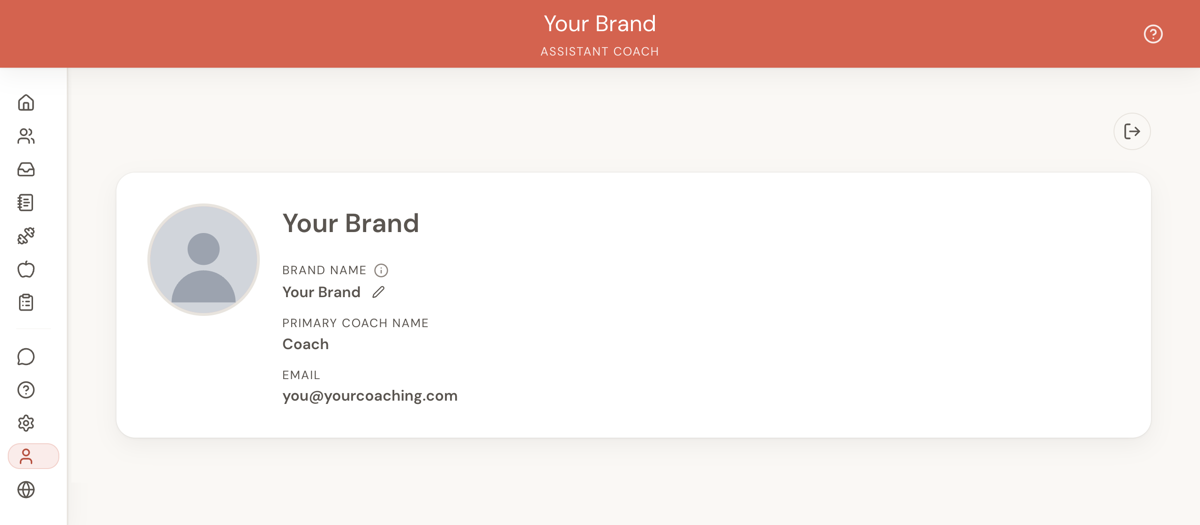
On your Profile page, look at the top-right of the page. You'll see a small door-arrow icon (it looks like an arrow leaving a door). Click it.
-
A pop-up will ask "Are you sure?" — click Sign out to confirm.
You'll land back on the login screen.
Sign out of the client app
If you're a client (or you're testing your own client app), the steps are even shorter:
- Open the client app.
- At the top-right of the screen, next to the gear icon for Settings, you'll see a door-arrow icon. Tap it.
- Confirm by tapping Sign out in the pop-up.
Using a different account
Coach accounts and client accounts are kept completely separate — there's no "switch account" menu inside the app. To use a different account:
- Sign out (using the steps above).
- Sign back in with the email and password for the other account.
Tip: If you're a coach and you also want to look at your own client app (to see what your clients see), open it in a different browser like Safari or Firefox, or use a private/incognito window. That way both accounts can stay signed in at the same time and you don't have to keep signing out and back in.
Using a shared or public computer
Always sign out when you're finished — especially on a friend's laptop, a hotel computer, or anywhere a stranger could open the browser after you. Just closing the browser tab is not the same as signing out — the next person could open Assistant Coach and still be in your account.
Frequently asked questions
Q: Why do I keep getting signed out on my own?
A: For your security, Assistant Coach signs you out automatically after a long period of not using the app. Just sign back in and carry on — nothing is lost.