Resetting or changing your password
There are two situations:
- You forgot your password and can't sign in → see Resetting a forgotten password.
- You're signed in and want to change your password → see Changing your password while signed in.
Resetting a forgotten password
-
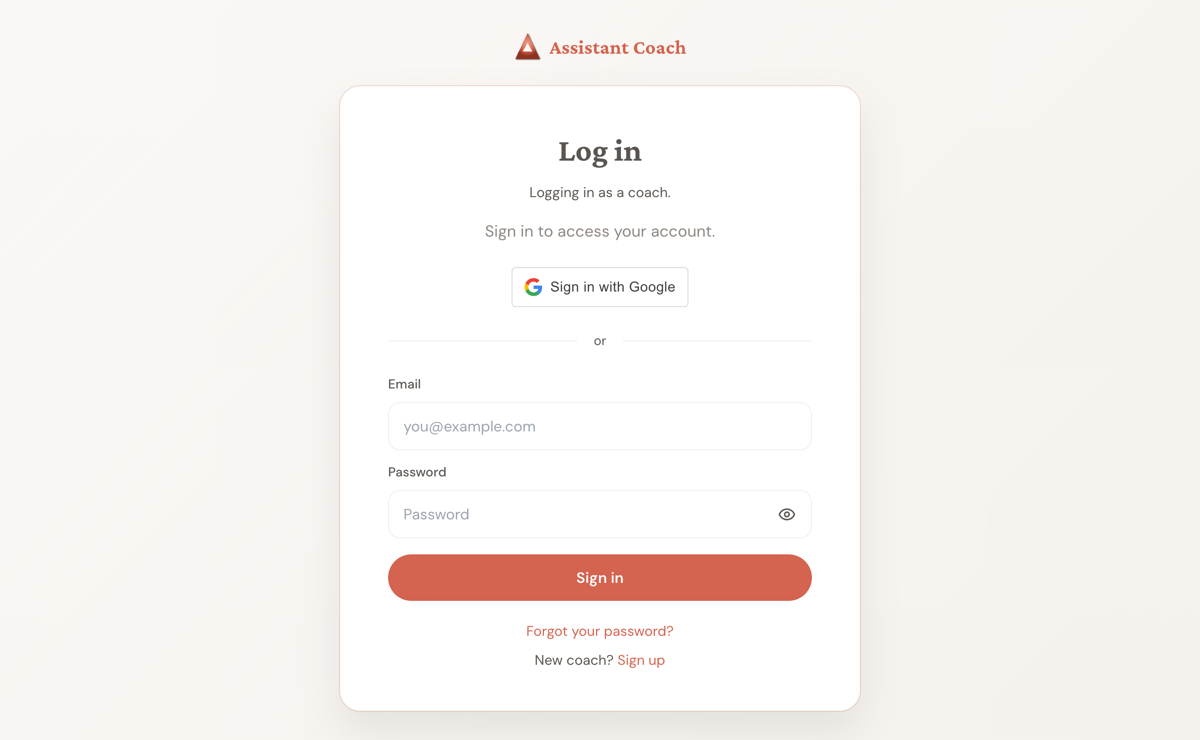
Go to the sign-in page: https://app.assistantcoach.fit/login.
-
Below the email and password fields, click Forgot your password? It's a small link right under the Sign in button.
-
Type the email you signed up with, then click Send reset link.
-
You'll see a "Check your email" message. Open your inbox and look for an email from Assistant Coach with the subject line about resetting your password.
-
Click the reset link in that email. It opens a page where you can set a new password.
-
Type your new password twice (once in New password, once in Confirm new password) and click Reset password.
-
You'll see "Password updated" and be sent back to the sign-in page. Sign in with your new password and you're done.
The reset link only works for 1 hour. If you wait too long, just go back to the sign-in page and request a new one.
Changing your password while signed in
If you remember your current password and just want to change it:
-
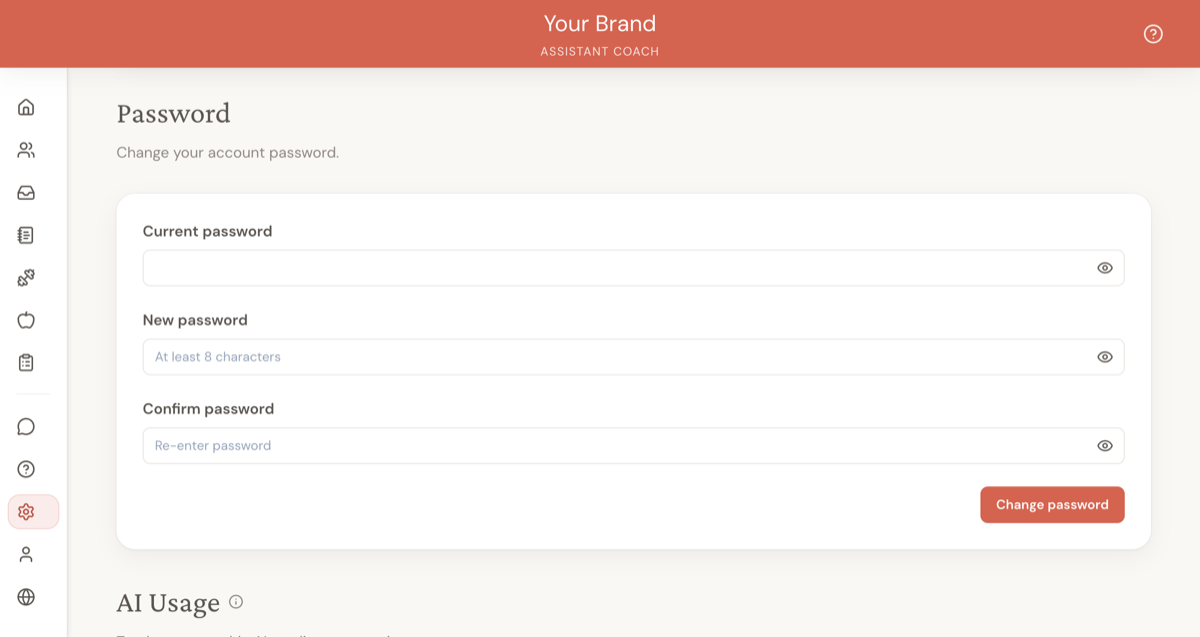
In the left sidebar, click Settings (the gear icon, near the bottom).
-
Scroll down the Settings page until you see a section called Password with the subtitle "Change your account password."
-
Type your current password, then your new password (twice).
-
Click Change password.
You'll see a "Password updated" confirmation. Your new password is active immediately — there's nothing else to do.
If you originally signed in with Google and never set a password, the section will say Add password instead. Filling it in lets you sign in with email-and-password from then on, in addition to Google.
Password rules
- At least 8 characters.
- Anything you can type works — letters, numbers, symbols, spaces. There are no required-symbol or required-number rules.
- Pick something you can remember. A short sentence ("my dog Rufus eats peanut butter") is stronger and easier to remember than a short jumble of symbols.
Frequently asked questions
Q: I didn't get the password reset email.
A: First, check your spam or junk folder — reset emails sometimes land there. If you still can't find it, check the email address you typed (a small typo is the most common cause). If everything looks right, wait a minute and try again — sometimes email is just slow.
Q: My reset link says it has expired or already been used.
A: Reset links work for 1 hour and can only be used once. If yours expired (or you already used it), go back to the sign-in page, click Forgot your password? again, and start over with a fresh link.
Q: I get "Current password is incorrect" when changing my password.
A: That's the password you currently sign in with — not the new one you're trying to set. If you don't remember your current password, sign out and use the forgot-password flow instead.
Q: I don't see a Password section in Settings.
A: Email-and-password sign-in is rolling out gradually, so the section may not be available on every account yet. In the meantime, you can still reset your password by signing out and clicking Forgot your password? on the sign-in page.