Client Workout Logging
When you activate a workout plan for a client, they can log workouts directly from their portal. Every set, rep, and weight is tracked in real time — and you can review it all from your dashboard.
Starting a workout
On the client portal home page, the active workout plan's sessions appear as cards. A smart suggestion highlights the next session based on completion history, with a "last done X days ago" label for context.
Tapping a session opens a pre-workout overview showing:
- Session name and type (e.g., "Upper Body — Strength")
- All exercises with prescribed targets (sets, reps, weight notes)
- YouTube demo links for exercises that have them
- Estimated session duration
Tapping Start Workout enters full-screen workout mode.
Only one workout can be in progress at a time. If the client tries to start a second workout, they'll be prompted to finish or abandon the current one first.
Workout mode
Workout mode is a dark-themed, full-screen interface optimized for gym use. The screen stays awake automatically while the workout is active.
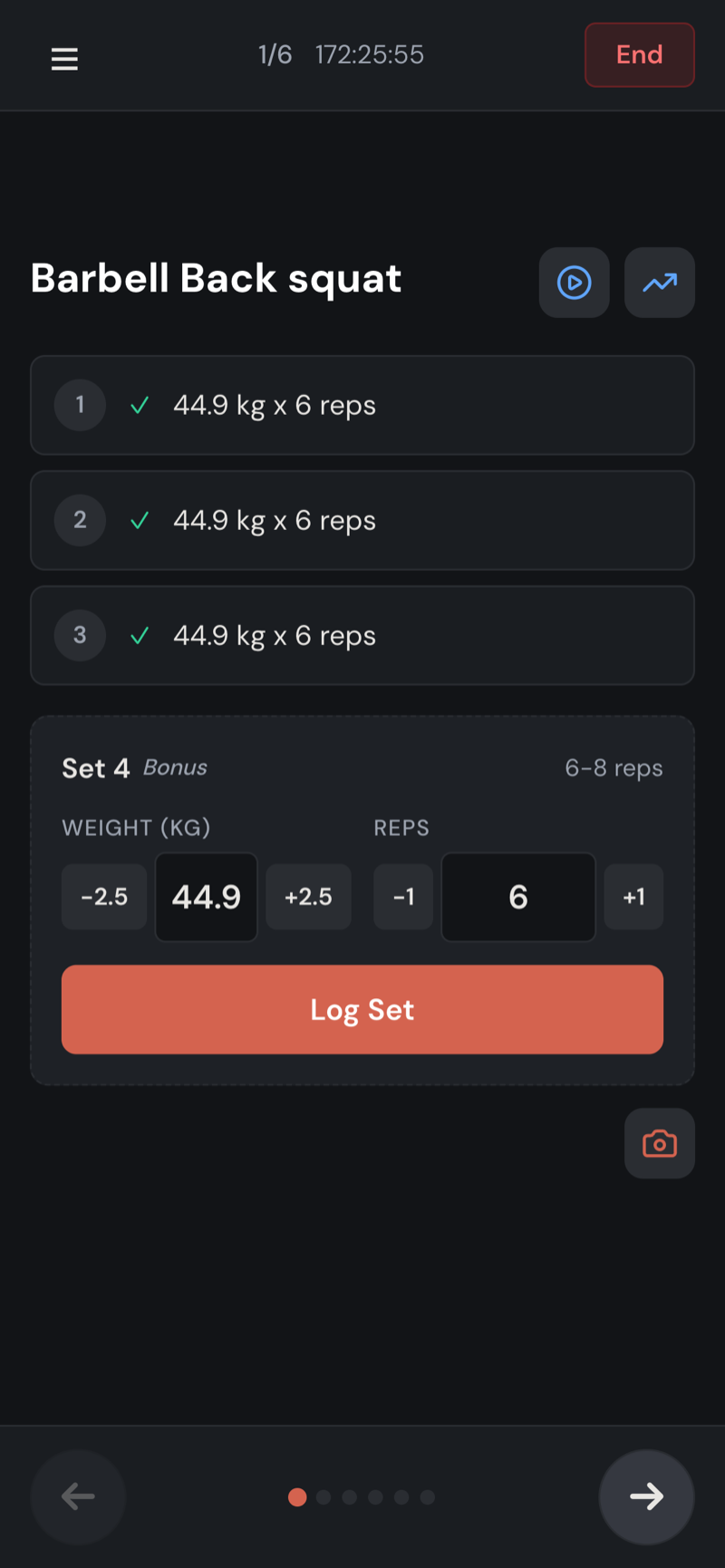
Navigating exercises
- Swipe left/right to move between exercises
- Tap the menu icon (☰) to open the exercise drawer — a list of all exercises with completion status, checkmarks, and set counts
- Exercises can be done in any order — the client doesn't have to follow the prescribed sequence
Logging sets
The logging interface adapts to the exercise type:
Weighted exercises (bench press, squats, etc.)
- Weight and reps fields
- Smart pre-fill: Set 1 is pre-filled from the client's last session for this specific exercise — so they immediately see what they lifted last time. Sets 2+ carry forward from the previous set in the current session, so they only adjust when something changes.
- Quick-adjust buttons: ±5 for weight, ±1 for reps
- Tap the value to type a specific number
Bodyweight exercises (pull-ups, push-ups, etc.)
- Reps field, with optional "added weight" toggle for weighted variations
- Same smart pre-fill behavior
Duration exercises (planks, wall sits, etc.)
- Built-in stopwatch: tap Start to time, Stop when done
- Manual duration override available
- Set-based structure (e.g., 3 × 30s)
Cardio exercises (running, rowing, cycling, etc.)
- Single log entry per exercise (no sets)
- Fields vary by cardio type — duration, distance, calories, split time, resistance level
- Pace auto-calculated and displayed
Extra sets and skipping
Clients can log more sets than prescribed — these appear as "bonus" sets. They can also skip exercises entirely or complete fewer sets than planned.
Rest timer
After logging a set, a full-screen rest timer appears automatically. It uses the rest period configured for that exercise.
- Large countdown display (readable from a distance)
- ±15 second adjustment buttons
- "I'm Ready" button to skip the rest
- Shows what's coming next: "Next: Set 3 of 4"
- Vibration or audio alert when time's up
Adding exercises mid-workout
If a client wants to do an exercise that's not in their plan (e.g., throwing in some ab work), they can:
- Open the exercise drawer (☰)
- Tap + Add Exercise at the bottom
- Search your exercise library by name, muscle group, or equipment
- Tap an exercise to add it
Added exercises appear in the drawer with an "Added" badge. Sets logged for added exercises are marked separately so you can distinguish them from prescribed work when reviewing.
Exercise search requires an internet connection since it queries your exercise library. If the client is offline, they'll see an error message in the search overlay.
Ending a workout
Tapping End presents two options:
- Complete — Marks the workout as finished
- Abandon — Marks it as incomplete (useful if the client has to leave early)
Either way, all logged sets are preserved.
Session summary
After completing a workout, a summary screen shows:
- Session name and date
- Total duration
- Exercises completed vs. total
- Sets completed vs. prescribed
- Total volume (sets × reps × weight)
- Personal records hit during the session (highlighted with previous PR comparison)
- Optional session note field — "How did it feel?"
Workout history
Clients can view their past workouts from the Workout History page. Each card shows:
- Session name and date
- Duration and total volume
- Completion percentage
- Status badge (Completed / Incomplete)
- Coach feedback (if you've provided any)
Tapping a workout shows the full set-by-set breakdown, including any exercises the client added and any coach feedback.
Exercise trend graphs
From workout history, clients can view per-exercise performance trends:
- Weight — Best weight per session over time
- Volume — Total volume per session
- Estimated 1RM — Calculated using the Epley formula
Personal records
The system automatically detects personal records per exercise and rep count. When a client hits a new PR, it's highlighted in the session summary and visible in workout history.
PRs are tracked accurately — editing or deleting historical sets triggers a recomputation so records are always correct.
Crash-proof resume
Every set is saved to the device the moment it's logged. If the app closes mid-workout — phone dies, accidental swipe, browser crash — nothing is lost. When the client reopens the portal, they're prompted to resume exactly where they left off.
This works whether they're online or offline. No "remember to save" needed.
Offline support
Workout logging works fully offline. If the client loses signal in a basement gym, logging continues as normal.
- Offline: A small "Offline — Saved locally" banner appears. All sets are saved to the device.
- Reconnecting: Data syncs automatically when connectivity returns.
Goal integration
If a client has goals tied to specific exercises (e.g., "Bench Press 100 kg" or "Pull-ups 15 reps"), workout logging updates those goals automatically.
When a workout is completed, the system checks every logged exercise against active goals. If the client hit a new best for a tracked metric, the goal's current value updates — no manual entry needed. Progress only moves forward; a lighter session won't regress a goal.
Unit preferences
Clients choose their preferred units in portal settings:
- Weight: kg or lbs
- Distance: km or miles
All values are stored in metric (kg, meters) and converted for display based on the client's preference.